This guide provides step-by-step instructions for creating and sending a Monthly Practice Newsletter using the Email Campaigns feature in Practice Autopilot. Follow each step in order to ensure your newsletter is set up correctly and delivered to your patients.
Step 1: Navigate to Email Marketing
From the left-hand sidebar, click on Marketing. This will open the Marketing section. In the top navigation bar that appears, click on Emails to access the Email Marketing area.
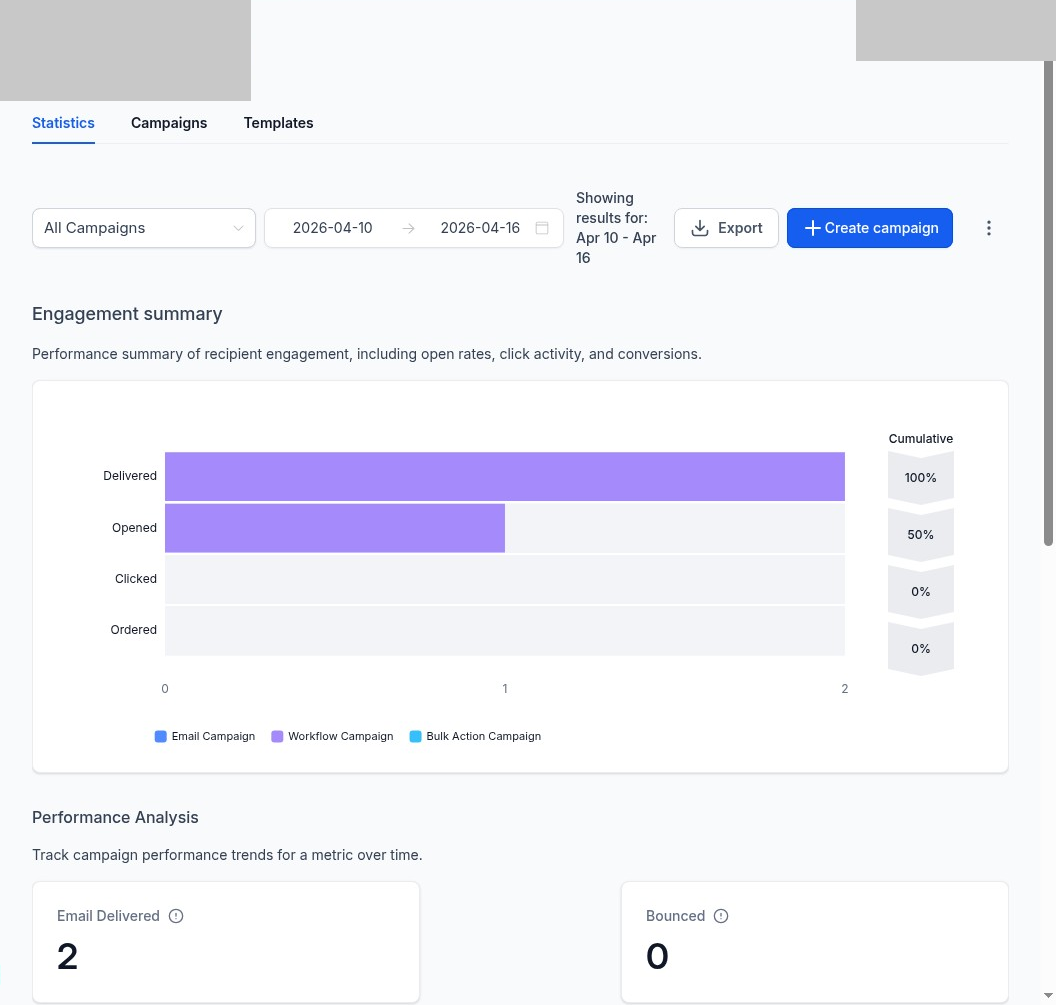
You will land on the Statistics tab, which provides an overview of your campaign performance including delivery rates, open rates, and click activity.
Step 2: Open the Campaigns Tab
Click on the Campaigns tab in the top navigation bar (next to Statistics and Templates).
On the left-hand side, ensure Email Campaigns is selected (highlighted in blue). You will see a list of your existing campaigns and folders, including the Monthly Newsletter folder.
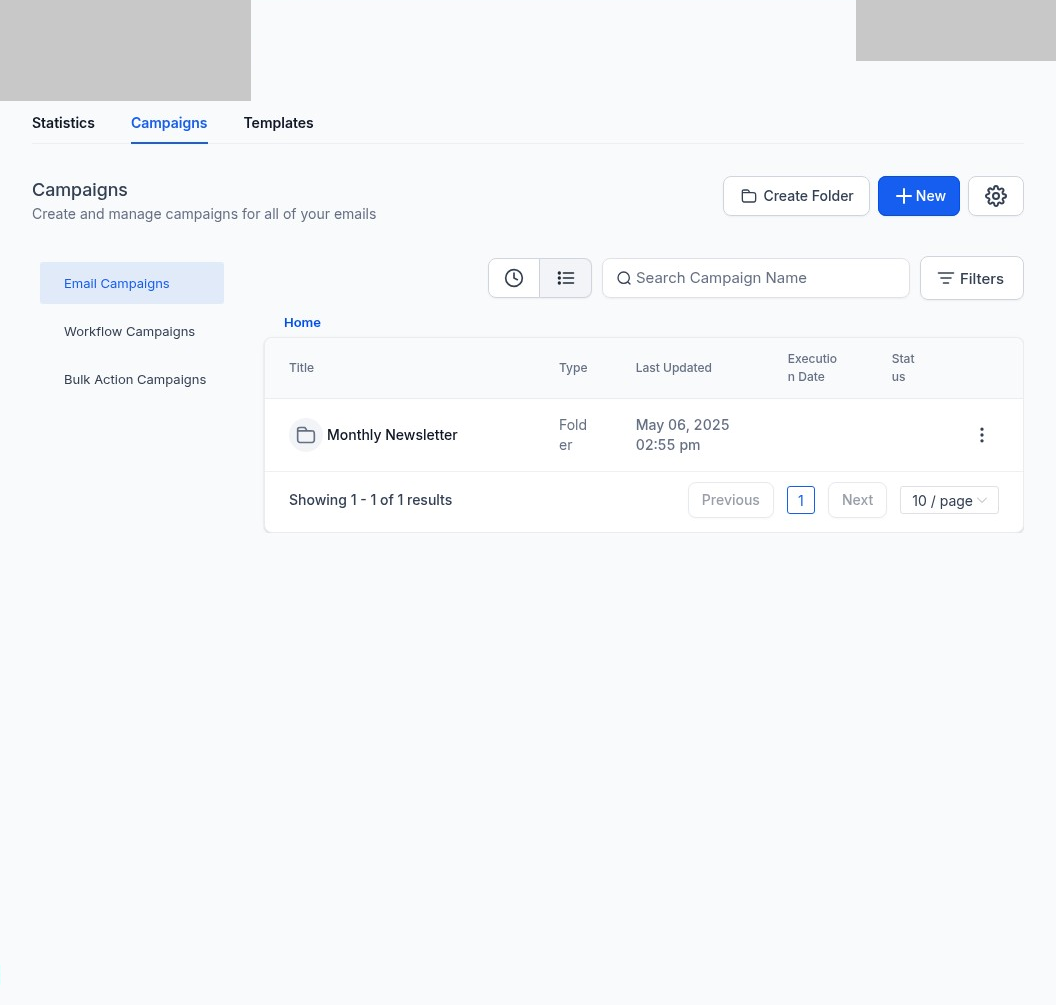
Note: The Monthly Newsletter folder is where all your monthly newsletter campaigns are stored. You can click into this folder to view previously sent newsletters.
Step 3: Create a New Campaign
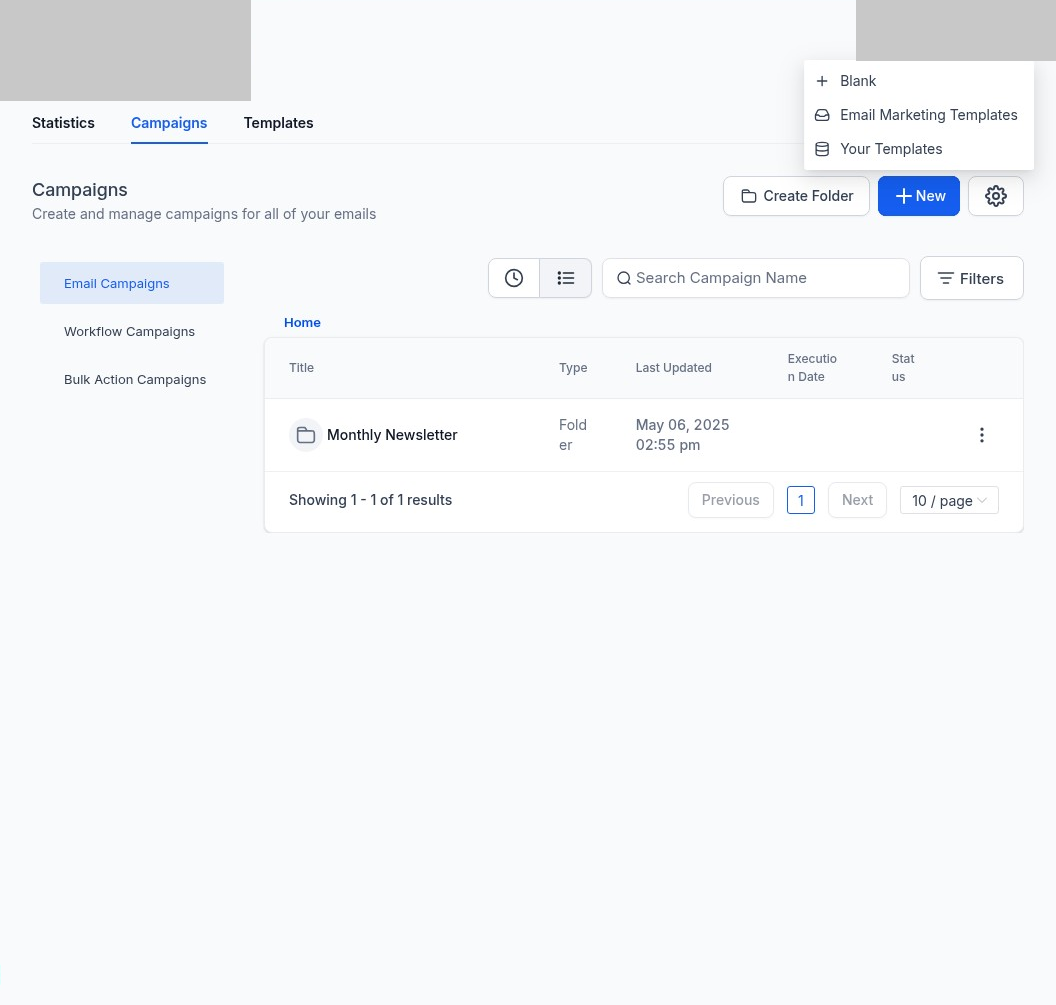
Click the blue + New button in the top right corner of the Campaigns page. A dropdown menu will appear with three options:
•Blank — Start from scratch with an empty template.
•Email Marketing Templates — Choose from a library of pre-built templates.
•Your Templates — Use a template you have previously created and saved.
Select Your Templates to use the pre-built Foot Medic Monthly Newsletter template.
Step 4: Select the Newsletter Template
You will be taken to the Choose Templates page. This page lists all your saved email templates.
Locate the template named Foot Medic Monthly Newsletter in the list. Click on it to select it, or hover over it and click the Select button that appears.
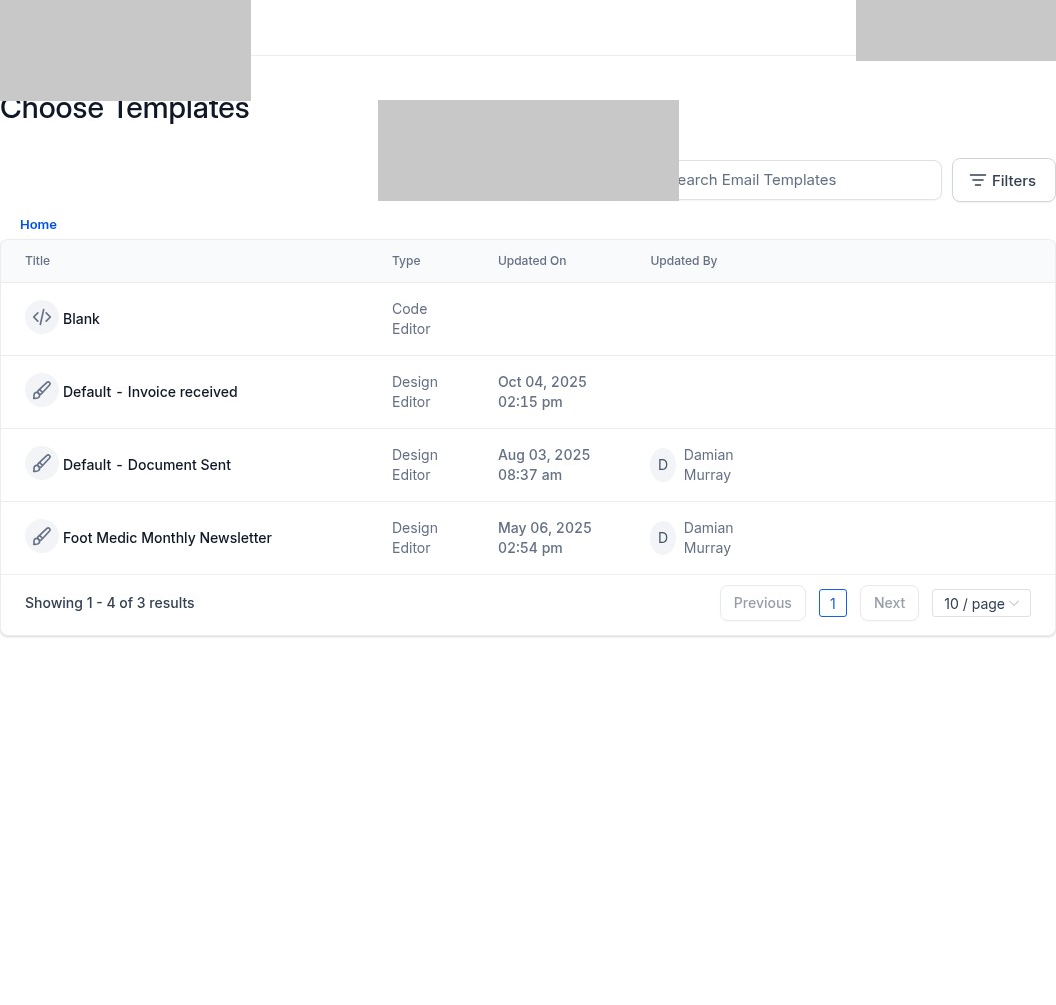
Tip: The template was created using the Design Editor and was last updated in May 2025. It contains your practice’s branded newsletter layout, ready for you to update with this month’s content.
Step 5: Edit Your Newsletter Content
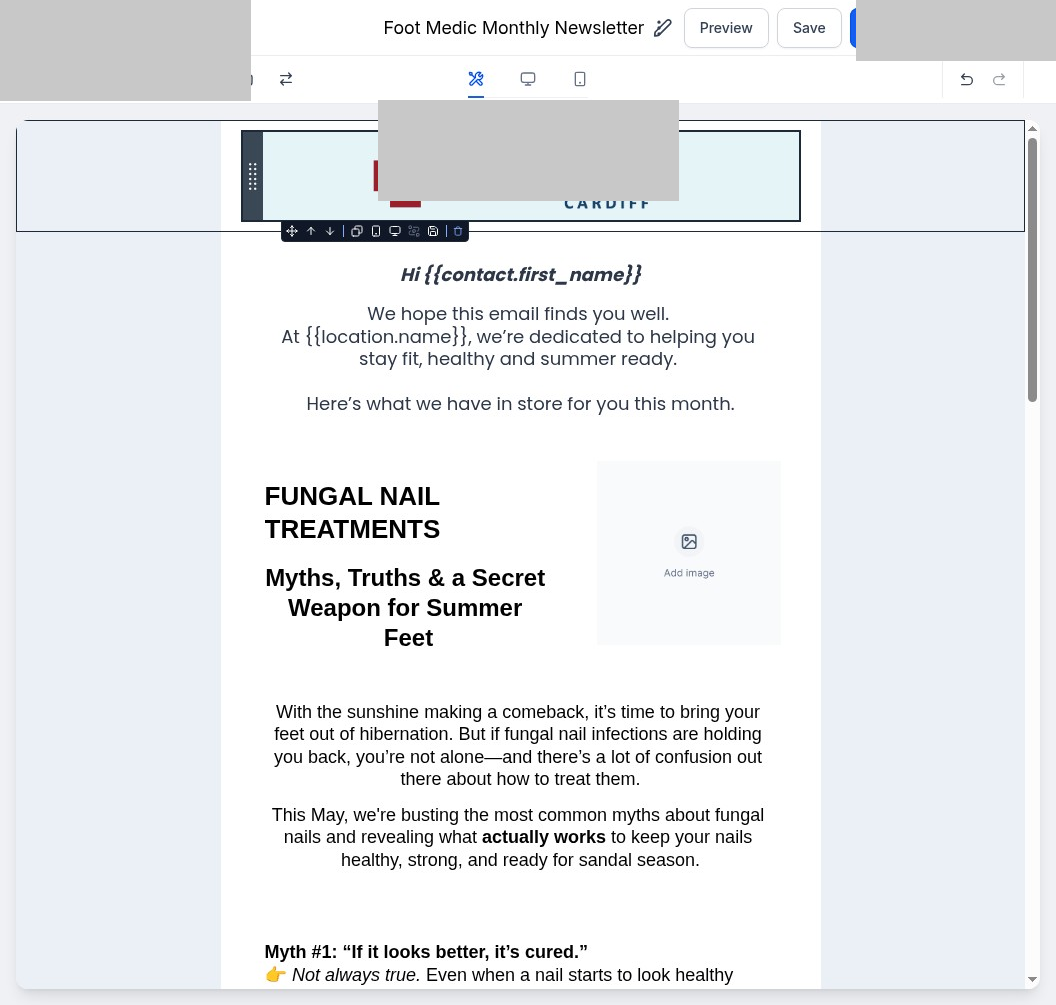
After selecting the template, the Email Editor will open with the newsletter layout pre-loaded. The editor shows a live preview of your email on the right, with editing tools on the left.
You can now customise the content for this month’s newsletter:
•Click on any text block to edit the text directly. Update headings, body copy, and any promotional content to reflect this month’s news and offers.
•Click on image placeholders (marked “Add image”) to upload new images relevant to this month’s content.
•Use the toolbar at the top of the editor to add new elements, manage layout, or switch between desktop and mobile preview.
Once you are satisfied with your newsletter content, click the Save button in the top right corner to save your changes.
Important: Always save your work before proceeding to the next step. The editor has an autosave feature, but it is best practice to save manually before sending.
Step 6: Configure Sending Settings
Once your content is ready and saved, click the blue Send or Schedule button in the top right corner of the editor. This will take you to the Schedule page where you configure all sending details.
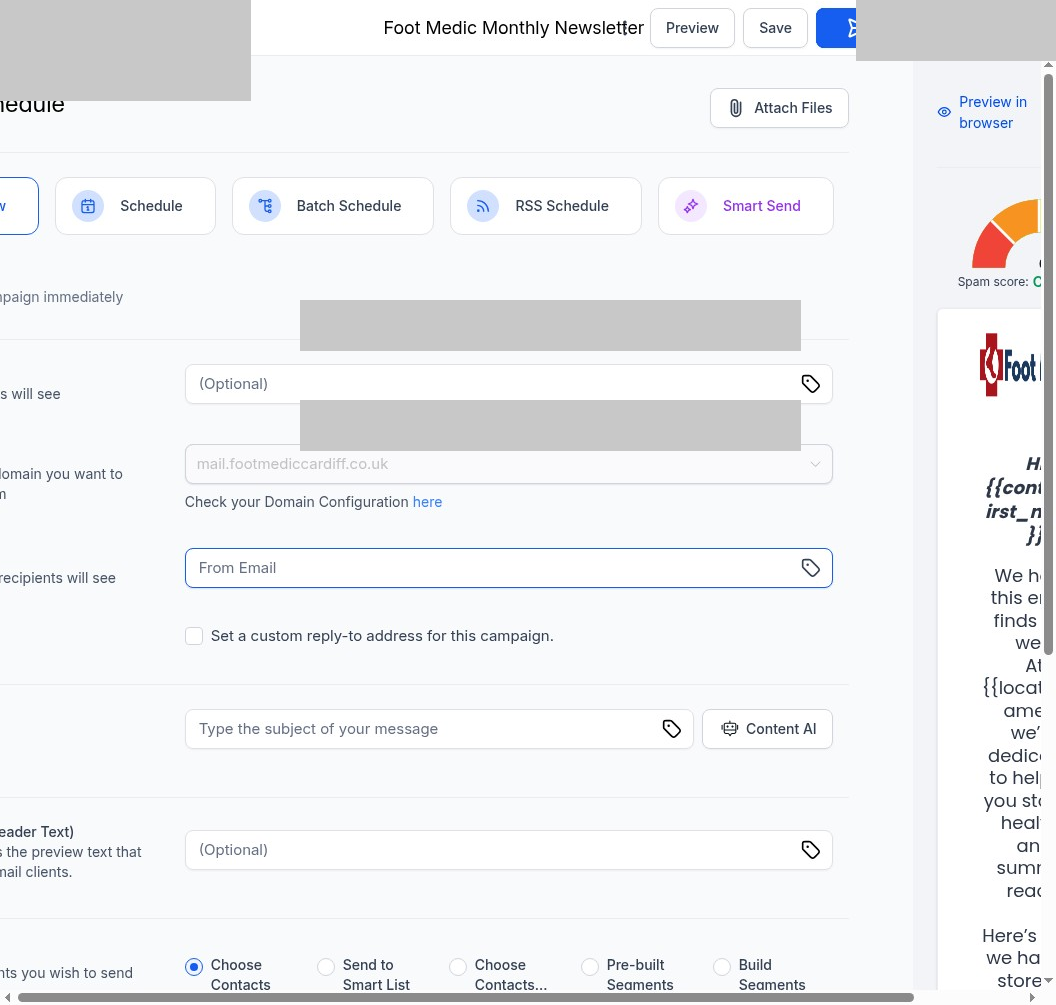
Fill in the following fields:
| Field | Description | Example |
| From Name | The name recipients will see as the sender | Your Clinic Nme |
| Sending Domain | The domain your email is sent from | mail.yourclinic.com |
| From Email | The email address the campaign is sent from | info@yourclinic.co.uk |
| Subject Line | The subject line recipients will see in their inbox | May Newsletter — Summer Foot Care Tips |
| Preview Text (Optional) | A short preview shown in email clients below the subject | This month: fungal nail myths busted |
Choose Your Recipients
Under “Contacts you wish to send to”, select how you want to target your audience:
•Choose Contacts — Manually select individual contacts.
•Send to Smart List — Send to a pre-defined Smart List (recommended for newsletters).
•Choose Contacts… — Filter by tags or other criteria.
•Pre-built Segments — Use system-defined audience segments.
•Build Segments — Create a custom audience segment on the fly.
For a monthly newsletter, it is recommended to use Send to Smart List and select your Newsletter Subscribers or All Active Patients list.
Step 7: Choose Your Sending Method
At the top of the Schedule page, you will see four sending method tabs:
| Method | Description |
| Send Now | Sends the campaign immediately after clicking Review and Send |
| Schedule | Set a specific date and time for the campaign to be sent |
| Batch Schedule | Sends the campaign in batches over a defined time period to avoid spam filters |
| RSS Schedule | Automatically sends campaigns triggered by RSS feed updates |
| Smart Send | Uses AI to determine the optimal send time for each recipient |
For a monthly newsletter, it is recommended to use Schedule to set a specific date and time (e.g., the first Tuesday of each month at 9:00 AM).
Step 8: Review and Send
Once all fields are completed and your sending method is configured, click the blue Review and Send button (or Schedule if you have selected a future date and time).
You will be shown a final review screen summarising your campaign details. Confirm everything is correct and click Send (or Confirm Schedule) to dispatch your newsletter.
Summary
The table below provides a quick reference for the entire process:
| Step | Action | Location |
| 1 | Navigate to Marketing > Emails | Left sidebar |
| 2 | Click the Campaigns tab | Top navigation |
| 3 | Click + New > Your Templates | Top right button |
| 4 | Select Foot Medic Monthly Newsletter | Choose Templates page |
| 5 | Edit content and save | Email Editor |
| 6 | Click Send or Schedule | Top right button in editor |
| 7 | Fill in From Name, From Email, Subject Line | Schedule page |
| 8 | Choose recipients and sending method | Schedule page |
| 9 | Click Review and Send | Schedule page |