This guide will take you through the steps to download and edit a email newsletter template to reflect your brand and message.
PREREQUISITES
It is advisable that you have completed this step before following this guide:
1. Created your Brand Board - if not completed, follow this guide first (and return back) >> https://helpdesk.practiceautopilot.co.uk/support/solutions/articles/10000003781-settings-set-up-brand-boards
GUIDE OVERVIEW
| We will be using the NEWSLETTER (Summer) Podiatry & Foot Health template for this example although the same principles apply to any email template in Autopilot. Follow the video below and / or the Step By Step instructions below. | 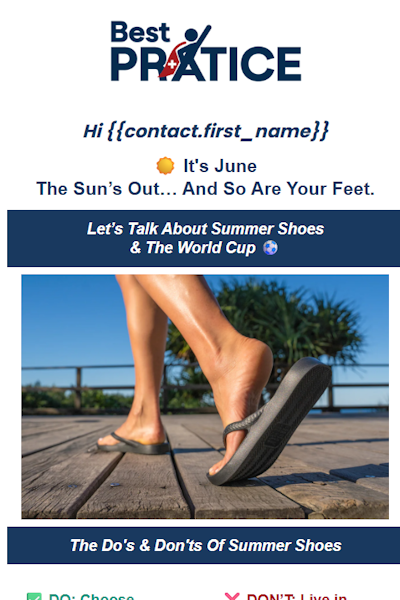 |
VIDEO GUIDE
STEP-BY-STEP GUIDE
- Go to Marketing.
- Select Emails.
- Click Templates.
- Select New.
- Choose Email Marketing Templates.
- Pick the template you want to use, for example the June / Summer template.
- Replace the header logo with your own practice logo from the Media Library.
- Replace the footer logo in the same way.
- Update the colours to match your practice branding.
- Edit the text sections to suit your clinic, services and opening hours.
- Check any personalised fields, such as:
- Contact first name
- Clinic phone number
- Location name
- Update the booking buttons.
- For online booking links, use Custom Values and select your Cliniko Booking URL.
- Add a section with recent 5-star Google reviews.
- Save the template.
- Preview the email using a test contact to make sure the personalisation works correctly.
- Go back to the builder and make any final edits.
- Save the finished template.
19. Your template is now ready to use in future email campaigns.
Was this article helpful?
That’s Great!
Thank you for your feedback
Sorry! We couldn't be helpful
Thank you for your feedback
Feedback sent
We appreciate your effort and will try to fix the article