This step-by-step guide will show you how to use the Marketing feature in Practice Autopilot to create and publish posts across all your connected social media channels (Facebook, Instagram, Google Business Profile, etc.) simultaneously.
Step 1: Navigate to the Social Planner
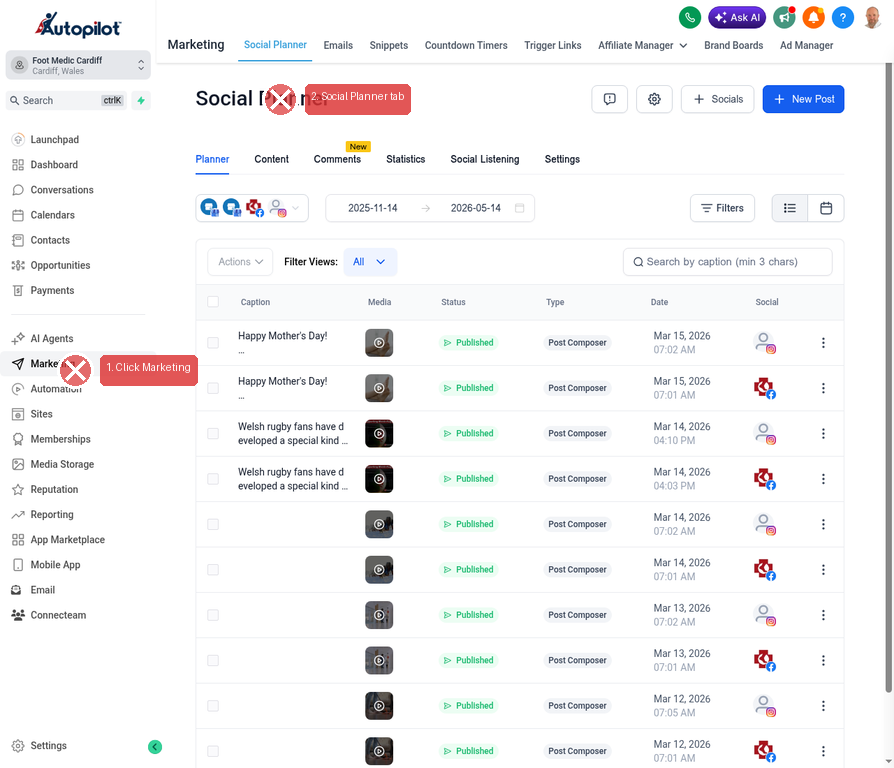
1.From the main dashboard, look at the left-hand sidebar menu.
2.Click on Marketing.
3.At the top of the Marketing page, ensure you are on the Social Planner tab.
Step 2: Connect Your Social Accounts (If Needed)
Before you can post, you need to ensure your social media accounts are connected to Practice Autopilot.
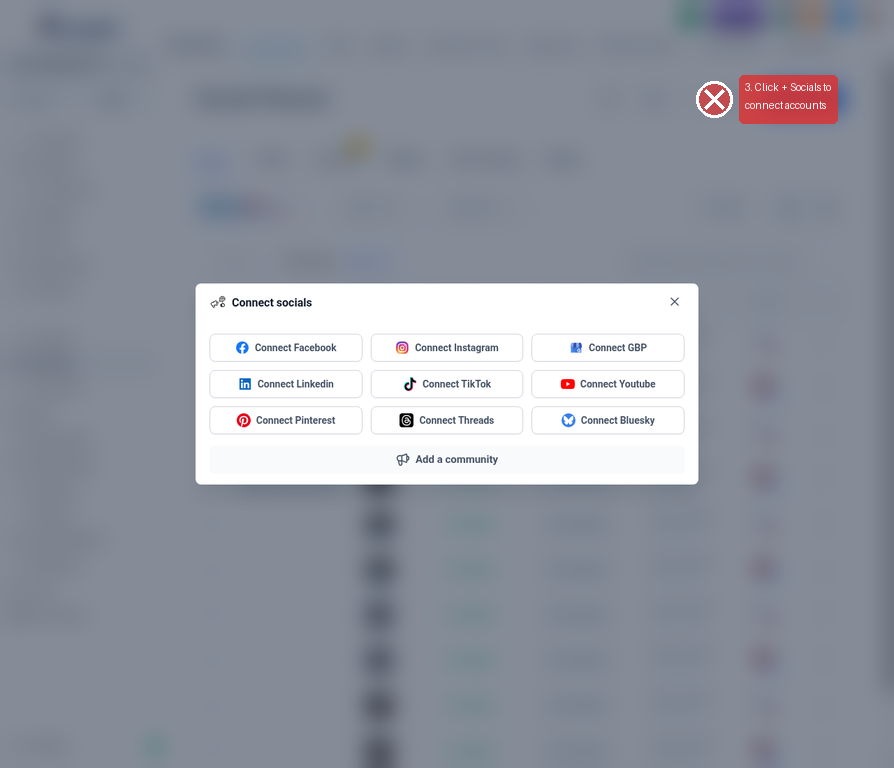
1.On the Social Planner dashboard, click the + Socials button near the top right.
2.A modal will appear allowing you to connect Facebook Pages, Facebook Groups, Instagram Business accounts, Google Business Profiles, LinkedIn, TikTok, and X (Twitter).
3.Follow the prompts to connect any missing accounts.
Step 3: Start a New Post
Once your accounts are connected, you’re ready to create a post.
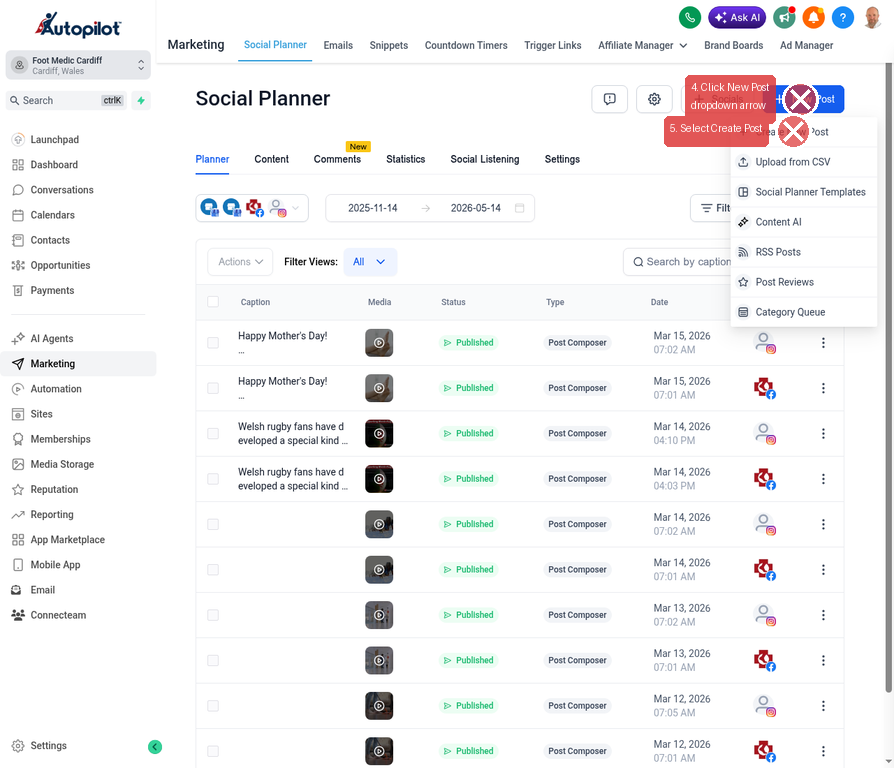
1.Click the New Post button (or the dropdown arrow next to it) in the top right corner.
2.Select Create Post from the dropdown menu.
Step 4: Open the Post Composer
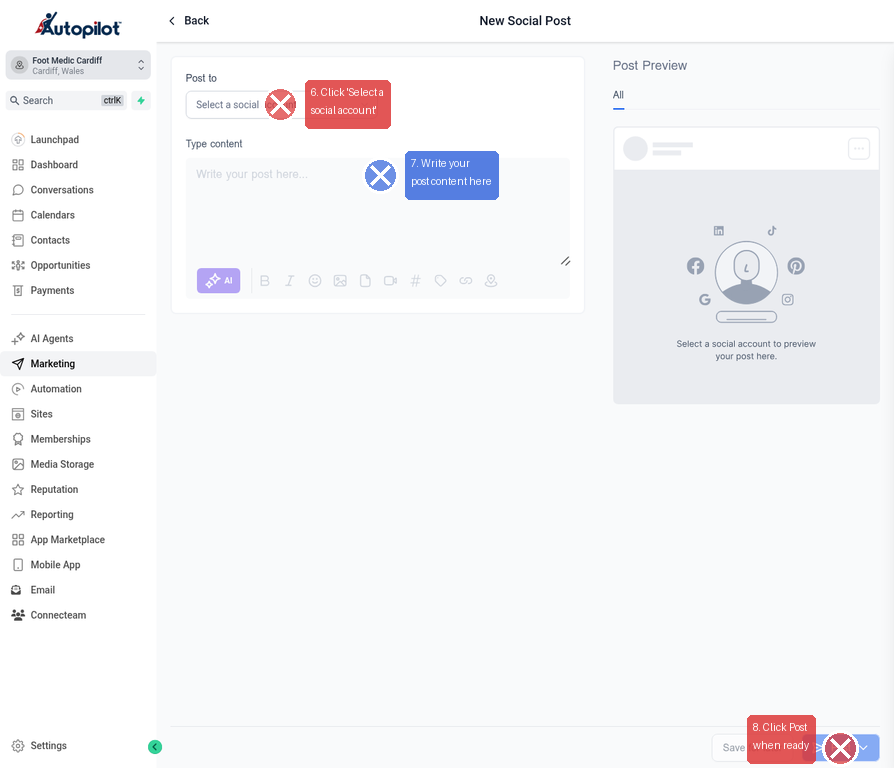
You are now in the New Social Post composer. This is where you will craft your message and select where it goes.
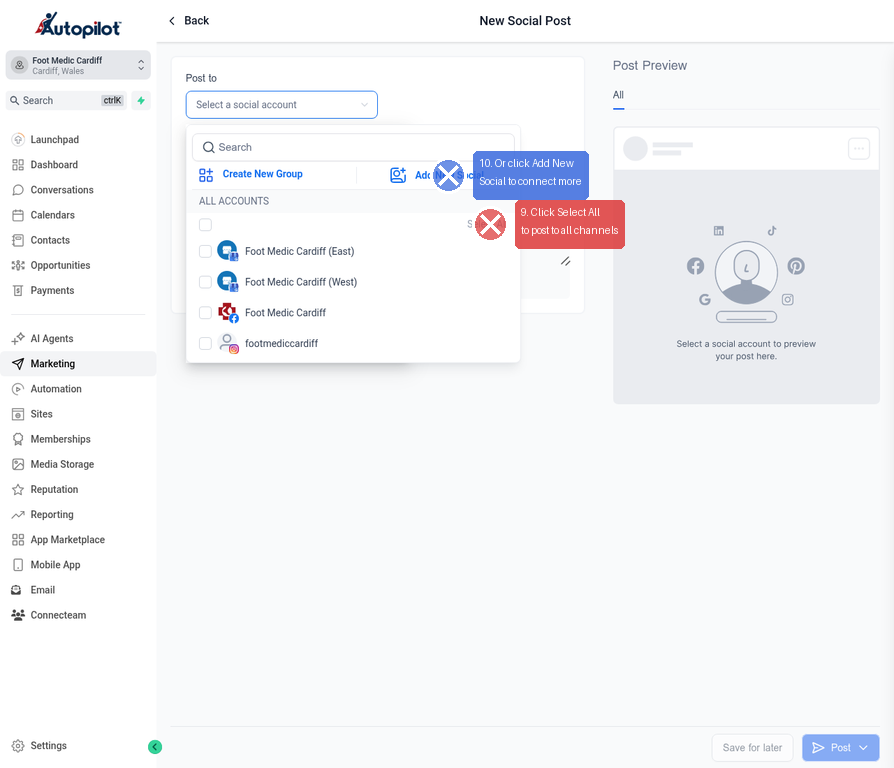
1.Click the Select a social account dropdown box at the top left of the composer.
Step 5: Select Your Target Accounts
A dropdown menu will appear showing all your connected social media accounts and groups.
1.To post to every connected channel at once, click Select All on the right side of the dropdown.
2.Alternatively, you can click individual accounts to select only specific ones.
3.If you realize you need to add another account, you can click Add New Social directly from this menu.
Step 6: Confirm Account Selection
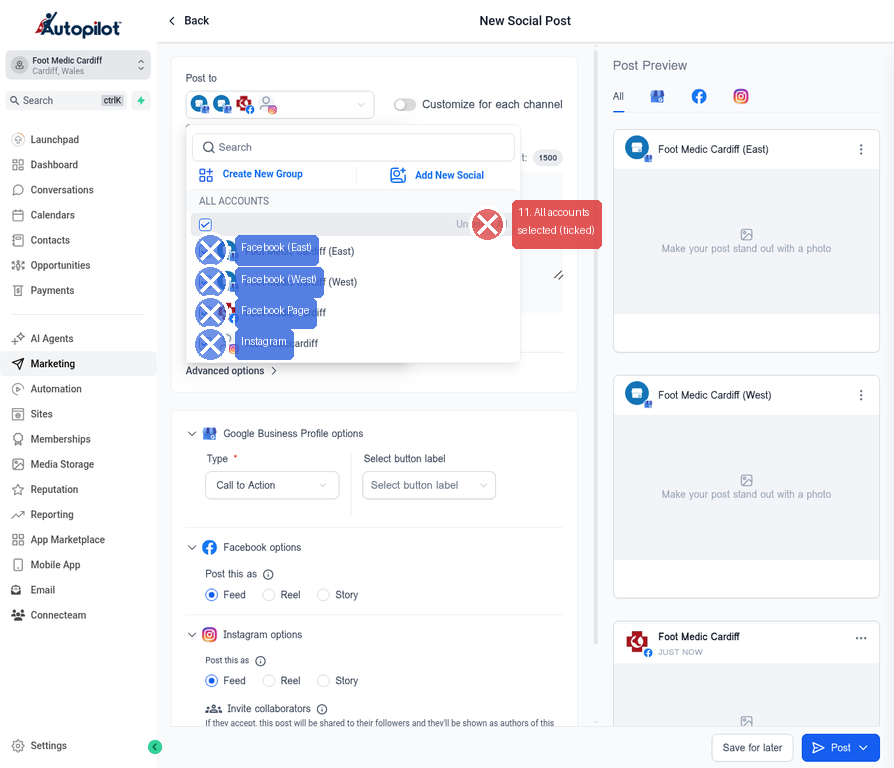
1.Once you click Select All, you will see blue checkmarks next to all your connected accounts (e.g., Facebook Pages, Instagram, Google Business Profile).
2.Click anywhere outside the dropdown menu (or press Escape) to close it and return to the composer.
Step 7: Craft Your Post and Customize Options
Now it’s time to write your post and adjust channel-specific settings.
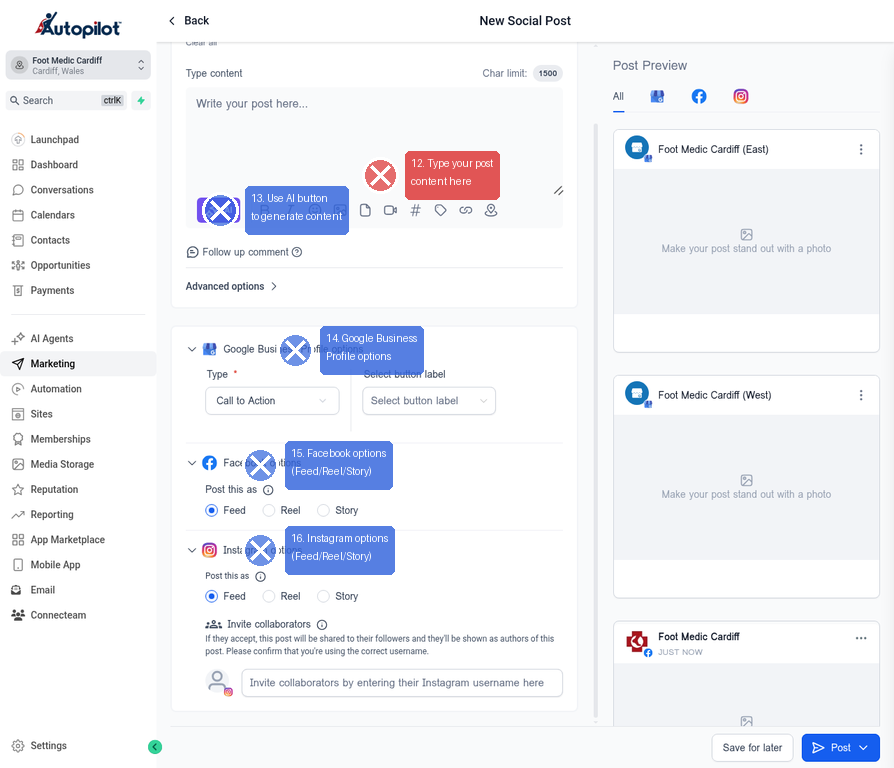
1.Type your content: Enter your post text in the main text box.
2.Use AI (Optional): Click the AI button (sparkles icon) if you want Practice Autopilot’s AI to help generate or refine your post content.
3.Add Media: Use the icons below the text box to attach images or videos.
4.Customize by Channel: Scroll down to see Advanced options. Here you can set specific parameters for different platforms:
•Google Business Profile: Select a “Call to Action” button type (e.g., Learn More, Book, Order) and add a link.
•Facebook: Choose whether to post as a Feed post, Reel, or Story.
•Instagram: Choose whether to post as a Feed post, Reel, or Story.
Step 8: Choose Your Posting Option
When your post is ready, you have several options for publishing it.
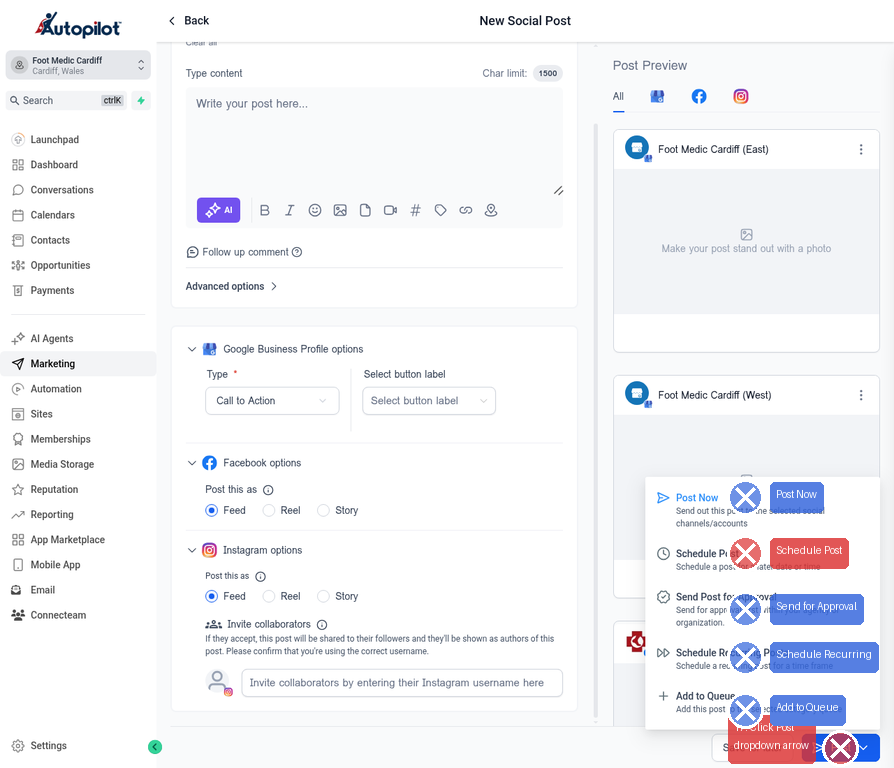
1.Click the dropdown arrow next to the blue Post button in the bottom right corner.
2.You will see several options:
•Post Now: Publish the post immediately to all selected channels.
•Schedule Post: Pick a specific future date and time to publish.
•Send for Approval: Send the draft to a team member for review before publishing.
•Schedule Recurring Posts: Set the post to repeat at regular intervals.
•Add to Queue: Add the post to a pre-defined content queue.
Step 9: Schedule Your Post (Example)
If you chose Schedule Post in the previous step:
1.A calendar modal will appear.
2.Pick a date: Click on the desired date on the calendar.
3.Set the time: Use the time selectors at the bottom to choose the exact hour and minute for publication.
4.Click the blue Schedule Post button to confirm.
Your post is now scheduled and will automatically go out to all selected social media channels and Google at the specified time!