Welcome to the Practice Autopilot Quick Add Features Guide. This guide will walk you through the various tools available in the Quick Add panel of the website builder, using the Optometrist site as an example. The Quick Add panel is your primary toolkit for rapidly building and customizing your website pages.
Accessing the Quick Add Panel
To access the Quick Add features:
1.Open your website in the Practice Autopilot page builder.
2.Look for the Add Elements button (a plus icon +) in the top-left toolbar.
3.Click this button to open the Quick Add panel on the left side of your screen.
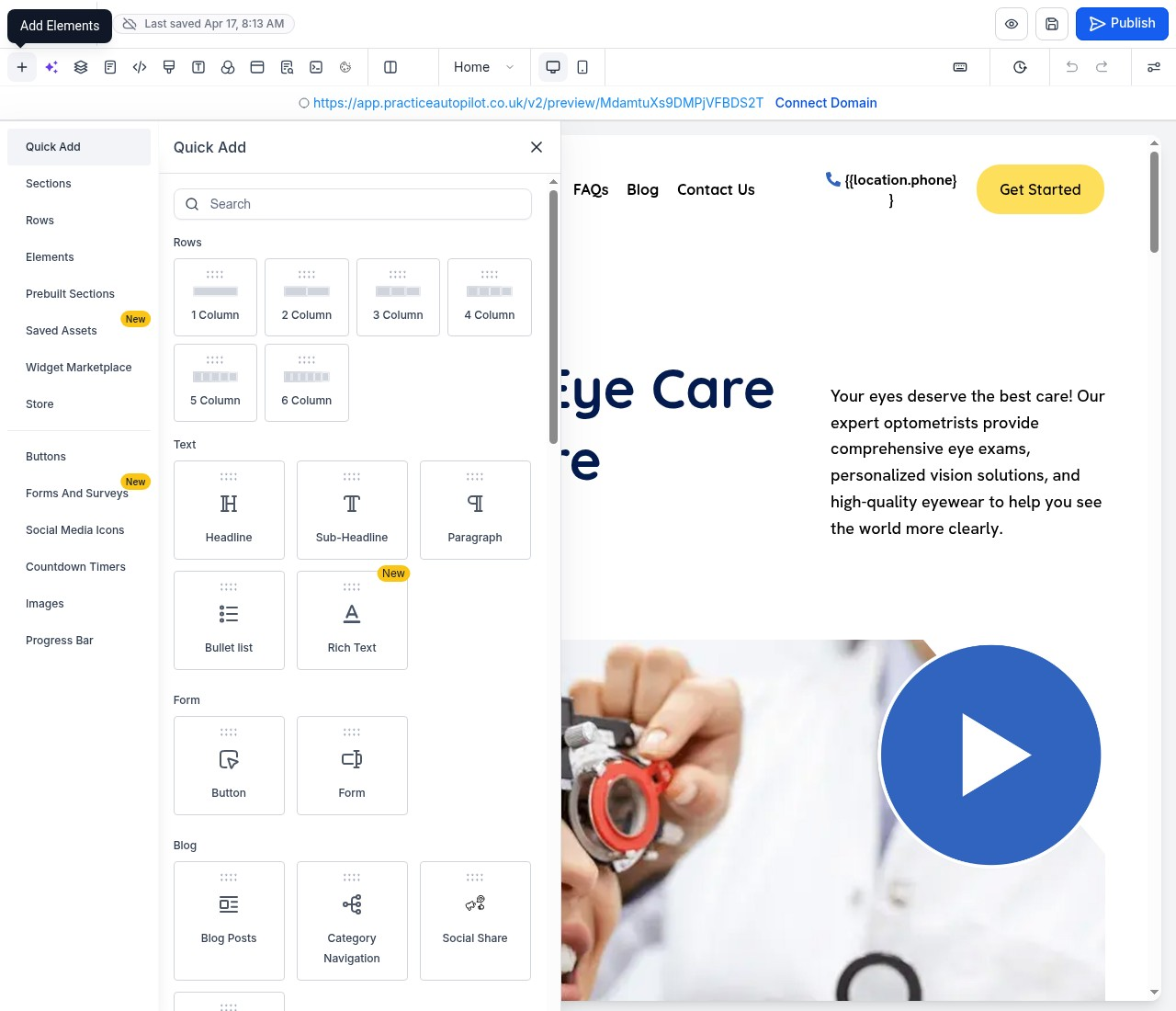
Once opened, you will see the main Quick Add panel, which is divided into several categories to help you find the right elements for your page.
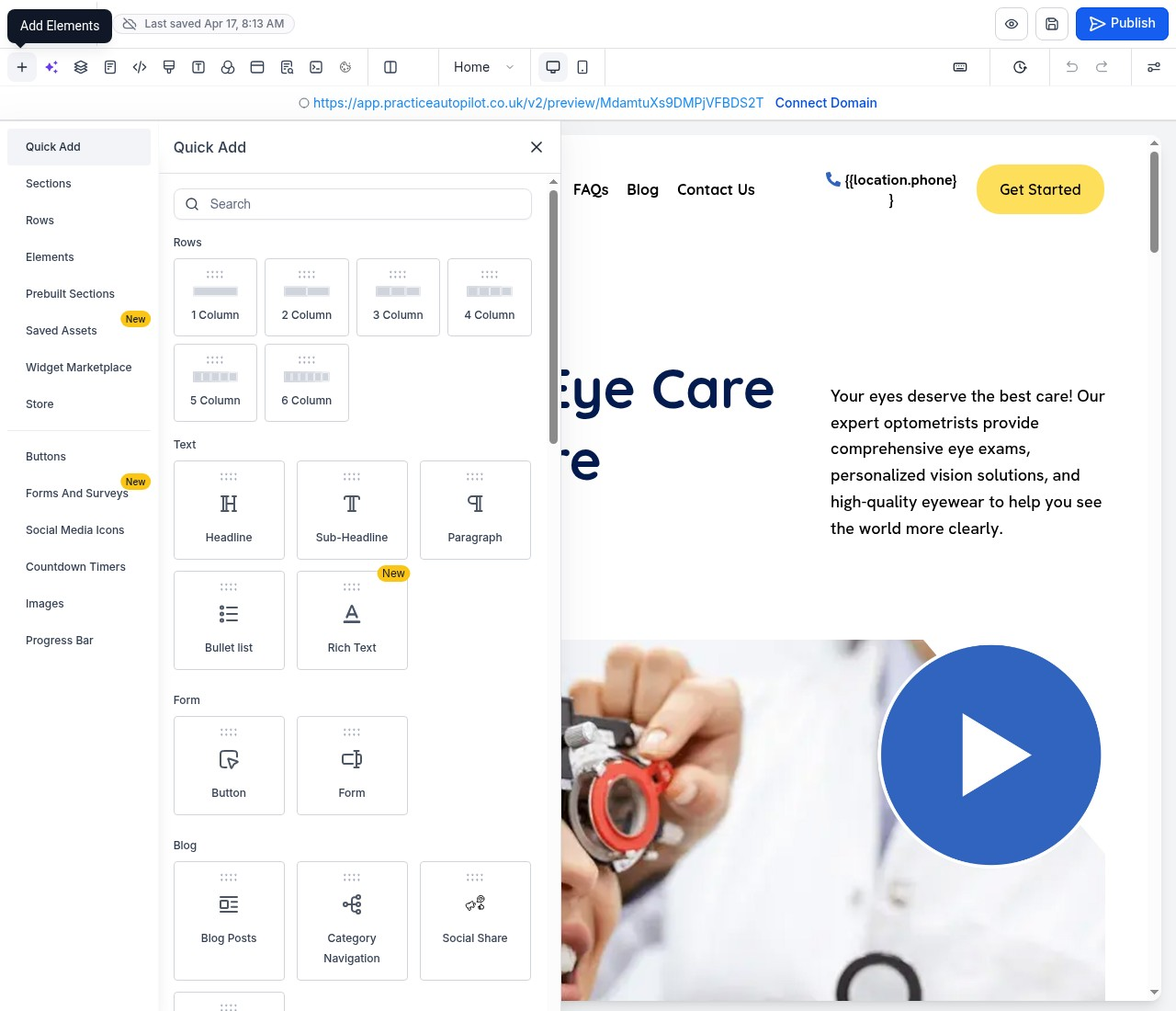
Quick Add Categories
The Quick Add panel is organized into logical categories. Below is a detailed breakdown of each section and the elements it contains.
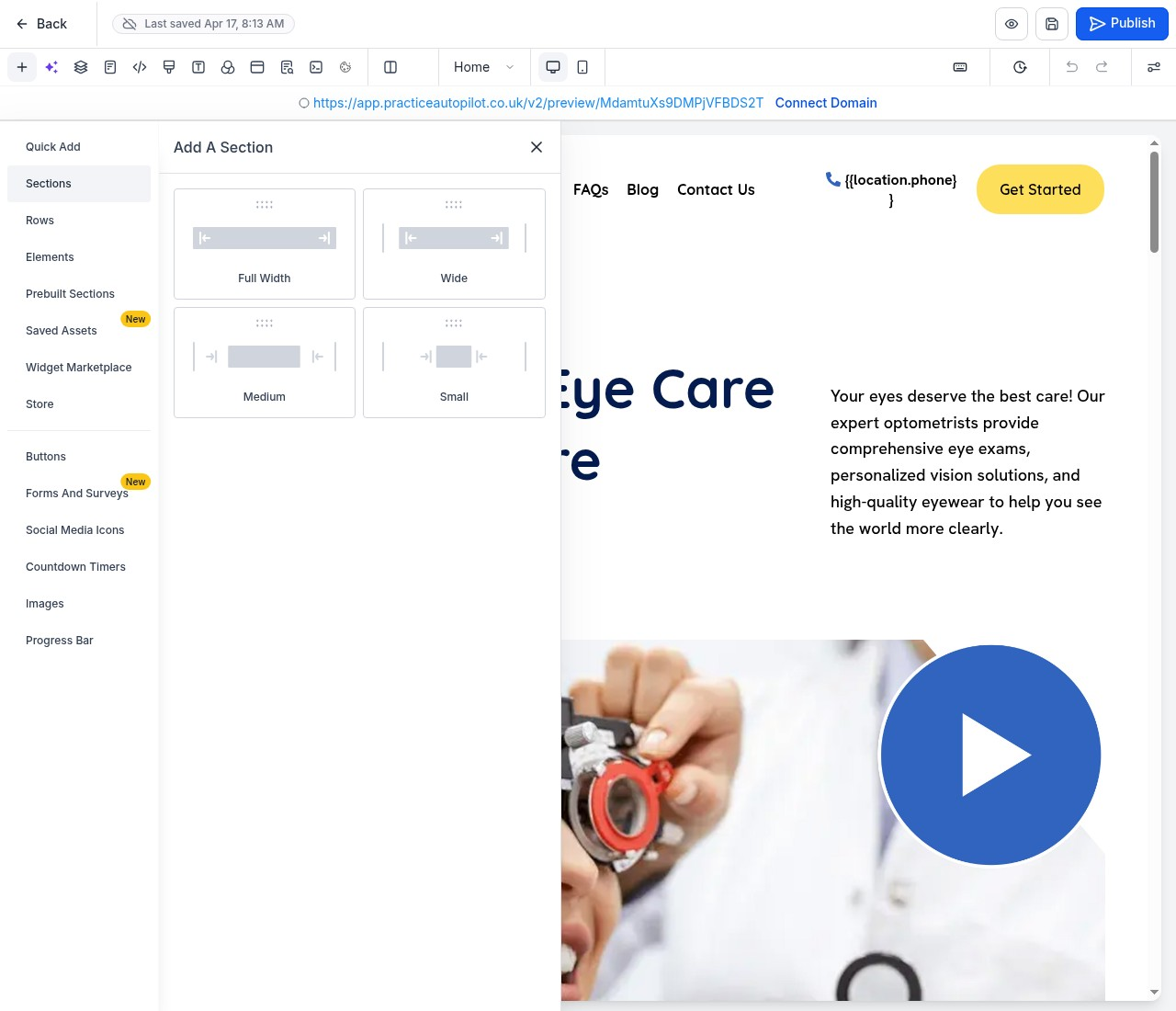
1. Sections
Sections are the foundational building blocks of your page. They act as containers that hold rows and elements. You can choose from different section widths (Full Width, Wide, Medium, Small) to structure your page layout.
2. Rows
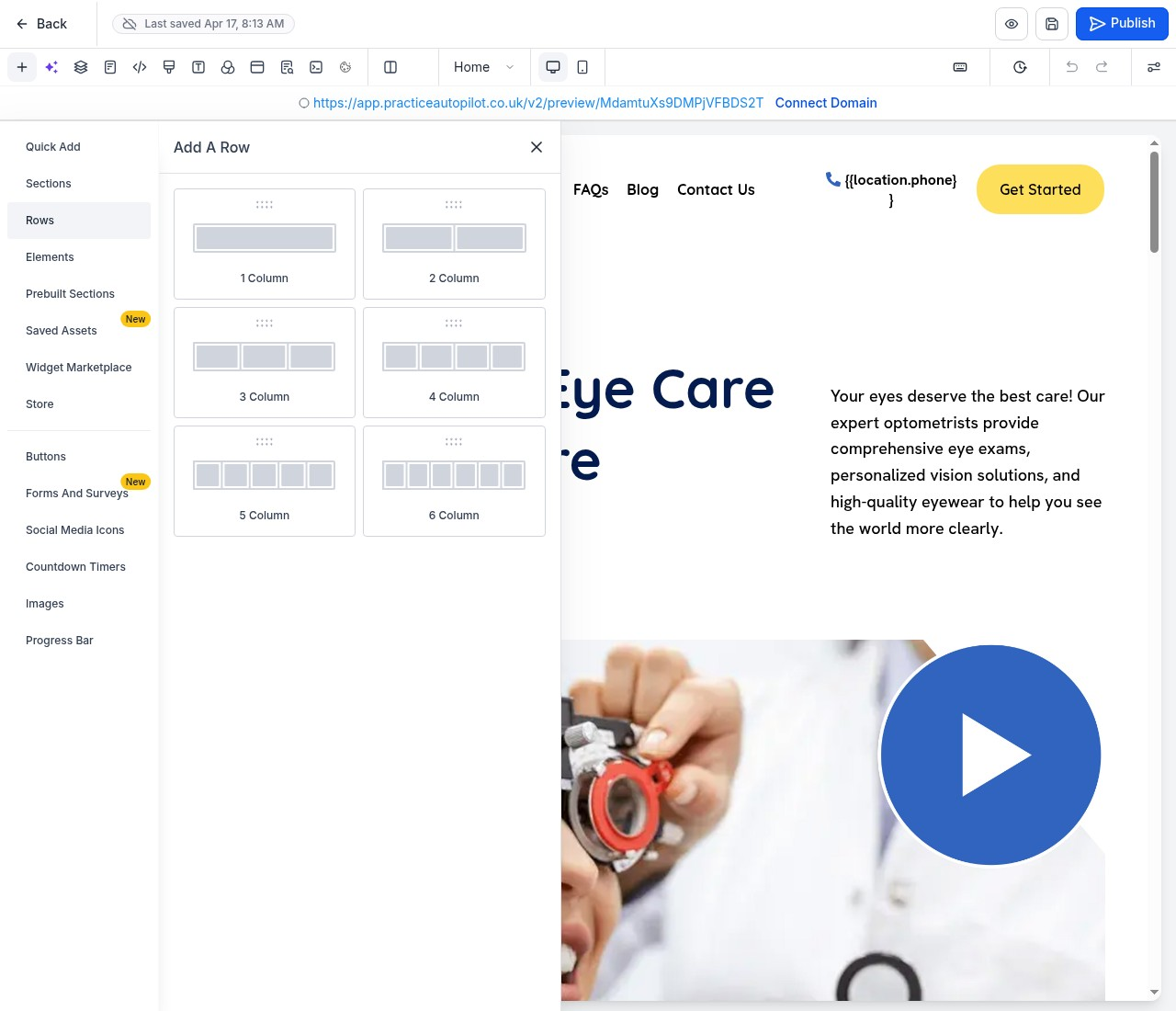
Inside sections, you place rows to organize your content horizontally. The Rows panel offers various column layouts, ranging from a single column up to six columns, allowing you to create complex grid structures easily.
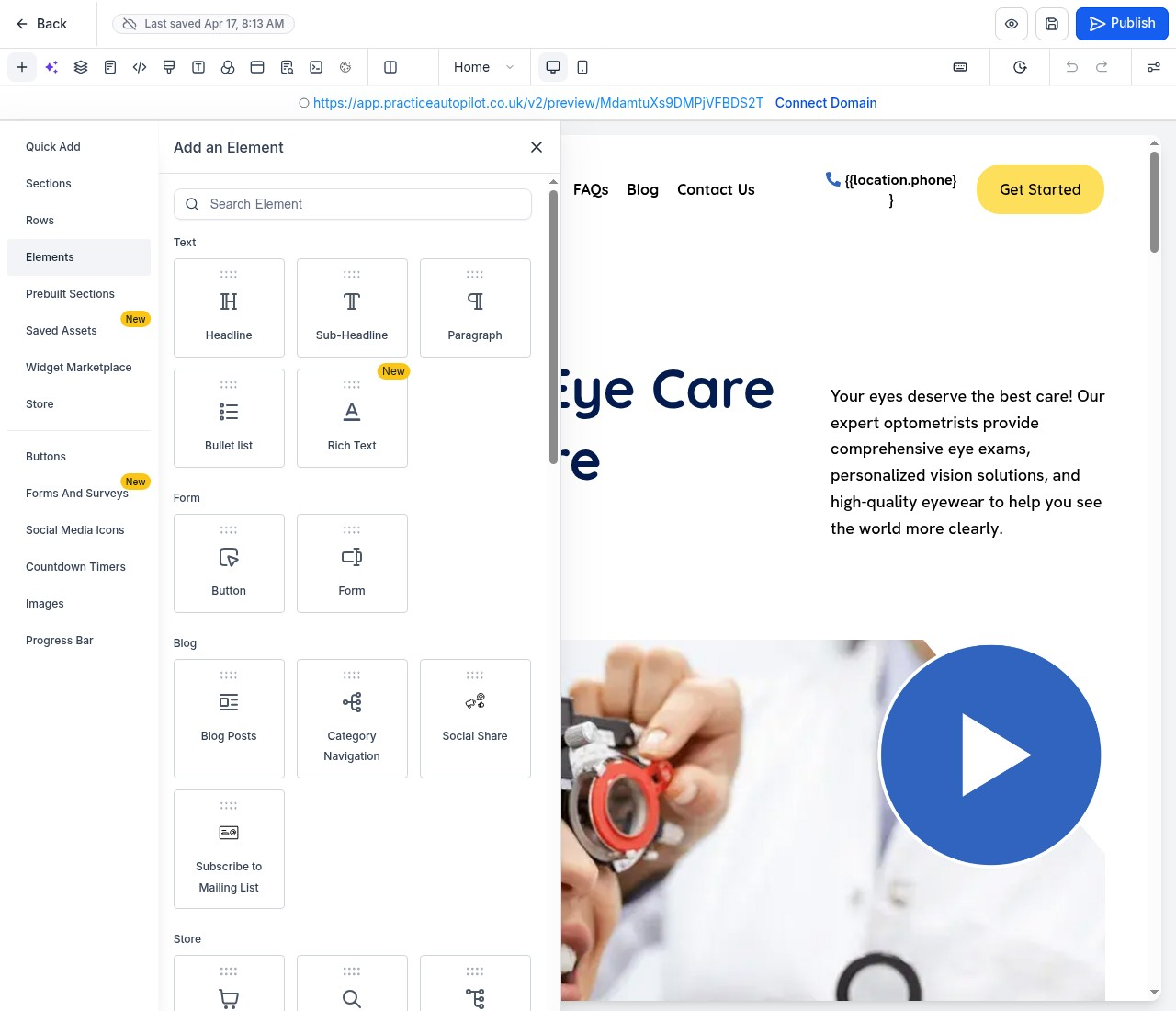
3. Elements
The Elements category provides the individual components you can add to your rows, such as text, images, buttons, and forms. This is where you’ll find the core content pieces for your website.
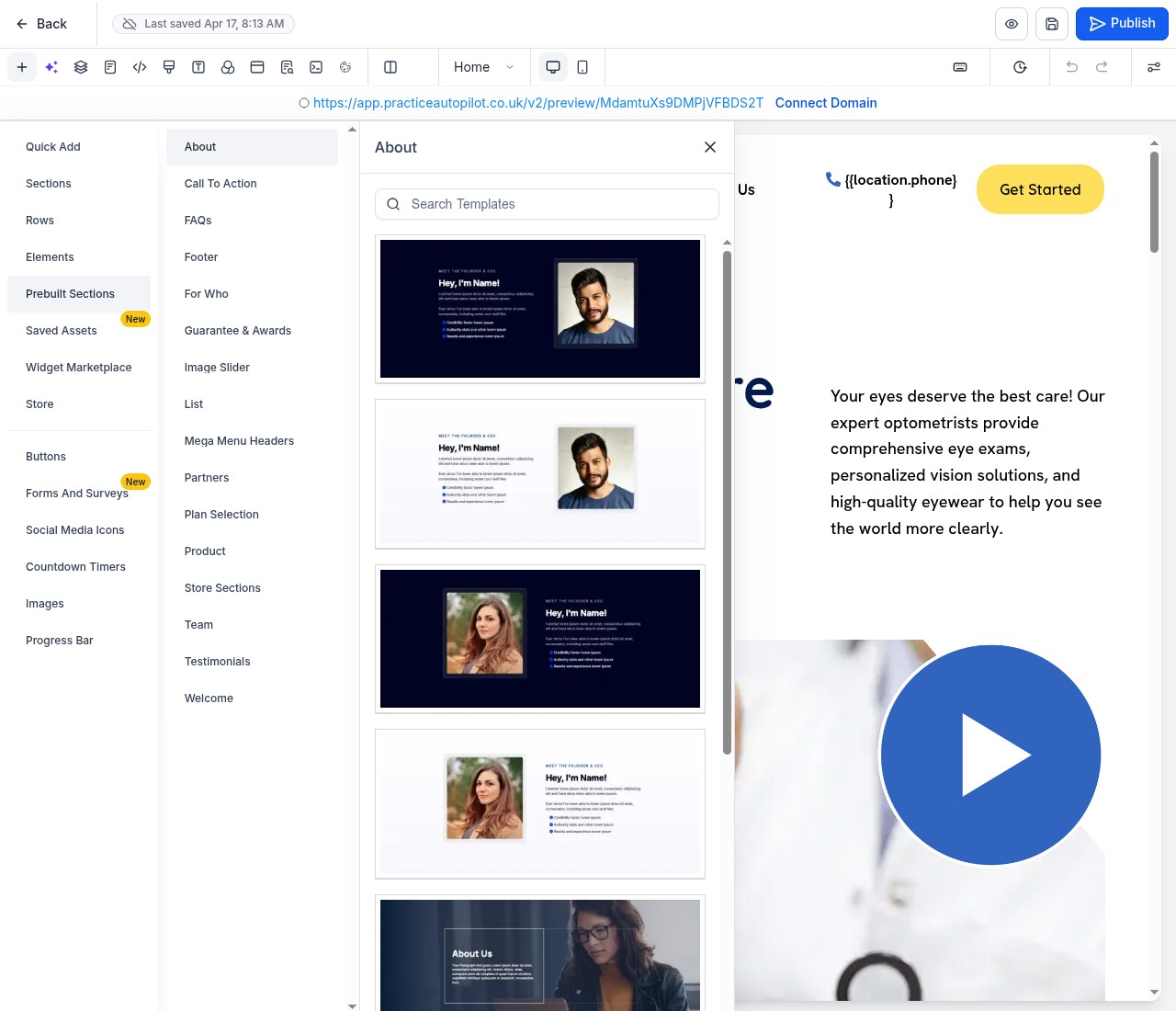
4. Prebuilt Sections
If you want to save time, the Prebuilt Sections category offers ready-made, professionally designed blocks. These include headers, footers, pricing tables, and testimonials that you can drag and drop directly onto your page.
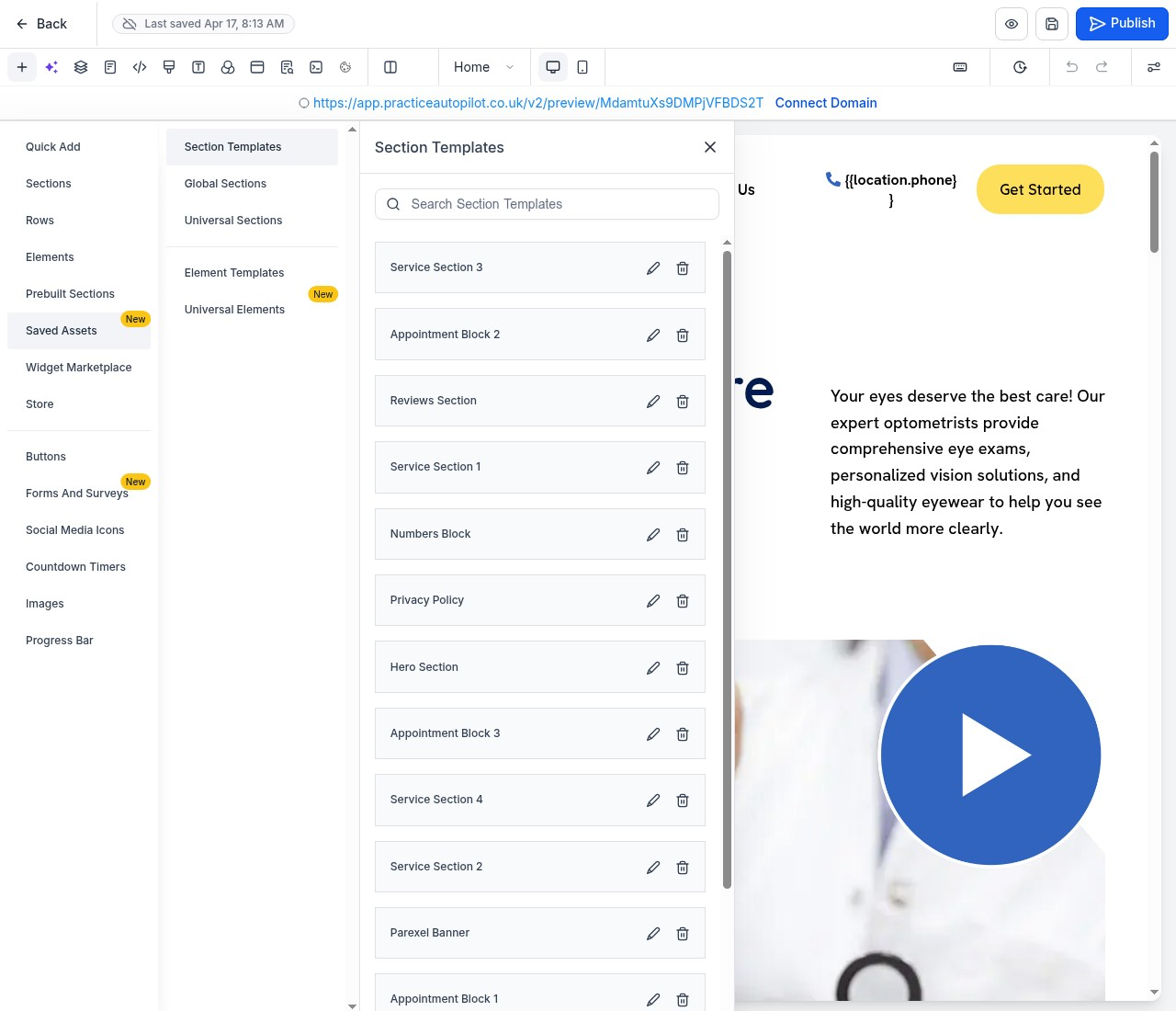
5. Saved Assets
The Saved Assets section allows you to access elements, rows, or sections that you have previously saved. This is incredibly useful for maintaining consistency across your site by reusing custom-designed components.
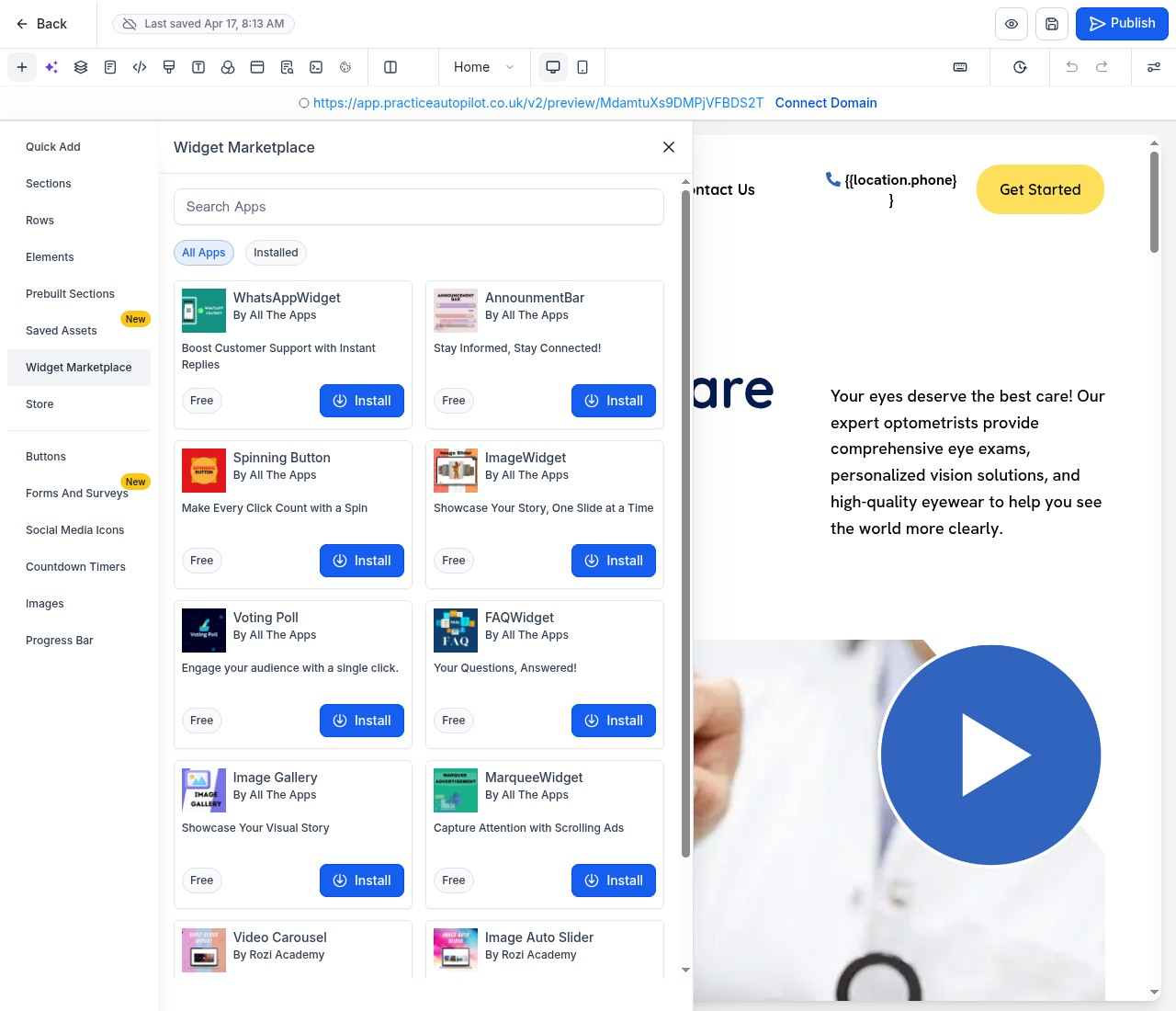
6. Widget Marketplace
The Widget Marketplace provides access to third-party apps and integrations that can enhance your website’s functionality. Here, you can find widgets for WhatsApp chat, announcement bars, image sliders, and more.
(Note: The Store feature is excluded from this guide.)
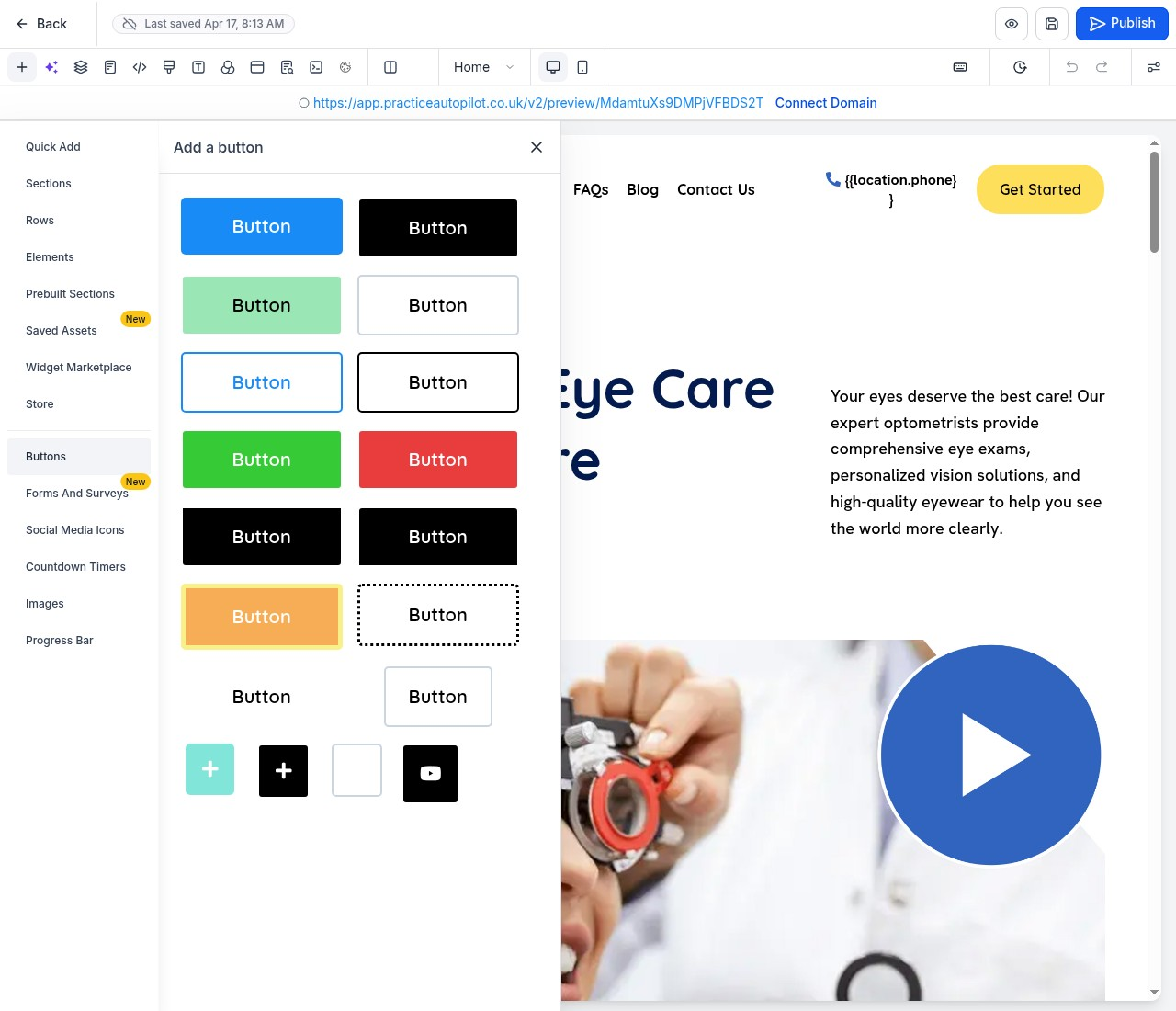
7. Buttons
Buttons are essential for calls to action (CTAs). The Buttons panel offers a variety of pre-styled buttons in different colors, shapes, and sizes. You can easily add these to your page and customize their links and appearance.
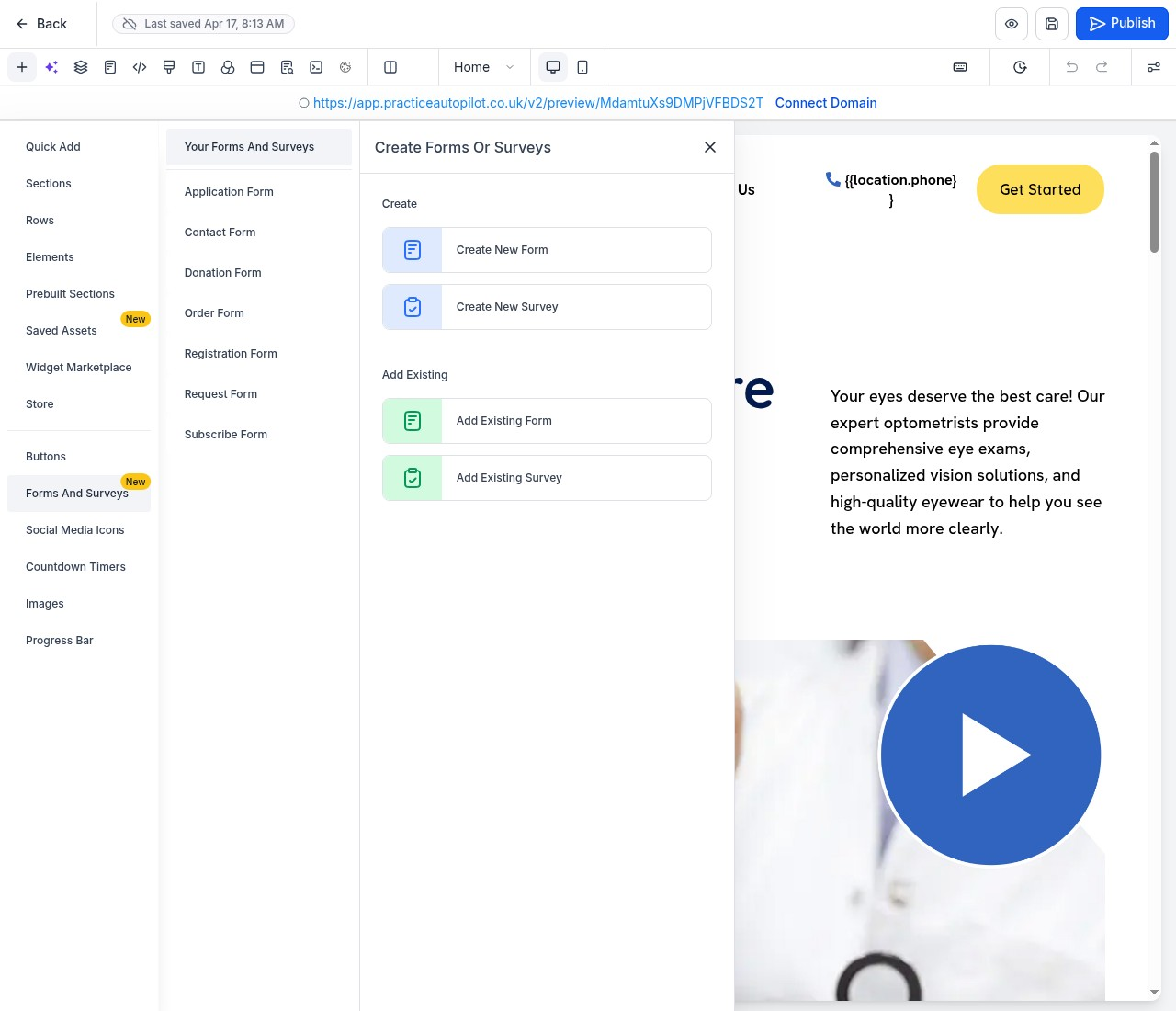
8. Forms And Surveys
To capture leads or gather information, use the Forms And Surveys panel. This section allows you to quickly insert existing forms (like Contact or Application forms) or create new ones directly from the builder.
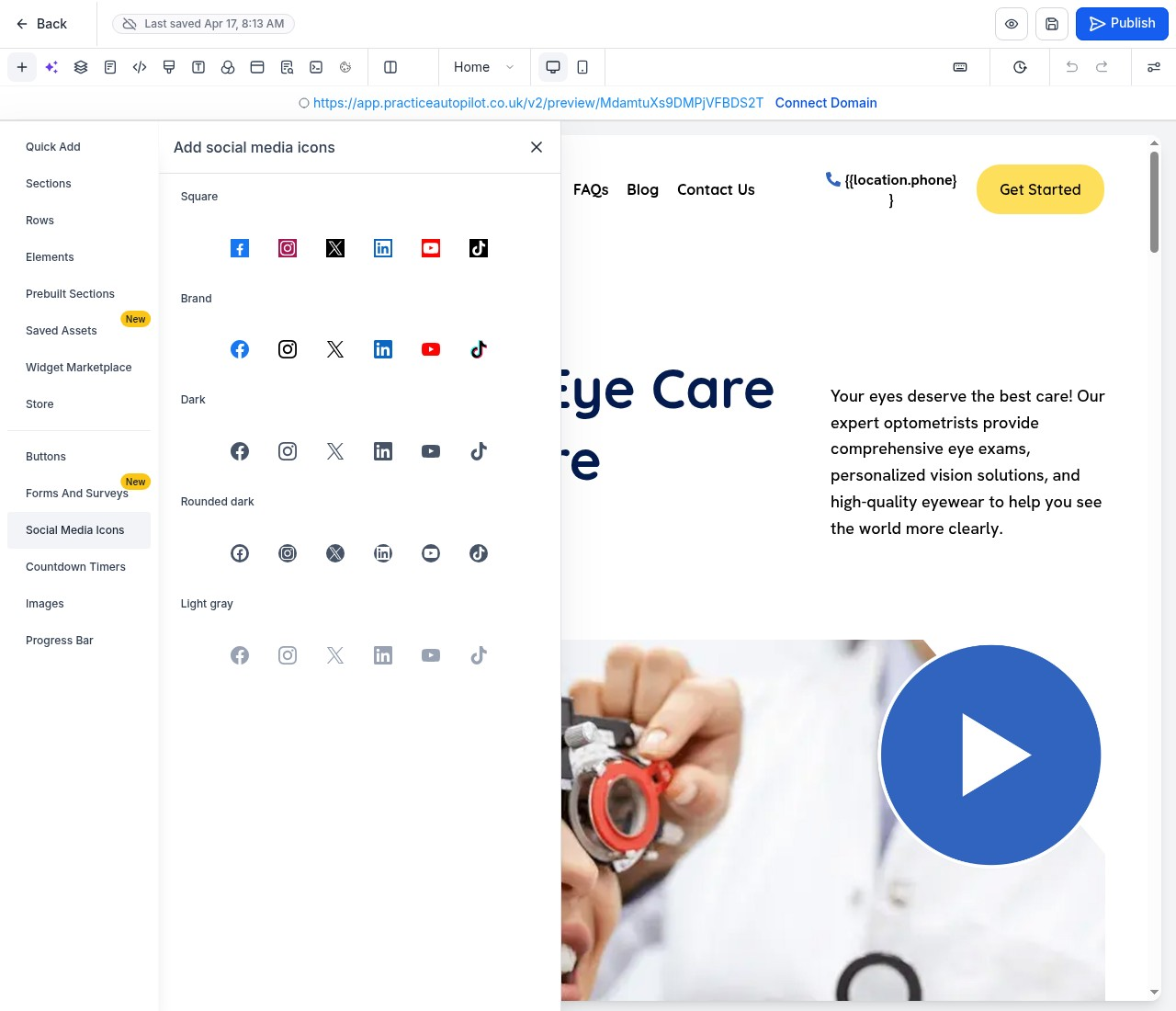
9. Social Media Icons
Connect your visitors to your social profiles using the Social Media Icons panel. It provides various styles of icons (Square, Brand, Dark, Rounded) for popular platforms like Facebook, Instagram, X (Twitter), LinkedIn, and YouTube.
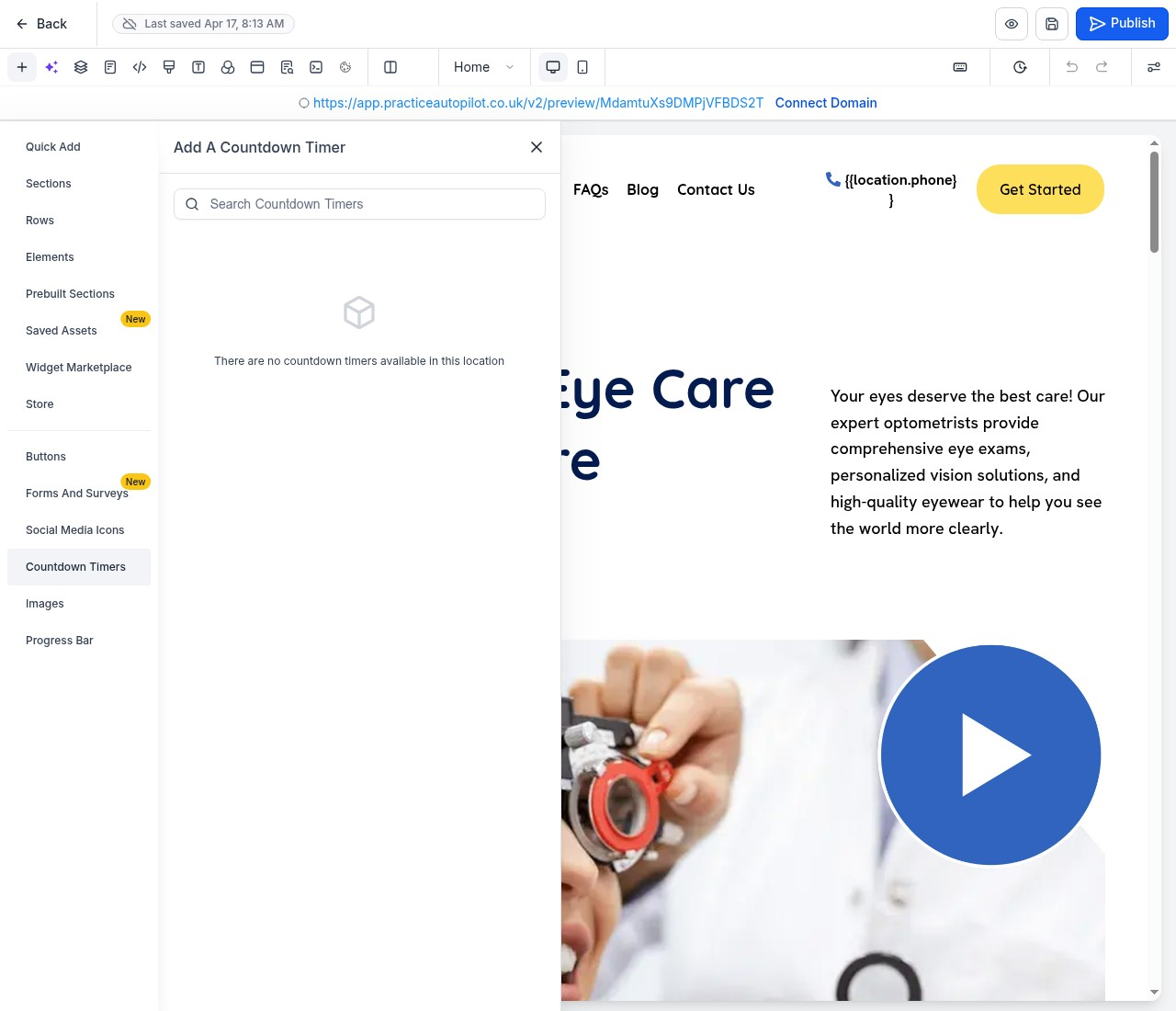
10. Countdown Timers
Create urgency for promotions or events using Countdown Timers. This panel allows you to add and configure timers that count down to a specific date and time.
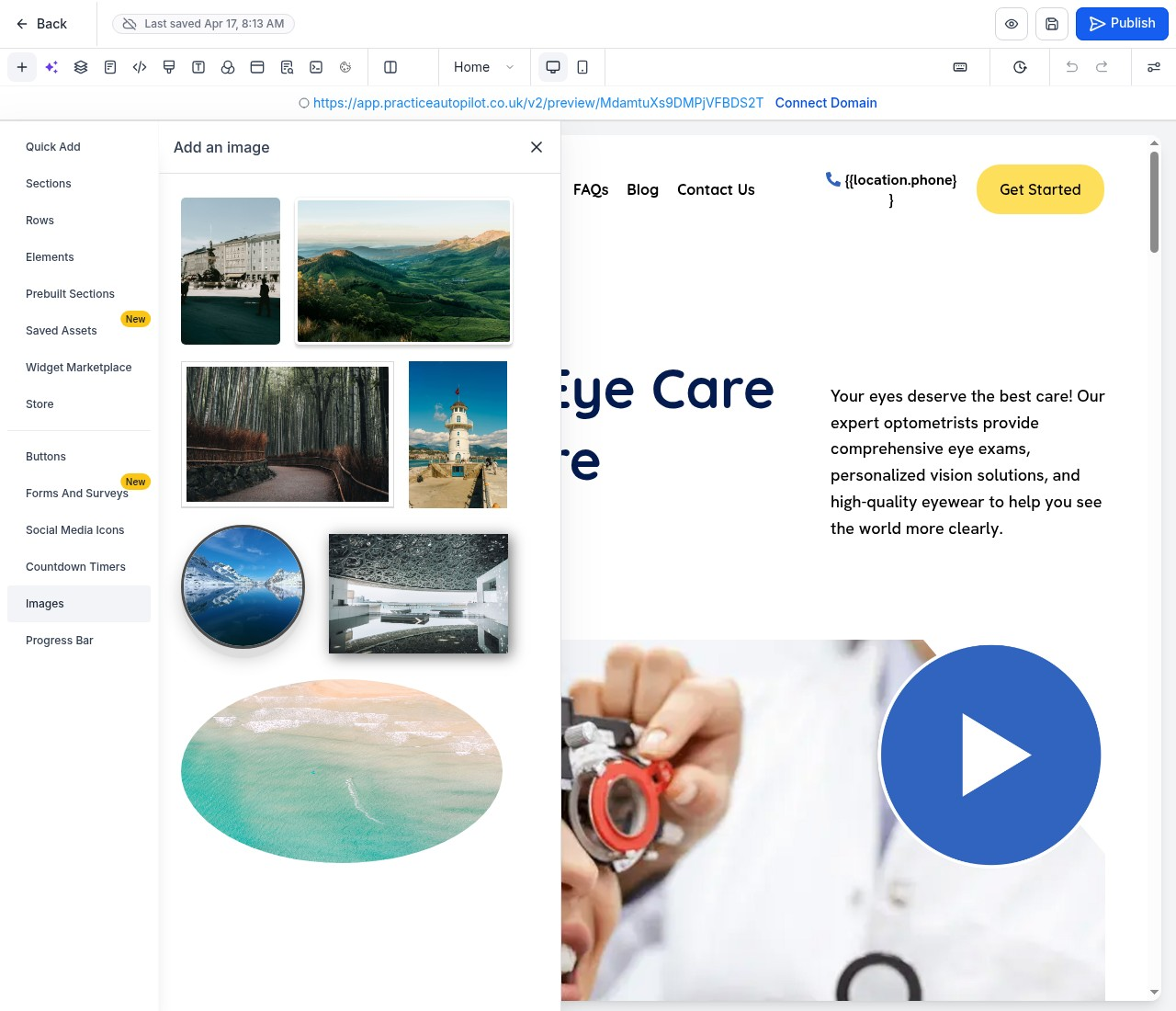
11. Images
The Images panel provides quick access to your media library. You can select and insert images directly onto your page, choosing from various shapes and styles to fit your design.
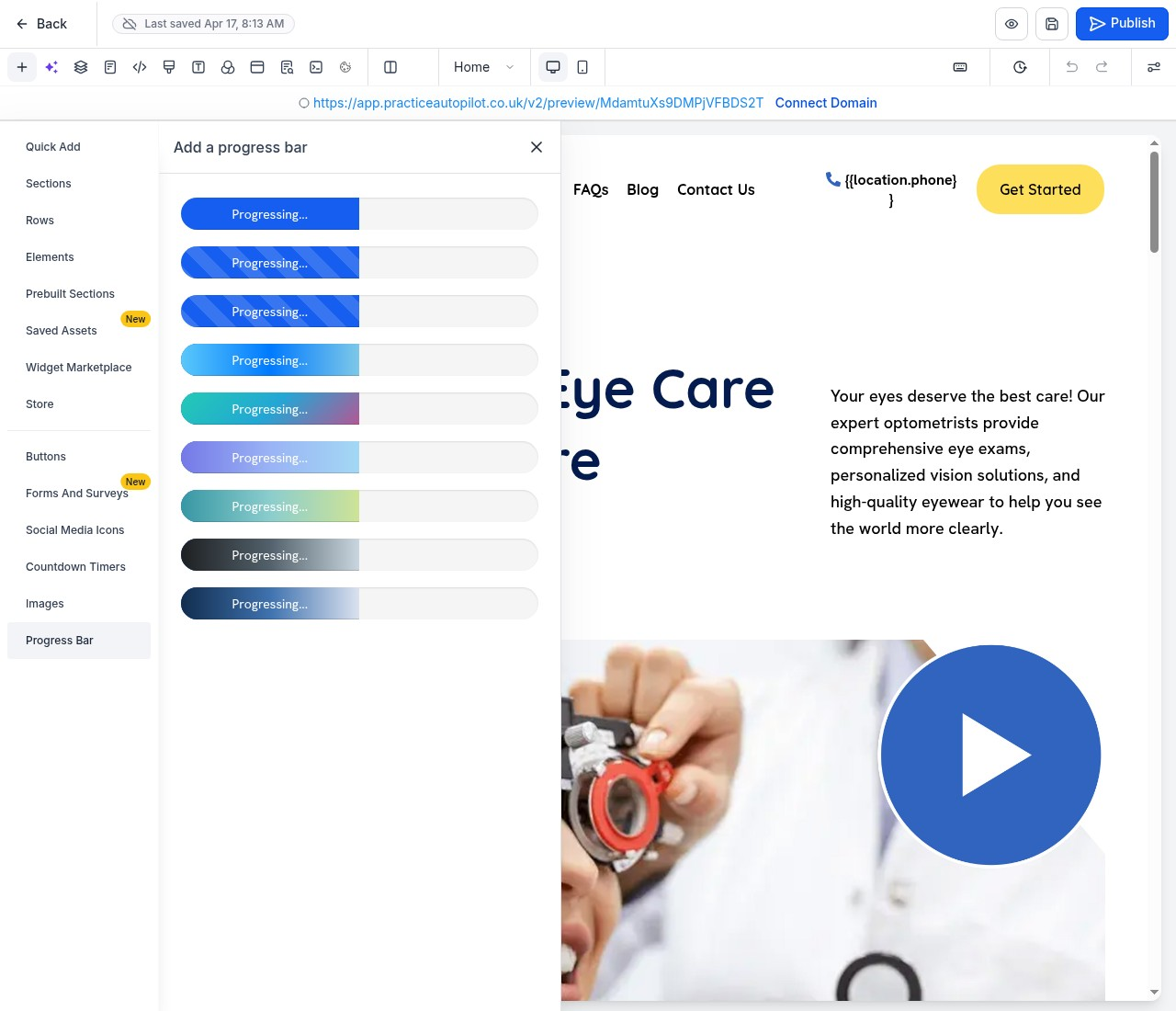
12. Progress Bar
Use the Progress Bar element to visually indicate completion or steps in a process. The panel offers different styles and color gradients to match your site’s branding.
How to Use Quick Add Elements
1.Locate the Element: Browse through the categories in the Quick Add panel to find the element you need.
2.Drag and Drop: Click and hold the desired element, then drag it onto your page canvas.
3.Position: Drop the element into an available row or column (indicated by highlighted drop zones).
4.Customize: Once placed, click on the element on the page to open its specific settings panel on the right, where you can adjust text, colors, links, and other properties.
By mastering the Quick Add panel, you can efficiently build and customize professional websites in Practice Autopilot.