This guide provides step-by-step instructions on how to create and manage Knowledge Base entries in Practice Autopilot. The Knowledge Base is essential for training your AI Agents to respond accurately to user questions. We will cover three recommended types of knowledge sources: Web Crawler, FAQ, and Rich Text.
Accessing the Knowledge Base
Before adding any content, you need to navigate to the Knowledge Base section within your Practice Autopilot account.
1.Log in to your Practice Autopilot account.
2.From the main dashboard, select the appropriate sub-account from the top-left dropdown menu.
3.In the left-hand sidebar, click on AI Agents.
4.Navigate to the Knowledge Base tab.
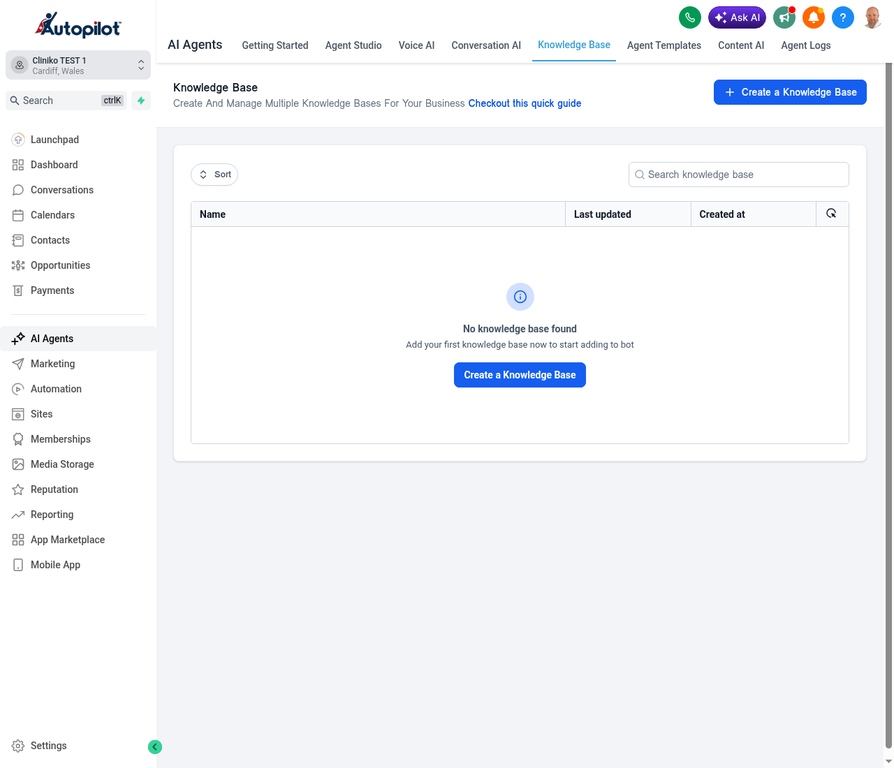
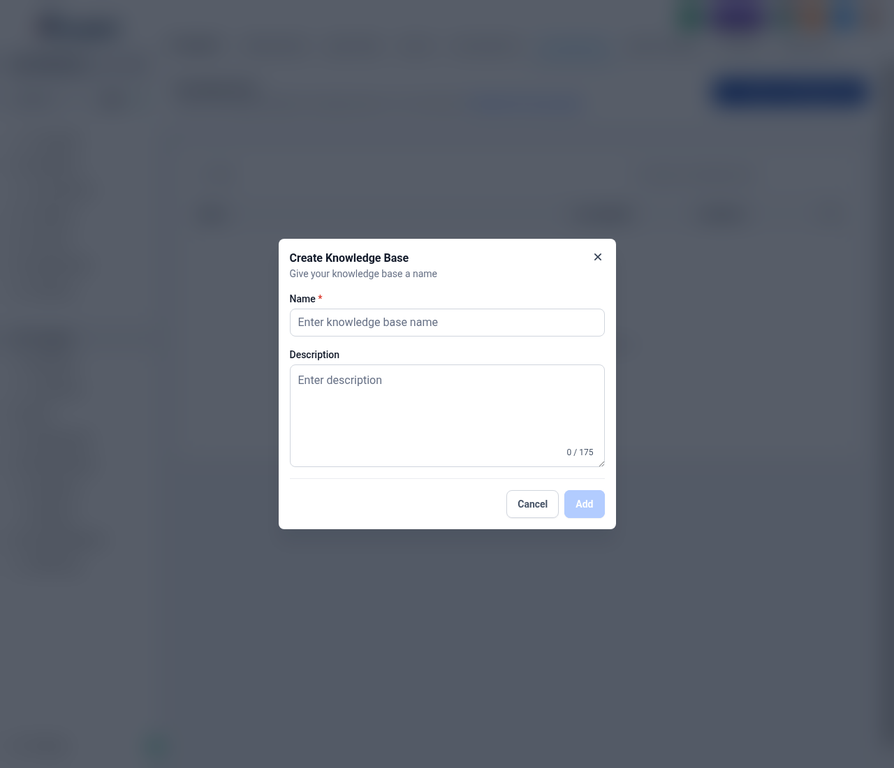
If you haven’t created a Knowledge Base yet, click the Create a Knowledge Base button, enter a name (e.g., “Website Knowledge Base”), and click Create.
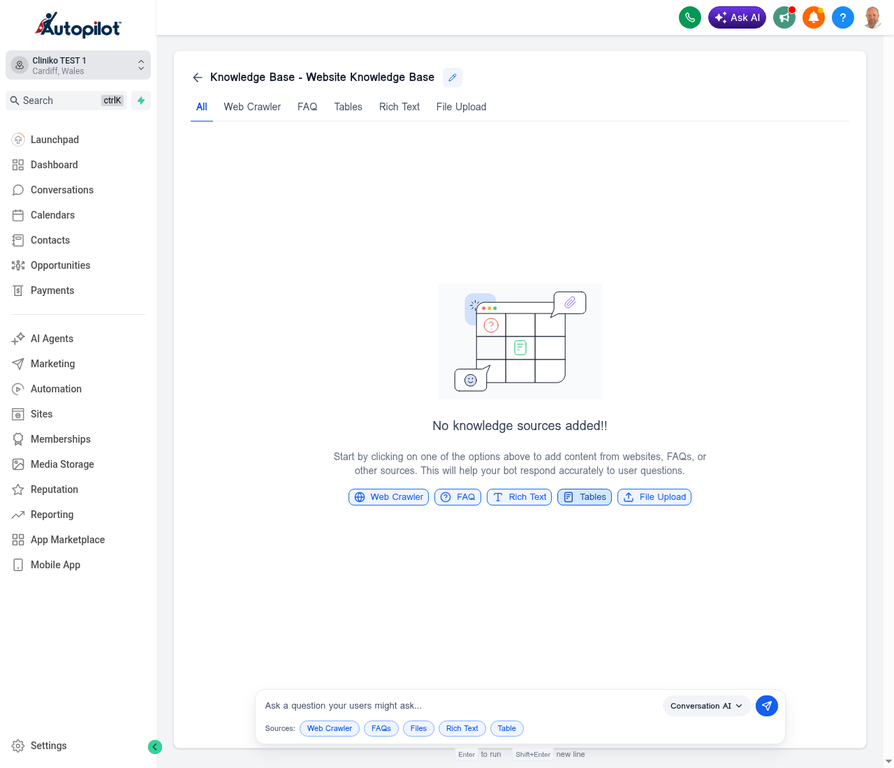
Once created, you will see the main Knowledge Base interface where you can add different types of sources.
EXPERT TIP: Download the 'AImee Voice Set-Up' file at the bottom of this article as a template to complete the Knowledge Base sections.
1. Adding a Web Crawler Source
The Web Crawler is ideal for keeping your AI Agent updated with the latest information directly from your website. As your website updates, the Knowledge Base can sync those changes.
Steps to add a Web Crawler source:
1.On the Knowledge Base page, click the Web Crawler button or tag.
2.A modal window titled “Add Website” will appear.
3.Click the dropdown menu that currently says “Exact URL”.
4.Select All URLs in this domain to allow the crawler to fetch all relevant pages from your site.
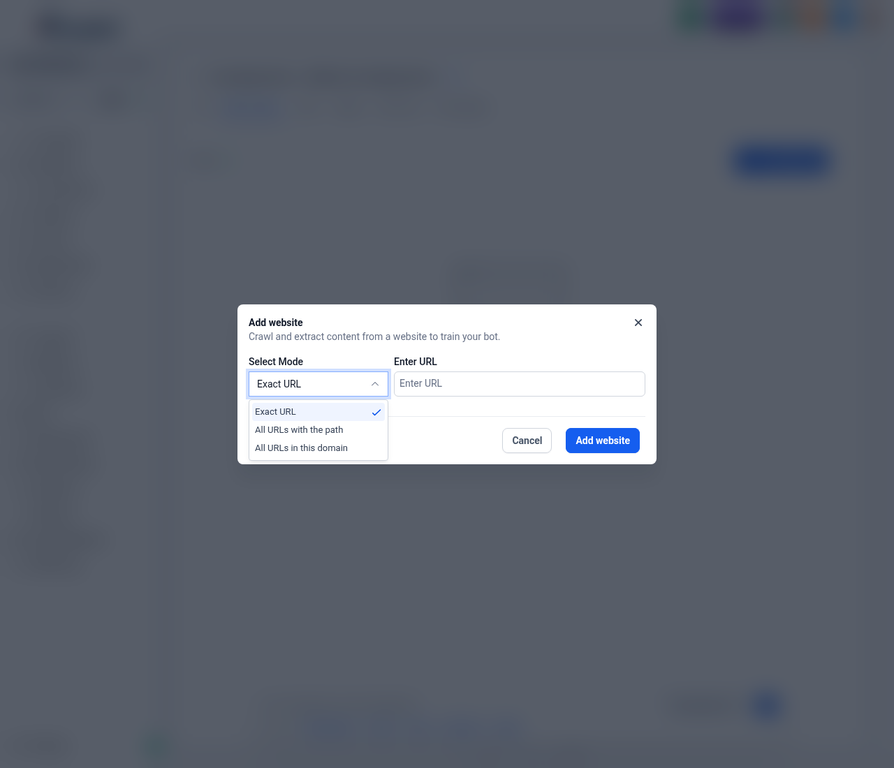
1.Enter your website’s URL in the input field (e.g., https://yourclinic.com ).
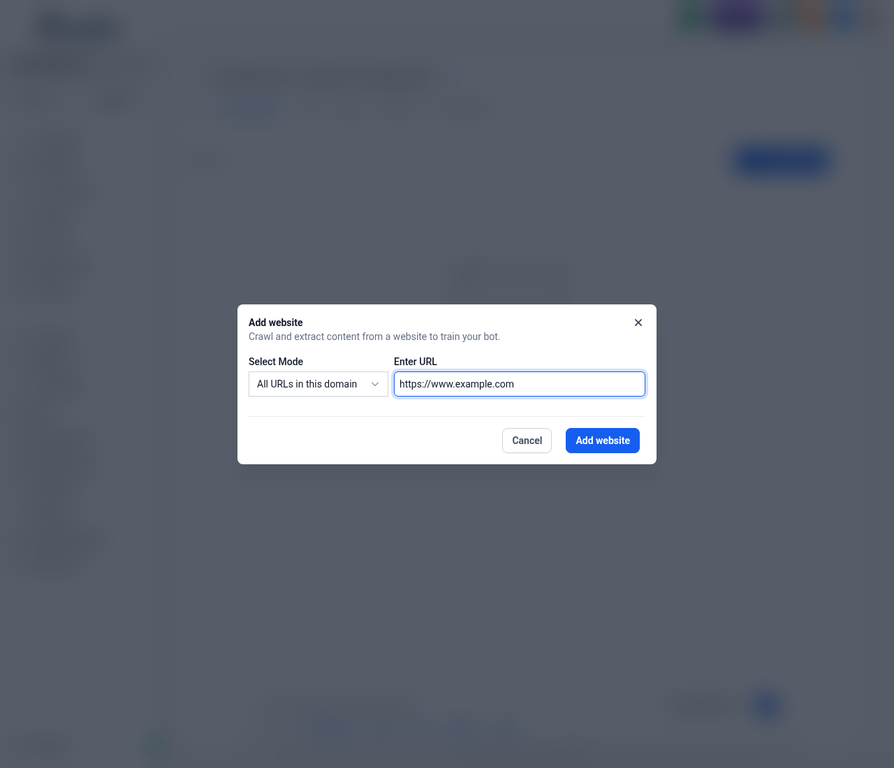
1.Click the Add website button.
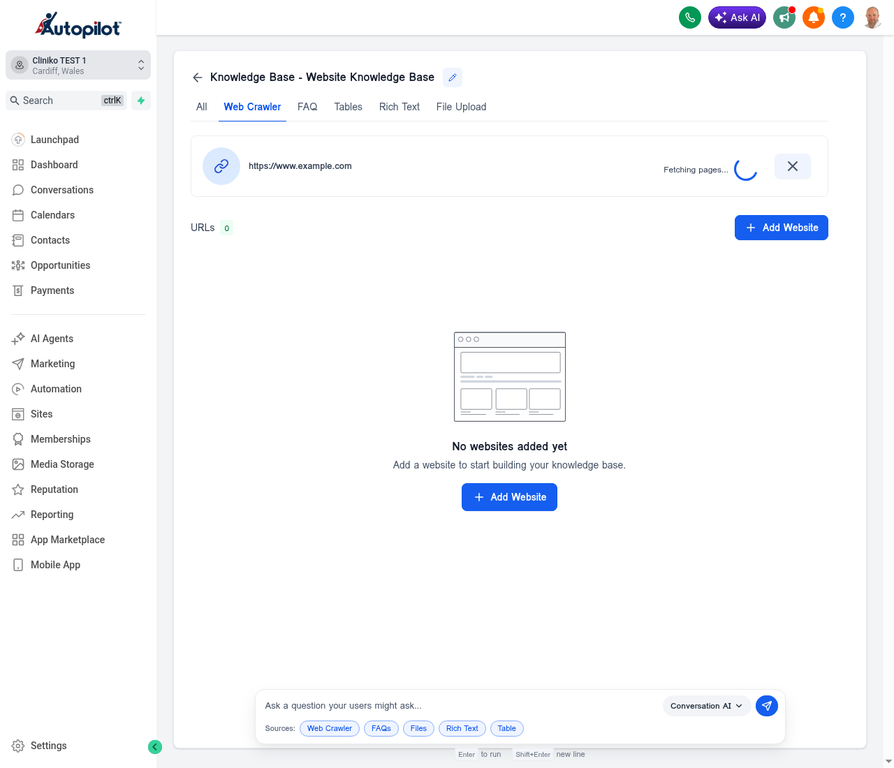
2.The system will begin fetching pages from the provided URL. This process may take a few moments depending on the size of your website.
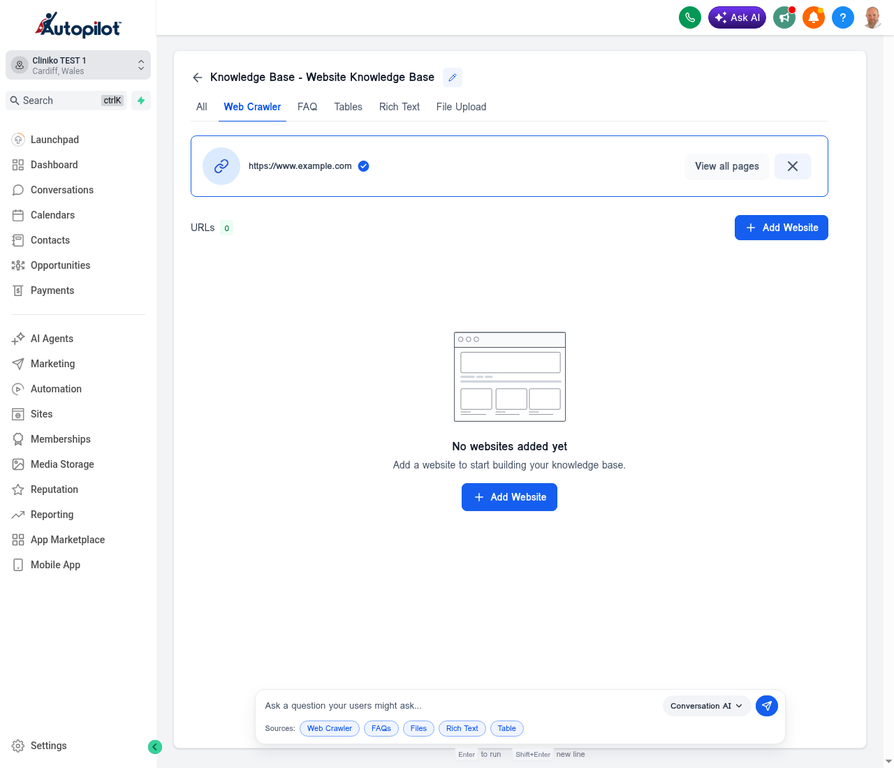
1.Once the fetching is complete, you will see the number of URLs found. You can click View all pages to review the specific pages that were crawled and select which ones to use for training your bot.
2. Adding an FAQ Source
The FAQ (Frequently Asked Questions) source is highly recommended for specific, structured information such as opening hours, locations, and pricing. This ensures the AI Agent provides precise answers to common queries.
Steps to add an FAQ source:
1.Navigate to the FAQ tab within your Knowledge Base.
2.Click the Add FAQ button.
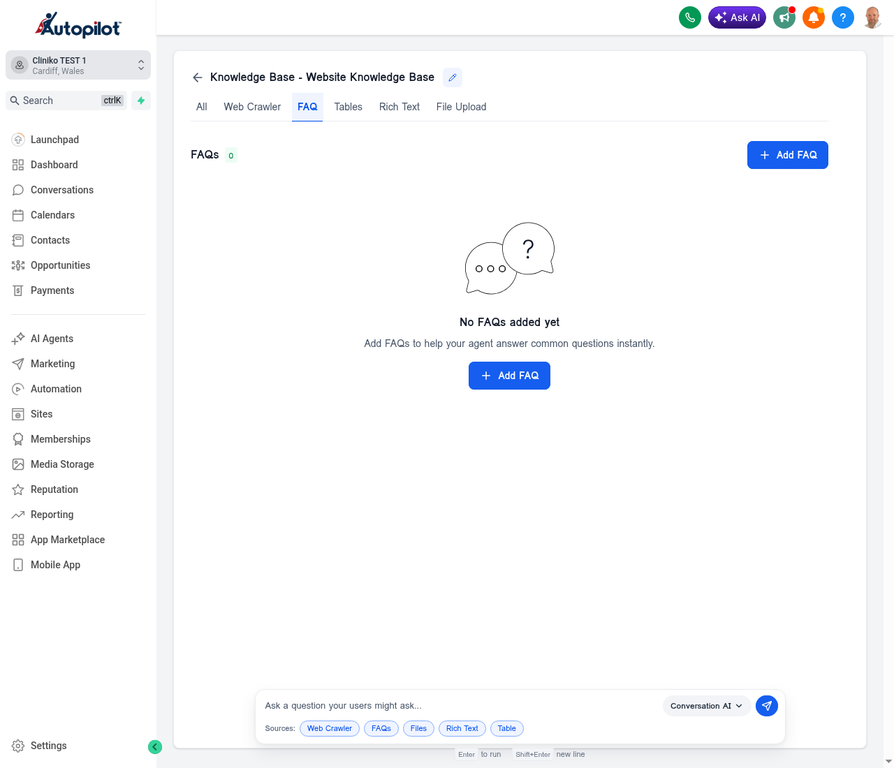
1.The “Add FAQ” modal will appear, presenting fields for a question and an answer.
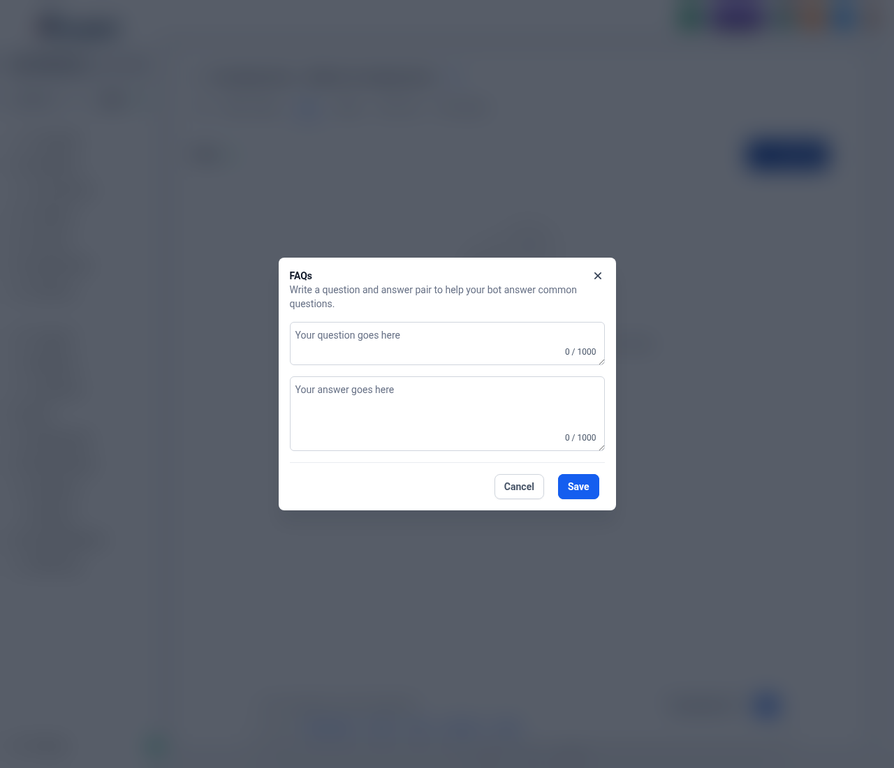
1.In the Question field, type a common user query (e.g., “What are your opening hours?”).
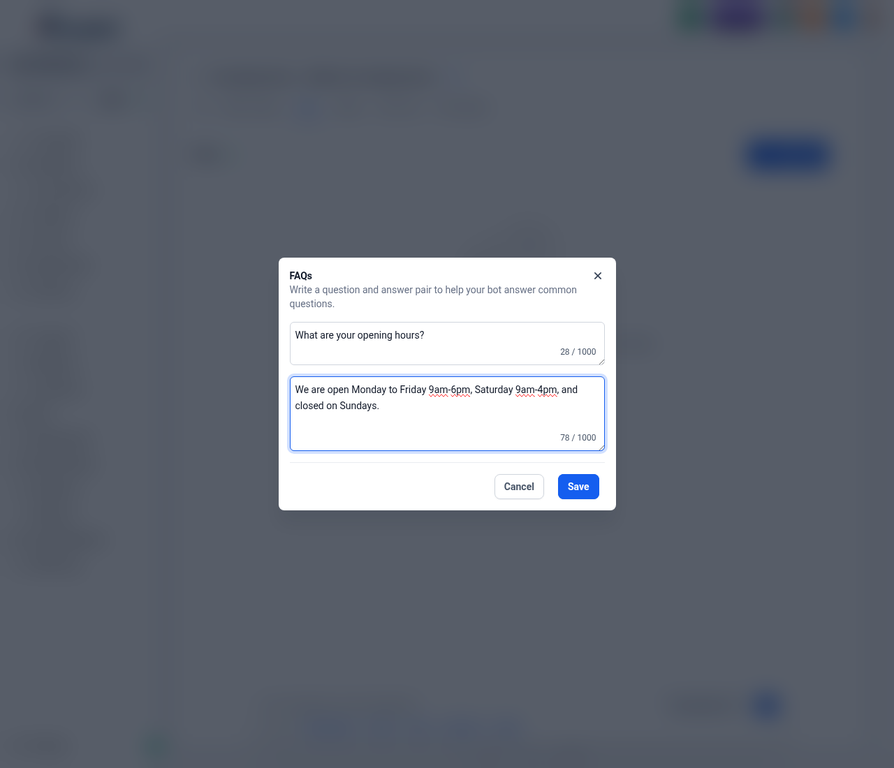
2.In the Answer field, provide the clear and concise response (e.g., “We are open Monday to Friday 9am-6pm, Saturday 9am-4pm, and closed on Sundays.”).
1.Click the Save button.
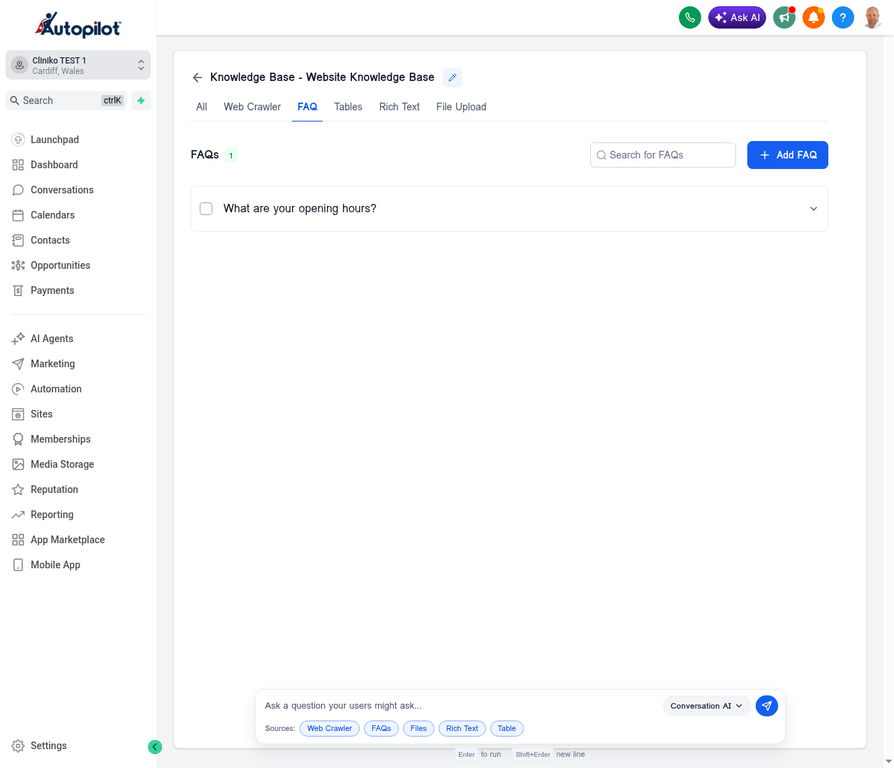
2.Your new FAQ entry will now appear in the list. You can click on the entry to expand it and review the content, or use the edit/delete icons to manage it.
3. Adding a Rich Text Source
The Rich Text source is recommended for detailed, formatted content such as treatment descriptions, service details, or step-by-step procedures. It allows you to use formatting like lists, bold text, and headers to structure the information clearly for the AI Agent.
Steps to add a Rich Text source:
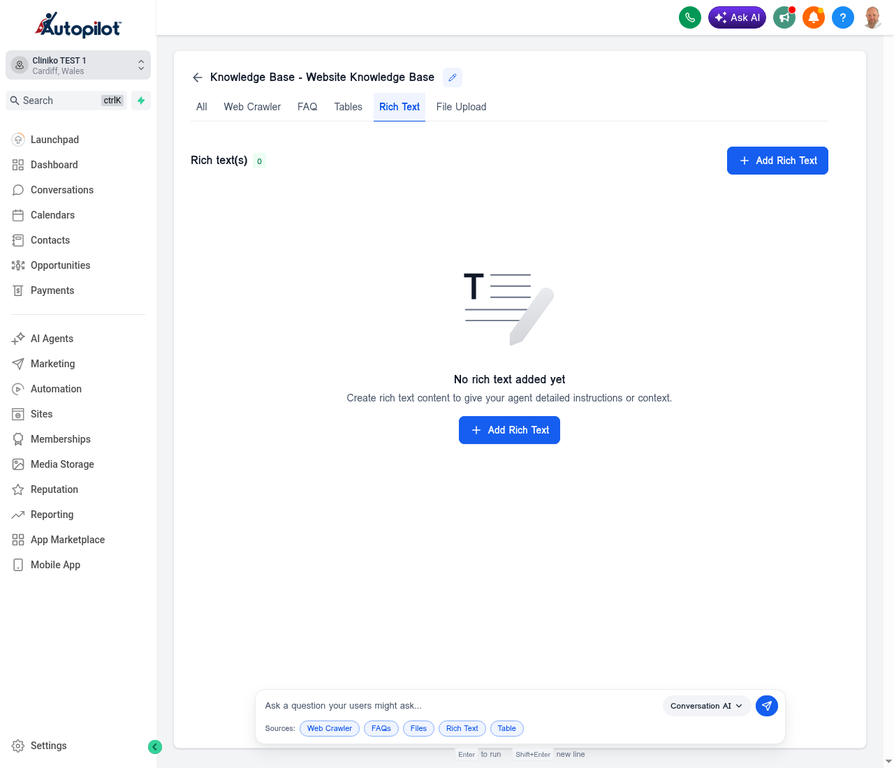
1.Navigate to the Rich Text tab within your Knowledge Base.
2.Click the Add Rich Text button.
1.The “Add Rich Text” editor modal will open.
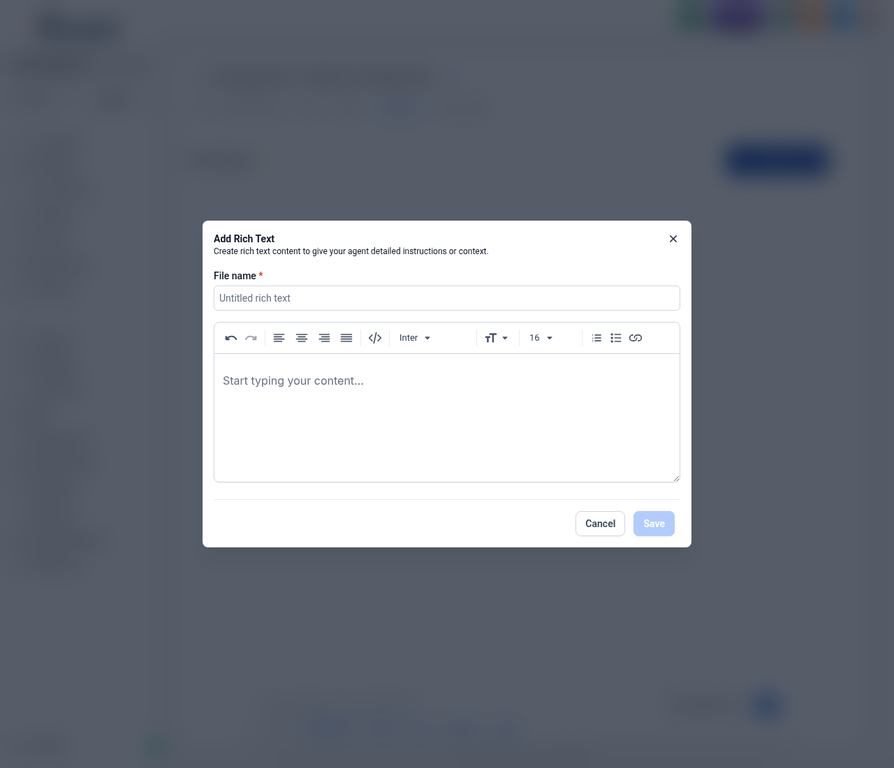
1.In the File name field, enter a descriptive title for the document (e.g., “Physiotherapy Services”).
2.Click into the main content area and type or paste your detailed information. You can use the toolbar at the top to format the text, add bullet points, or create numbered lists.
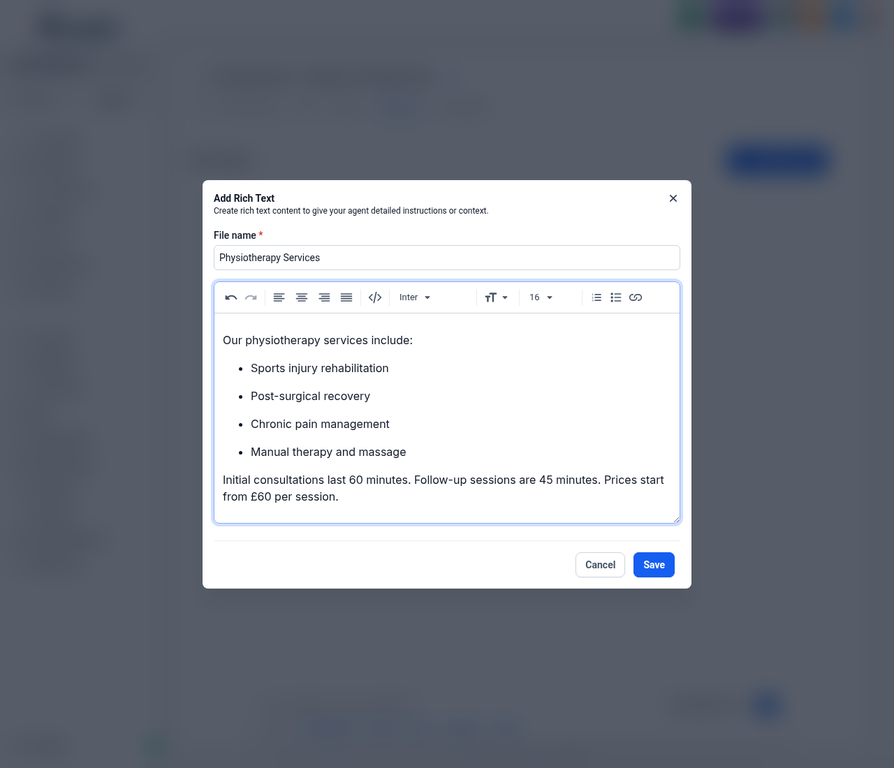
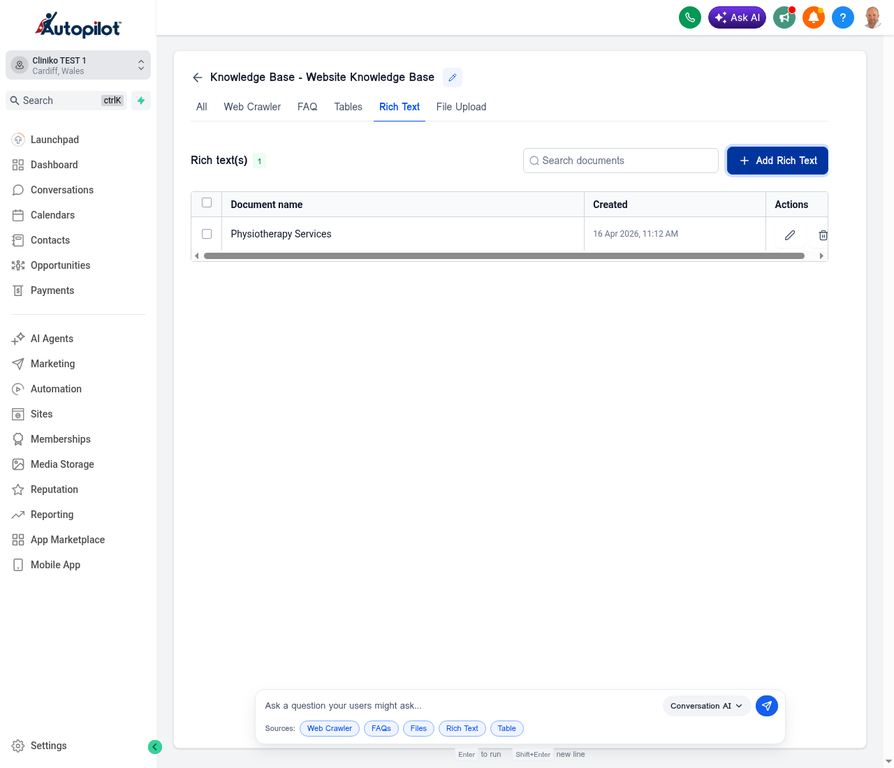
1.Once you have finished formatting your content, click the Save button.
2.The new Rich Text document will be saved and listed in the Rich Text section, showing the document name and creation date.
By utilizing these three source types—Web Crawler, FAQ, and Rich Text—you can build a comprehensive and highly effective Knowledge Base, ensuring your AI Agents are well-equipped to assist your users accurately.