This comprehensive guide will walk you through using the Reputation feature in Practice Autopilot to connect your Google Business Profile, manage reviews using AI, and create a review widget to embed on your website.
Part 1: Connecting Google Business Profile
Connecting your Google Business Profile (GBP) allows Practice Autopilot to pull in your reviews, enabling you to manage and reply to them directly from the dashboard.
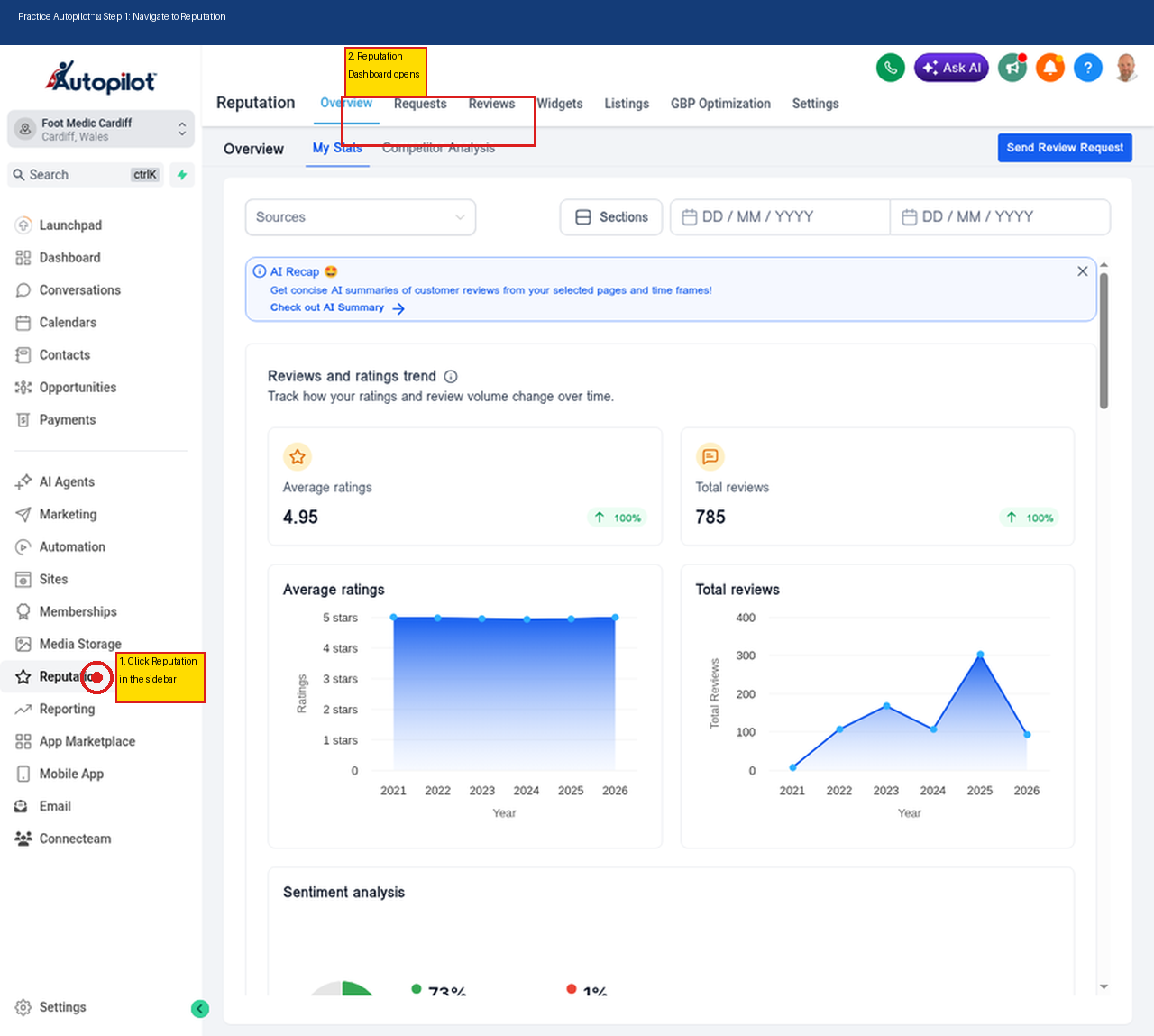
Step 1: Navigate to Reputation
From the main dashboard, locate the left-hand sidebar menu. Scroll down and click on Reputation to open the Reputation Overview dashboard.
Step 2: Configure Reviews AI Settings
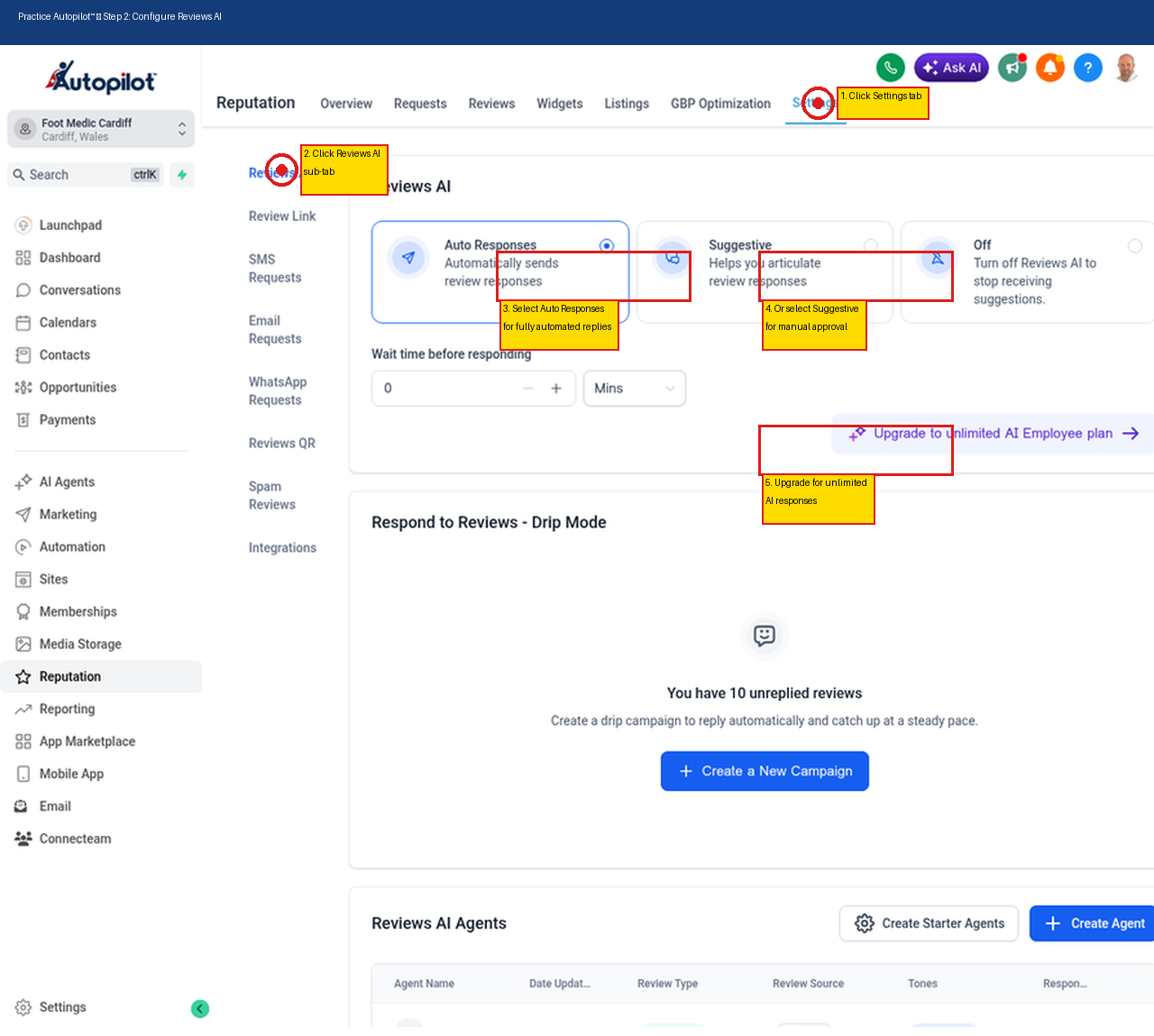
Before connecting, it is worth setting up how you want the AI to handle replies. Click the Settings tab within Reputation, then click Reviews AI in the sub-menu.
•Auto Responses — The AI will automatically post replies to new reviews without any manual action.
•Suggestive — The AI will generate a suggested reply, but you must approve and send it manually.
Step 3: View All Available Review Channels
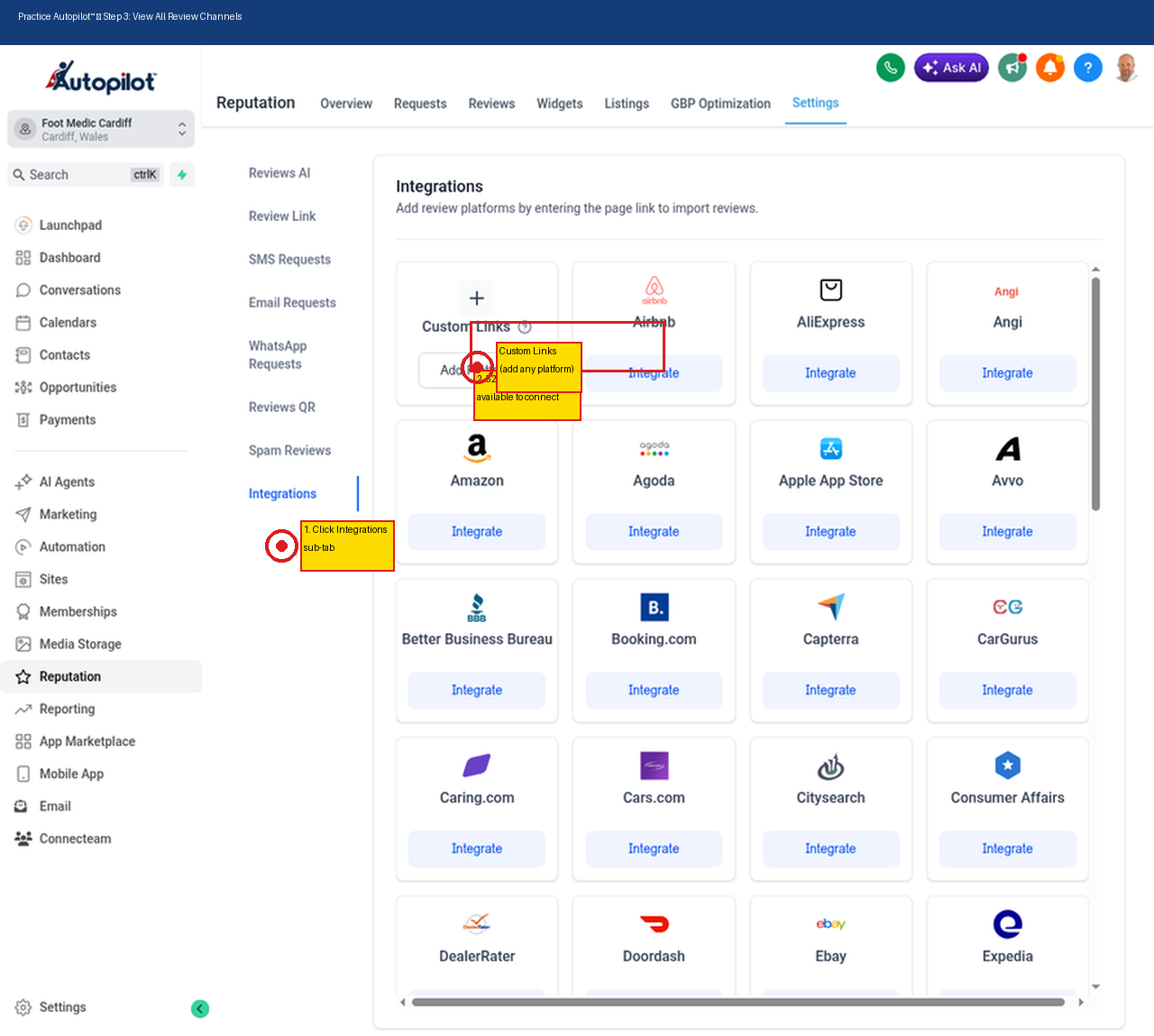
Click on the Integrations sub-tab within Reputation Settings to see all the review platforms you can connect to Practice Autopilot.
Practice Autopilot supports connecting to 52 different review platforms, plus the ability to add custom links for any platform not listed.
Full list of supported review channels:
| Category | Platforms |
| Search & Maps | Google Business Profile, Google Play, Google Shopping |
| Social | Facebook, Glassdoor, Indeed |
| Healthcare | Healthgrades, RateMDs, WebMD, Zocdoc, Caring.com |
| Legal | Avvo, FindLaw, Lawyers.com |
| Travel & Hospitality | TripAdvisor, Booking.com, Expedia, Hotels.com, Airbnb, Agoda |
| Home Services | Angi, HomeAdvisor, Houzz, Thumbtack |
| E-Commerce | Amazon, AliExpress, eBay, Product Review, Product Hunt |
| Food & Delivery | DoorDash, OpenTable, Uber Eats, Zomato |
| Business Reviews | Better Business Bureau, Capterra, TrustRadius, Trustpilot, Yelp |
| Automotive | CarGurus, Cars.com, DealerRater |
| Entertainment | IMDb, Goodreads |
| Events & Weddings | The Knot, WeddingWire |
| Real Estate | Zillow |
| Local Directories | Yell, Yellow Pages, Foursquare, Citysearch, Consumer Affairs |
| Mobile | Apple App Store |
| Custom | Custom Links (add any platform) |
Step 4: Connect Google Business Profile
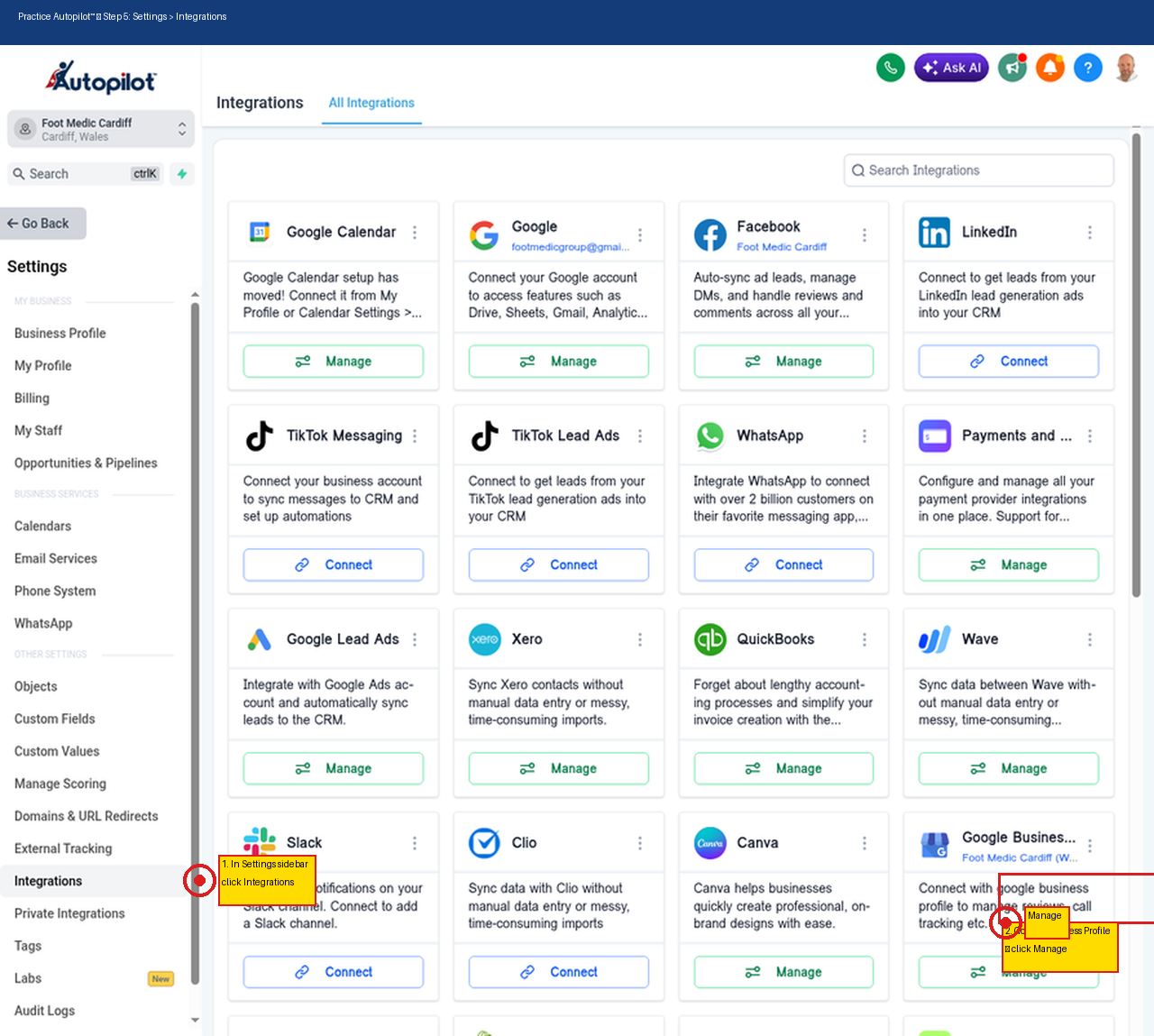
Scroll through the integrations list until you find Google Business Profile. Click the Settings button on the Google Business Profile card.
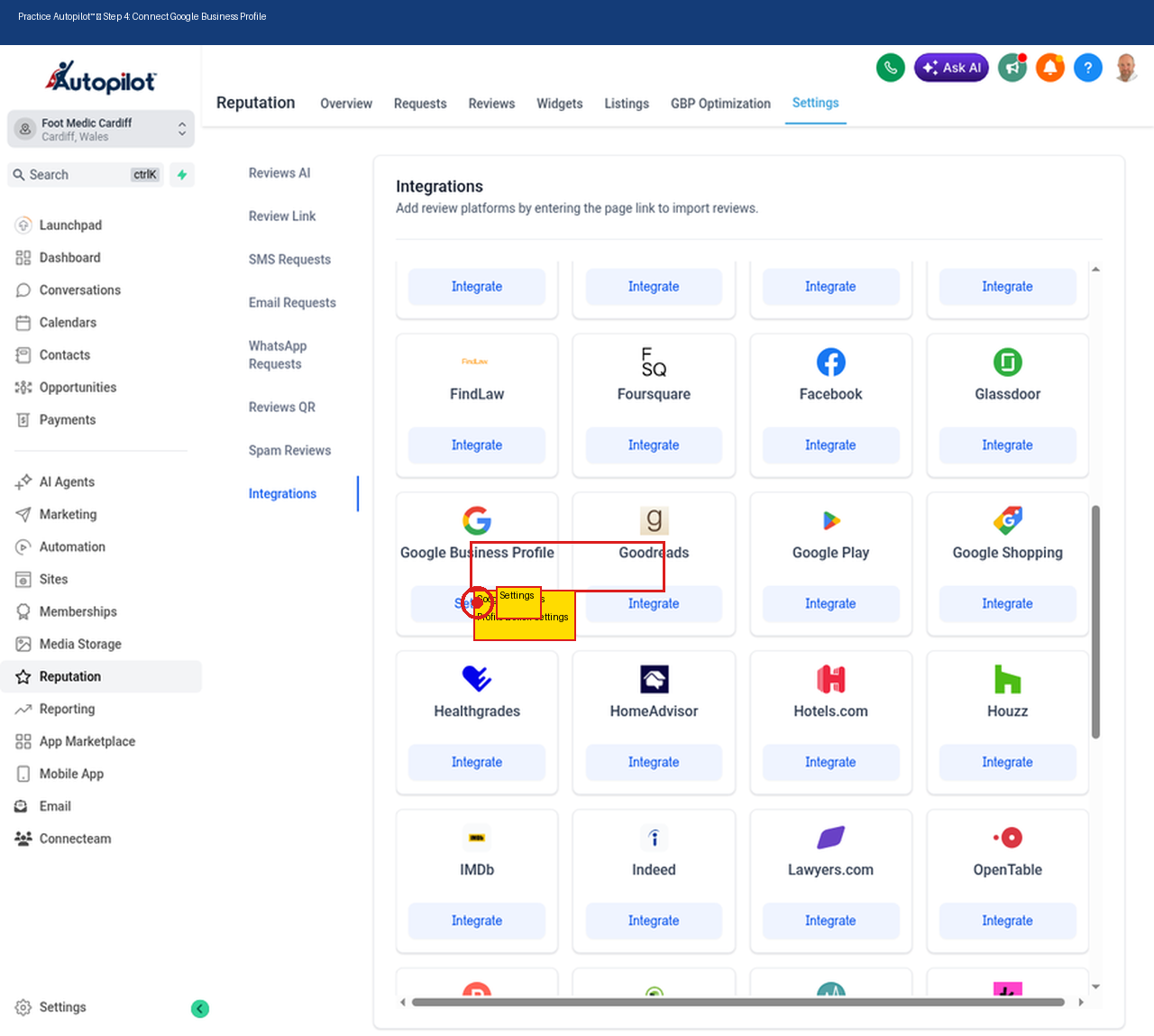
You can also access this through the main system settings:
1.Click Settings at the bottom of the main sidebar.
2.Click Integrations in the Settings sub-menu.
3.Find Google Business Profile and click Manage.
Step 5: Select Your Business Location
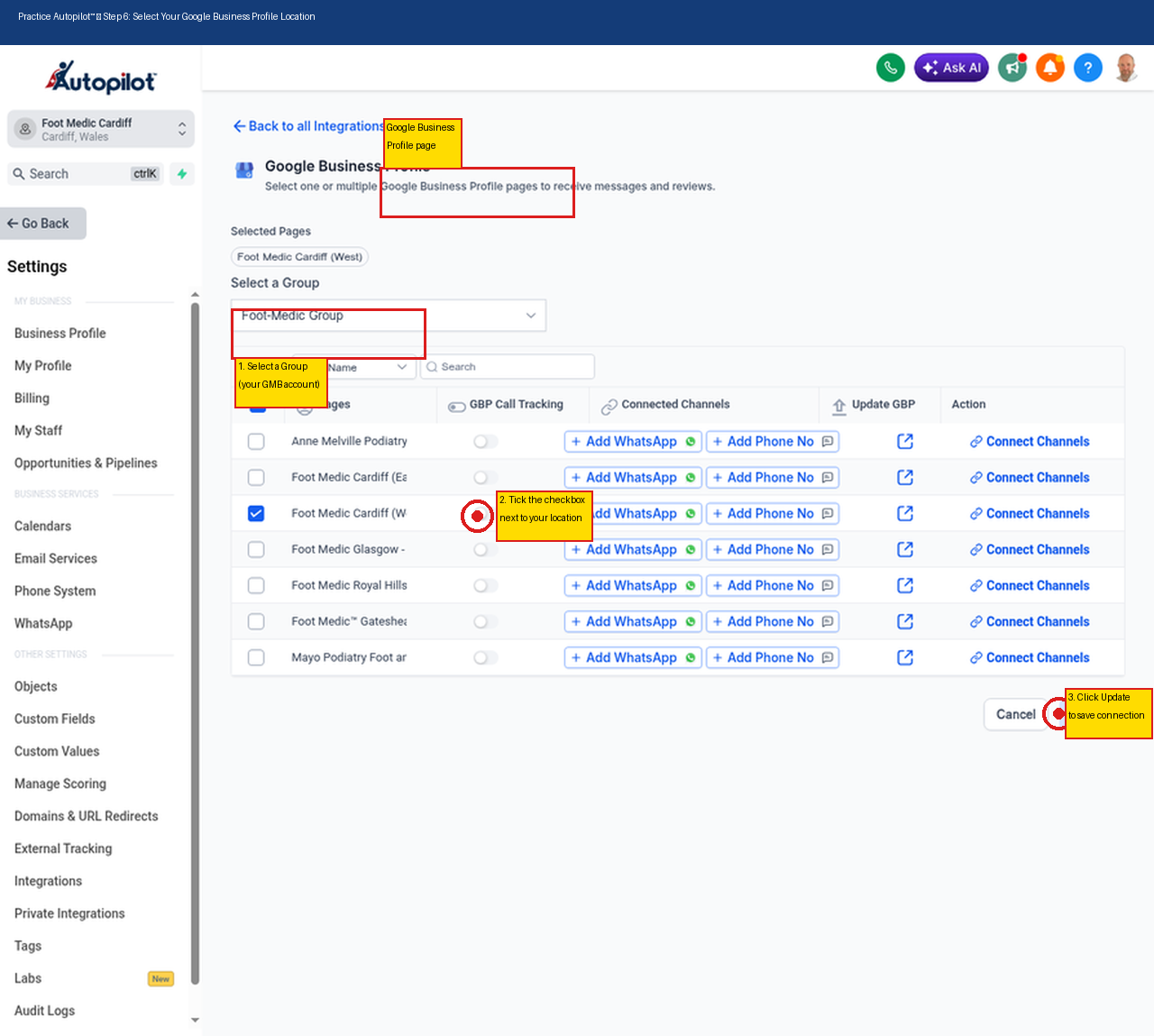
On the Google Business Profile management page:
1.Select your Google account group from the dropdown menu.
2.Locate your specific clinic or business location in the list.
3.Tick the checkbox next to the location you want to connect.
4.Click the Update button at the bottom right to save the connection.
Your Google reviews will now begin syncing automatically into Practice Autopilot.
Part 2: Managing Reviews with AI
Once your Google Business Profile is connected, reviews will automatically sync into Practice Autopilot. You can use the built-in AI to generate professional, context-aware replies instantly.
Step 6: View and Filter Your Reviews
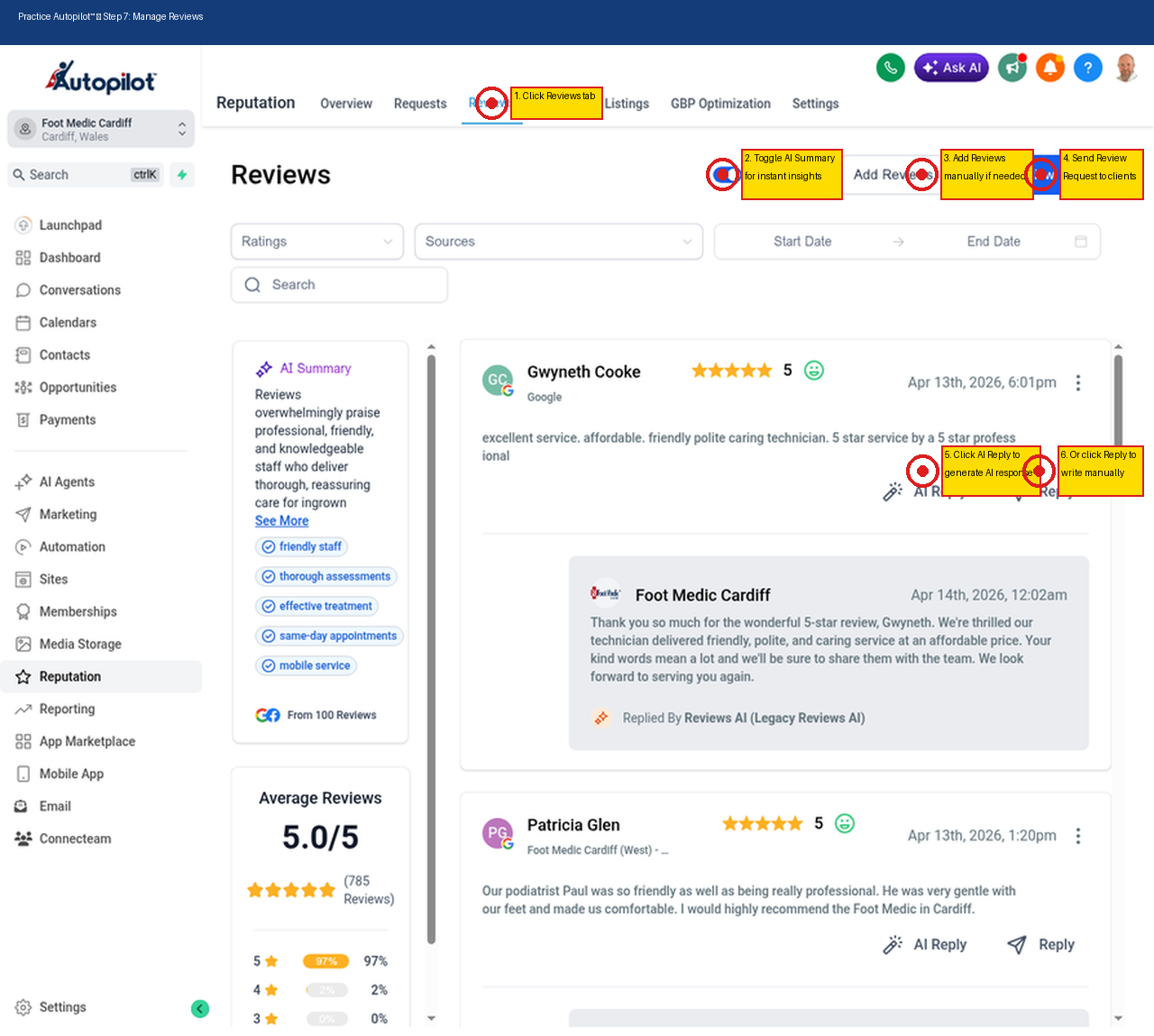
Navigate back to Reputation and click on the Reviews tab in the top navigation menu. Here you will see a live feed of all your synced reviews from all connected platforms.
•Use the Ratings and Sources filters to narrow down reviews by star rating or platform.
•Use the Search bar to find reviews from a specific customer.
•Toggle the AI Summary switch to get an instant AI-generated overview of common themes and sentiments.
Step 7: Generate an AI Reply
To reply to a review using AI:
1.Locate the review you want to respond to.
2.Click the AI Reply button (magic wand icon) below the review text.
3.The AI will instantly generate a professional, personalised response based on the content of the review.
4.If you want a different version, click Regenerate (Free) to generate a new reply.
5.Once you are happy with the reply, click Send to post it directly to Google (or the relevant platform).

Pro Tip: If you have configured Auto Responses in the Reviews AI settings, Practice Autopilot will automatically reply to new reviews on your behalf without any manual action required.
Part 3: Creating a Review Widget for Your Website
Displaying your positive reviews on your website is a powerful way to build trust with potential patients. Practice Autopilot makes it easy to create a fully customisable review widget and embed it on any website.
Step 8: Open the Widget Builder
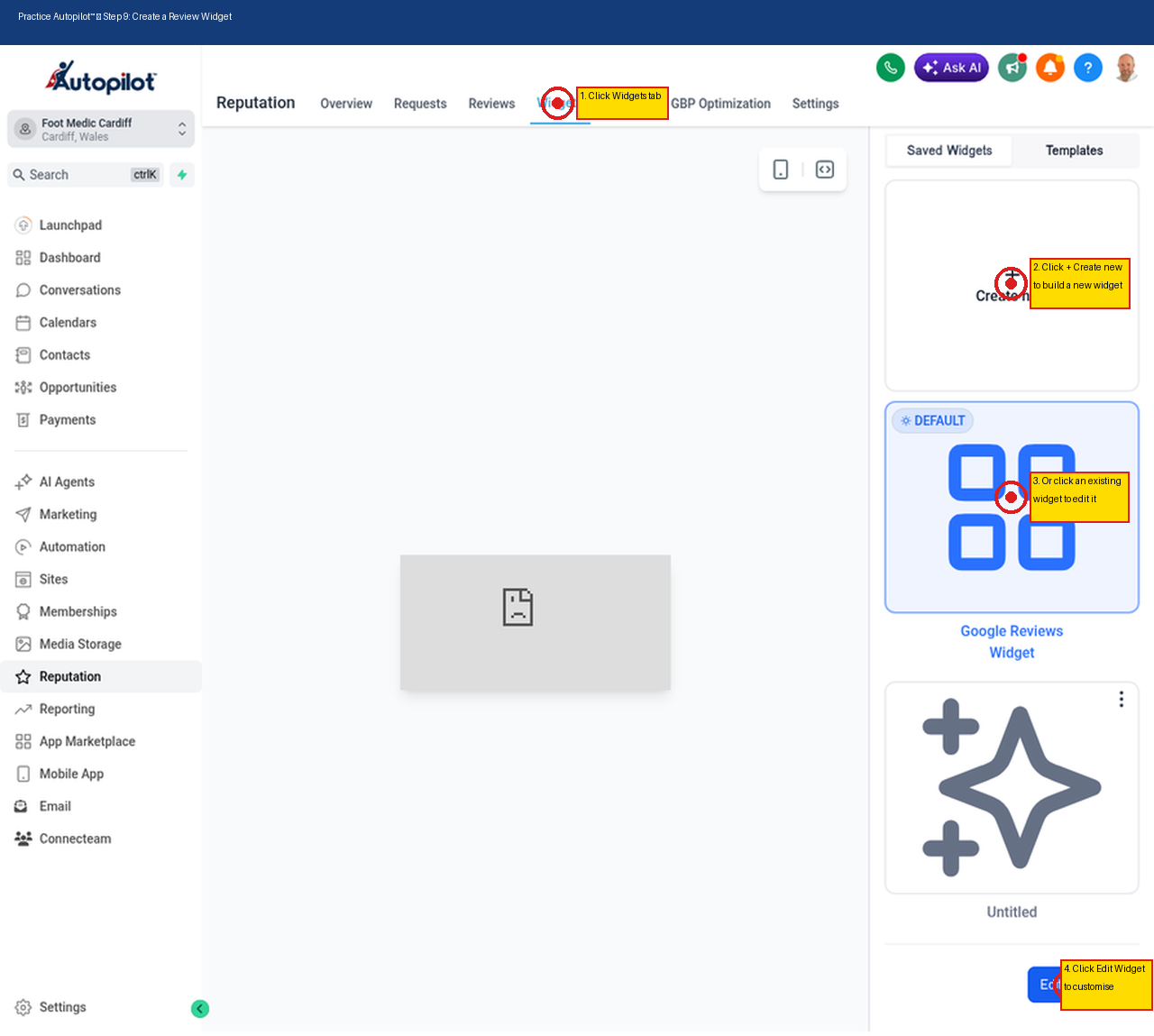
From the Reputation section, click on the Widgets tab in the top navigation menu. You will see your saved widgets on the right-hand side.
•To create a brand new widget, click + Create new.
•To edit an existing widget, click on it and then click Edit Widget.
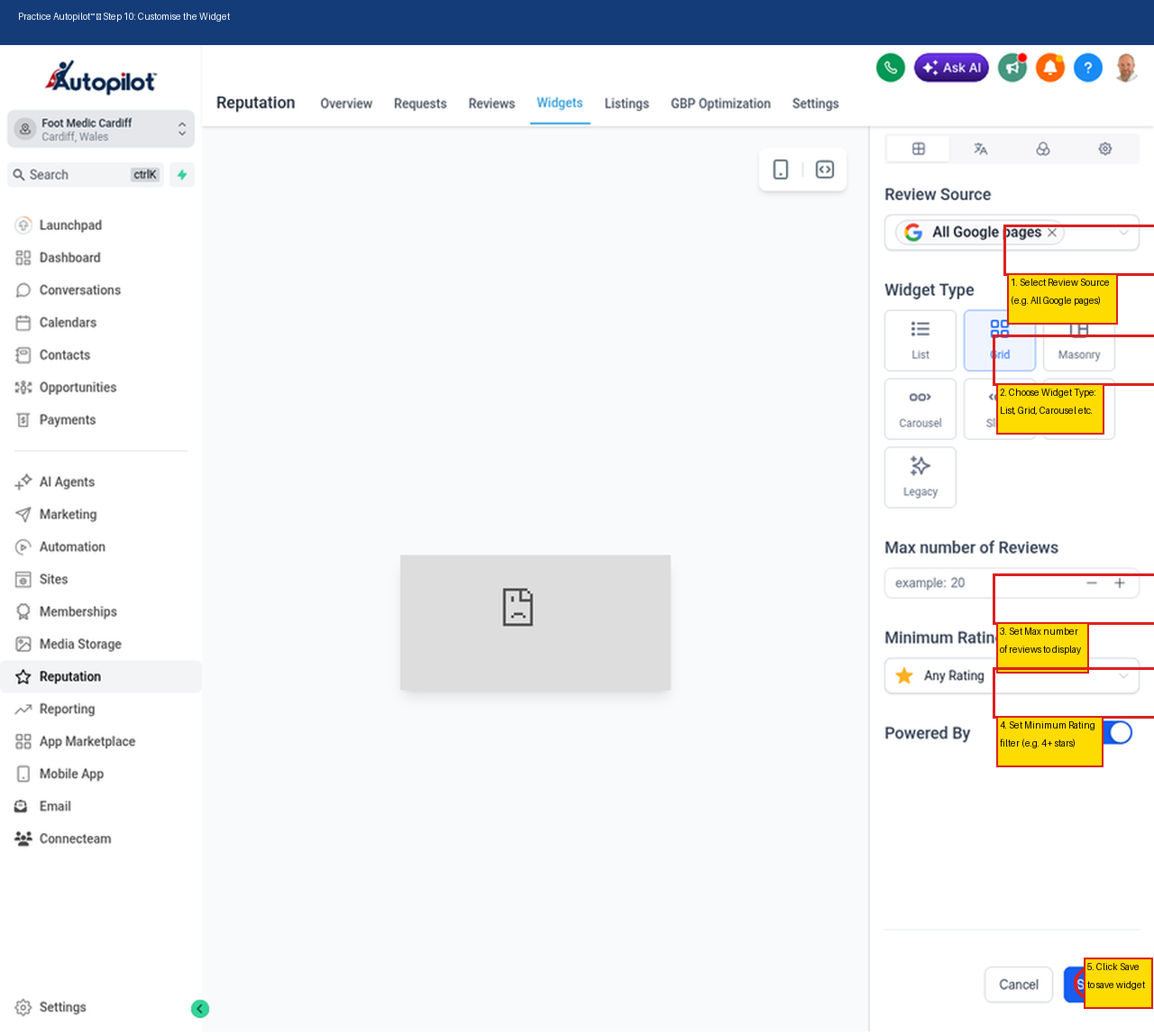
Step 9: Customise Your Widget
In the Widget Editor panel on the right-hand side, you can configure exactly how your reviews will appear on your website:
1.Review Source — Select which reviews to display (e.g., “All Google pages” or a specific location).
2.Widget Type — Choose from List, Grid, Masonry, Carousel, Slider, Flash, or Legacy layouts.
3.Max number of reviews — Set how many reviews to display (e.g., 20).
4.Minimum Rating — Filter out lower ratings by setting a minimum star threshold (e.g., only show 4 and 5-star reviews).
5.Click Save when you are satisfied with the configuration.
Step 10: Copy and Embed the Widget Code
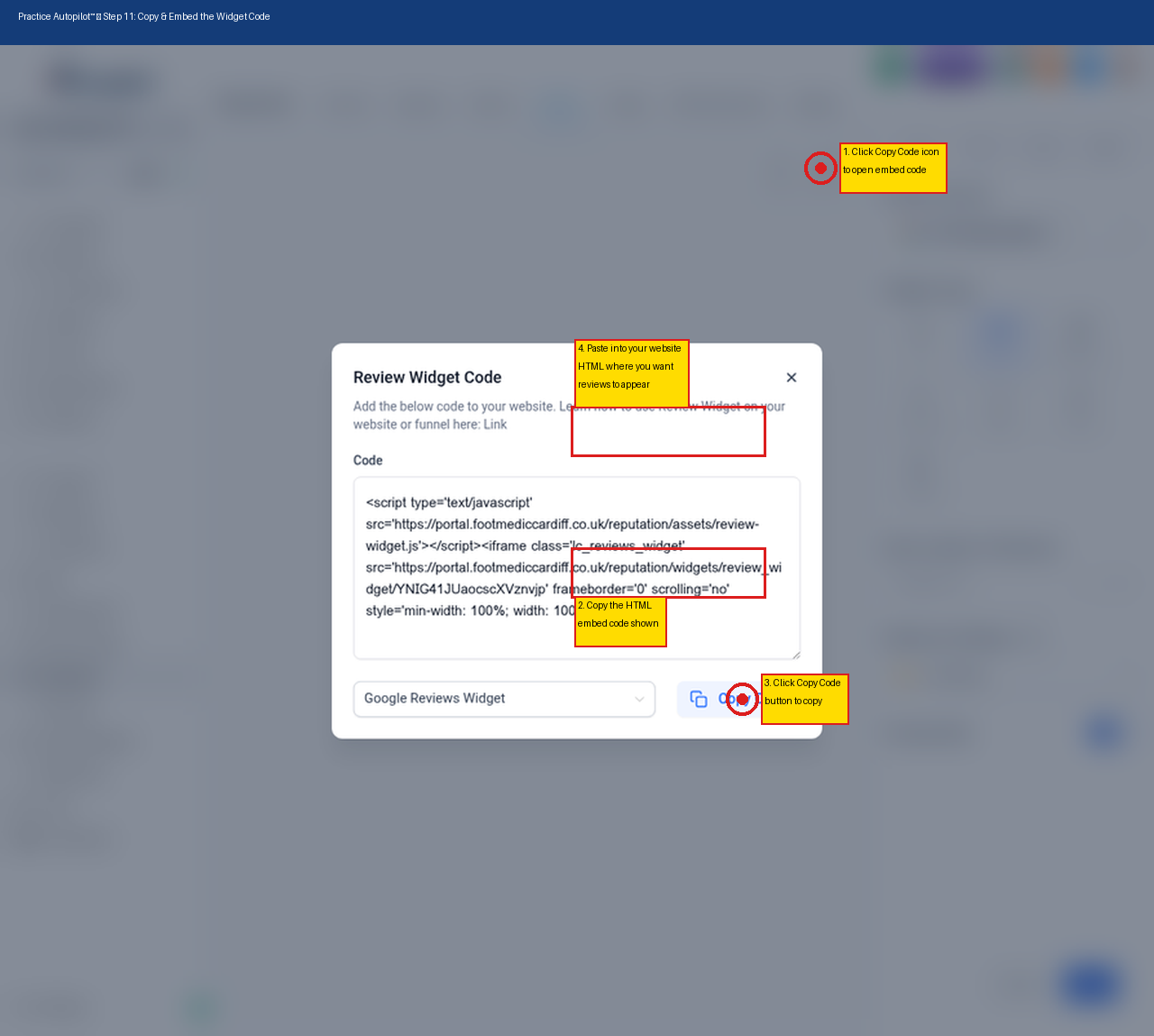
Once your widget is saved and previewed:
1.Click the Copy Code icon (< >) in the top right corner of the widget preview area.
2.A popup will appear containing the HTML embed code for your widget.
3.Click the Copy Code button to copy the script to your clipboard.
4.Paste this code into the HTML of your website, landing page, or funnel builder exactly where you want the reviews to appear.
Your review widget is now live on your website and will automatically update as new reviews come in.
Summary
By following this guide, you have:
| Task | Status |
| Connected Google Business Profile to Practice Autopilot | Done |
| Set up AI to auto-reply or suggest replies to reviews | Done |
| Viewed and managed all reviews from one dashboard | Done |
| Generated AI-powered professional review replies | Done |
| Created a customised review widget | Done |
| Embedded the widget on your website | Done |
You are now fully equipped to manage your online reputation, respond to reviews with AI, and showcase your 5-star feedback to attract new patients.