Welcome to the comprehensive guide on configuring your email settings within Practice Autopilot. Proper email configuration is essential for ensuring your communications reach your clients’ inboxes rather than their spam folders. This guide will walk you through the necessary steps to set up your email services, manage your dedicated domain, and configure reply and forward settings for the best possible delivery results.
Accessing Email Services
To begin configuring your email settings, you must first navigate to the appropriate section within your Practice Autopilot sub-account.
1.Log in to your Practice Autopilot account and select your specific sub-account (e.g., Foot Medic Cardiff) from the location switcher.
2.Navigate to the left-hand sidebar and scroll down to the Settings section.
3.Click on Email Services to open the main configuration dashboard.
Configuring Your SMTP Service
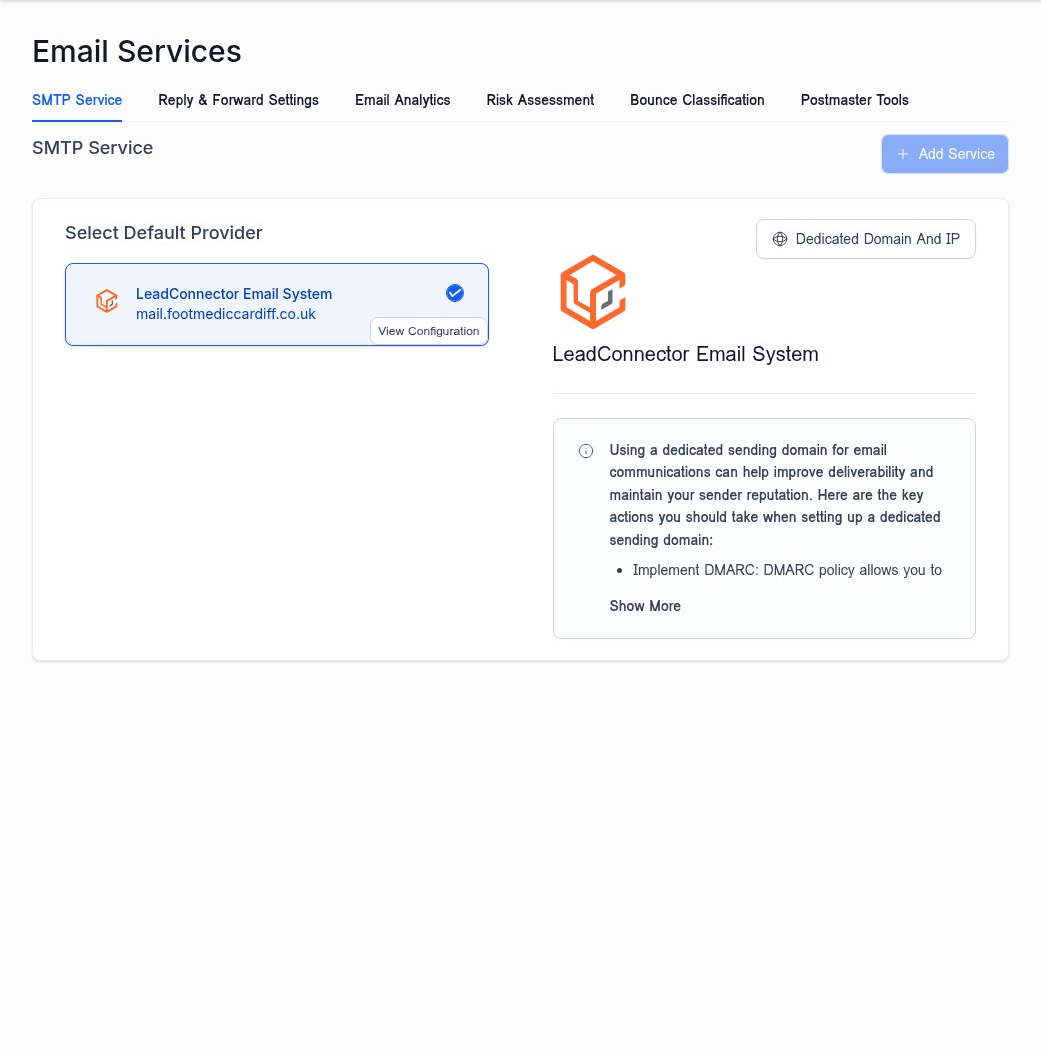
The SMTP Service tab is your primary dashboard for managing how emails are sent from your account. Practice Autopilot utilizes the LeadConnector Email System as the default provider, which offers robust deliverability features.
Setting Up a Dedicated Domain
Using a dedicated sending domain is one of the most effective ways to improve email deliverability and maintain a positive sender reputation. It isolates your sending reputation from other users on shared IP addresses.
1.On the SMTP Service tab, locate the Select Default Provider section.
2.Ensure that the LeadConnector Email System is selected and displays a blue checkmark.
3.Click the Dedicated Domain And IP button located in the top right corner of the provider area.
Managing Domain Settings
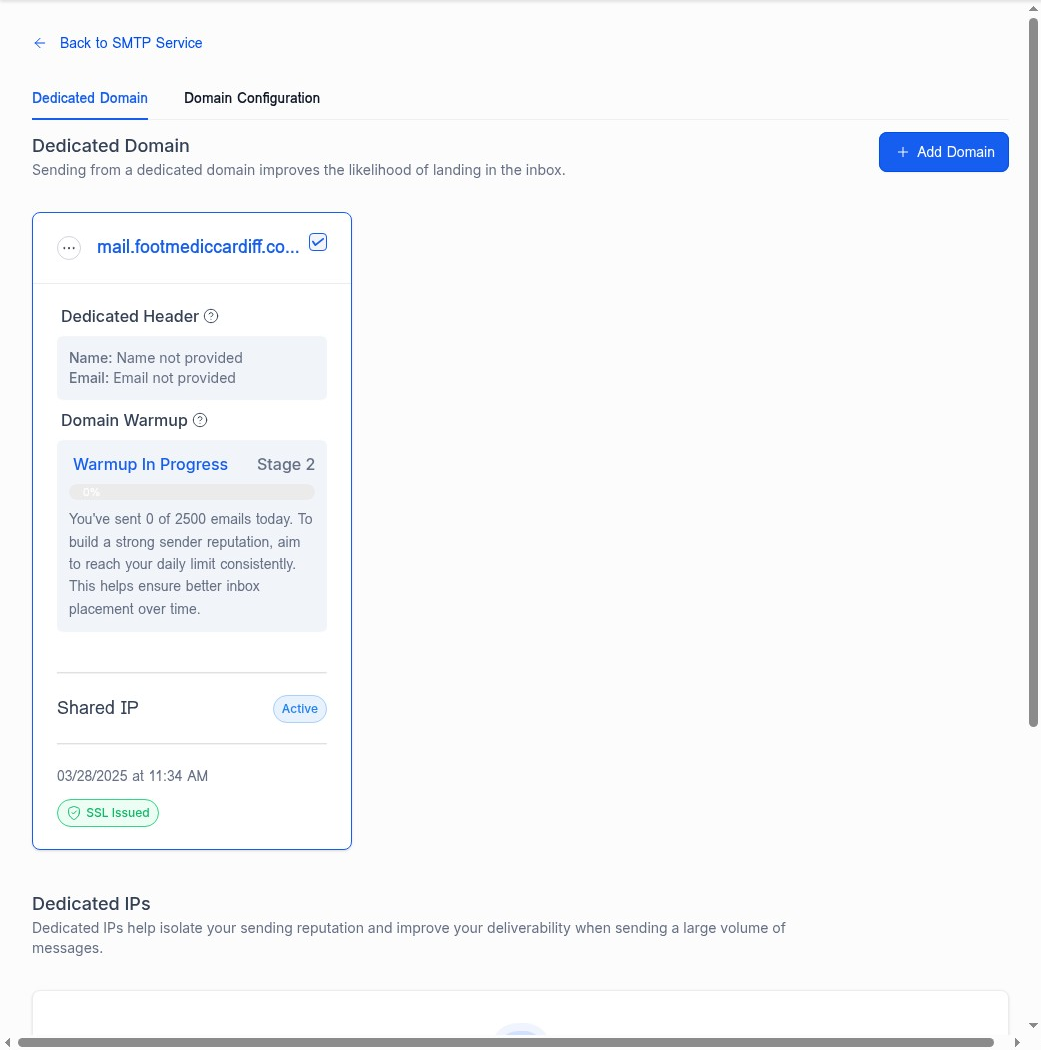
Once you have accessed the Dedicated Domain section, you can manage the specific settings that impact your sender reputation.
1.Review your verified domain (e.g., mail.footmediccardiff.co.uk). A blue checkmark indicates that the domain is successfully verified.
2.Monitor the Domain Warmup progress. When you first set up a dedicated domain, the system gradually increases your sending volume to build a strong sender reputation with email providers like Gmail and Outlook. Aim to reach your daily limit consistently to ensure better inbox placement over time.
3.Ensure that the Shared IP status is marked as Active and that the SSL Issued badge is green, confirming that your domain is secure.
Advanced Domain Options
For more granular control over your domain, you can access advanced options through the domain menu.
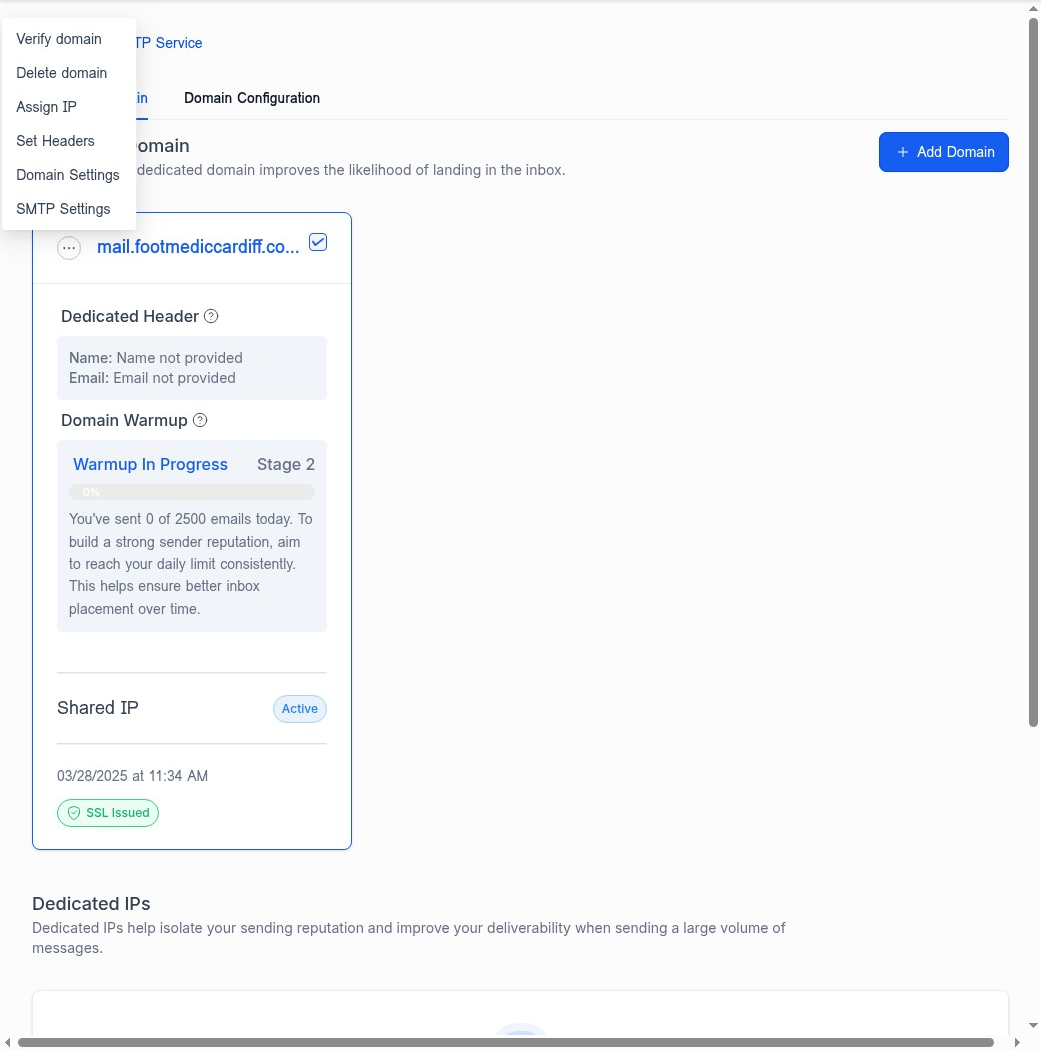
1.Click the … (options) menu button located at the top left of your domain card.
2.From this menu, you can perform actions such as verifying the domain, assigning an IP, setting headers, or accessing specific domain and SMTP settings.
Customizing Domain Configuration
Practice Autopilot allows you to specify which domain is used for different types of email communications. This separation can further protect your sender reputation, especially when sending bulk campaigns.
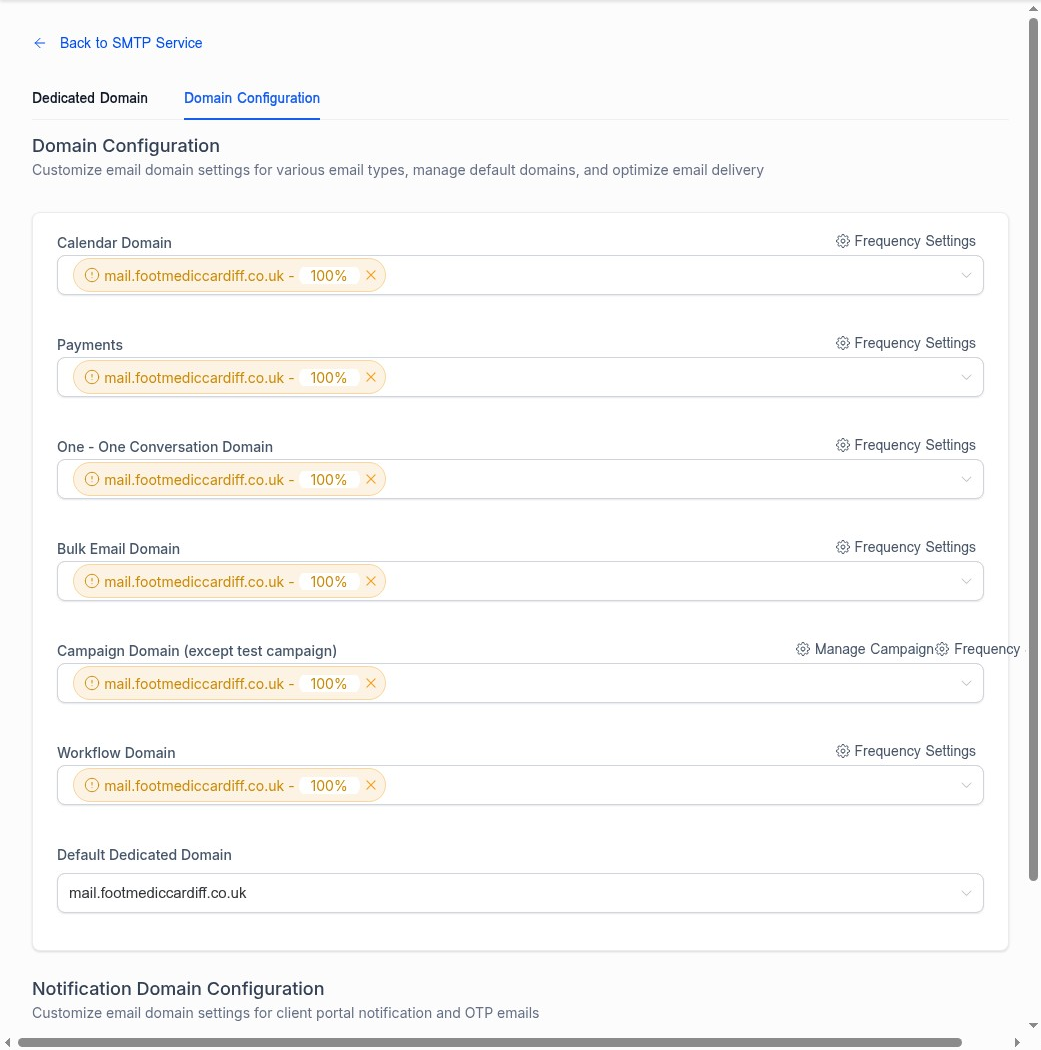
1.From the Dedicated Domain page, click on the Domain Configuration tab.
2.Review the list of email types, which includes Calendar Domain, Payments, One-One Conversation Domain, Bulk Email Domain, Campaign Domain, and Workflow Domain.
3.Ensure that your dedicated domain (e.g., mail.footmediccardiff.co.uk) is selected for each relevant category. You can also adjust the frequency settings for each type to control how often emails are sent.
Configuring Reply and Forward Settings
Properly configuring your reply and forward settings ensures that you never miss a client response and that your team can efficiently manage communications.
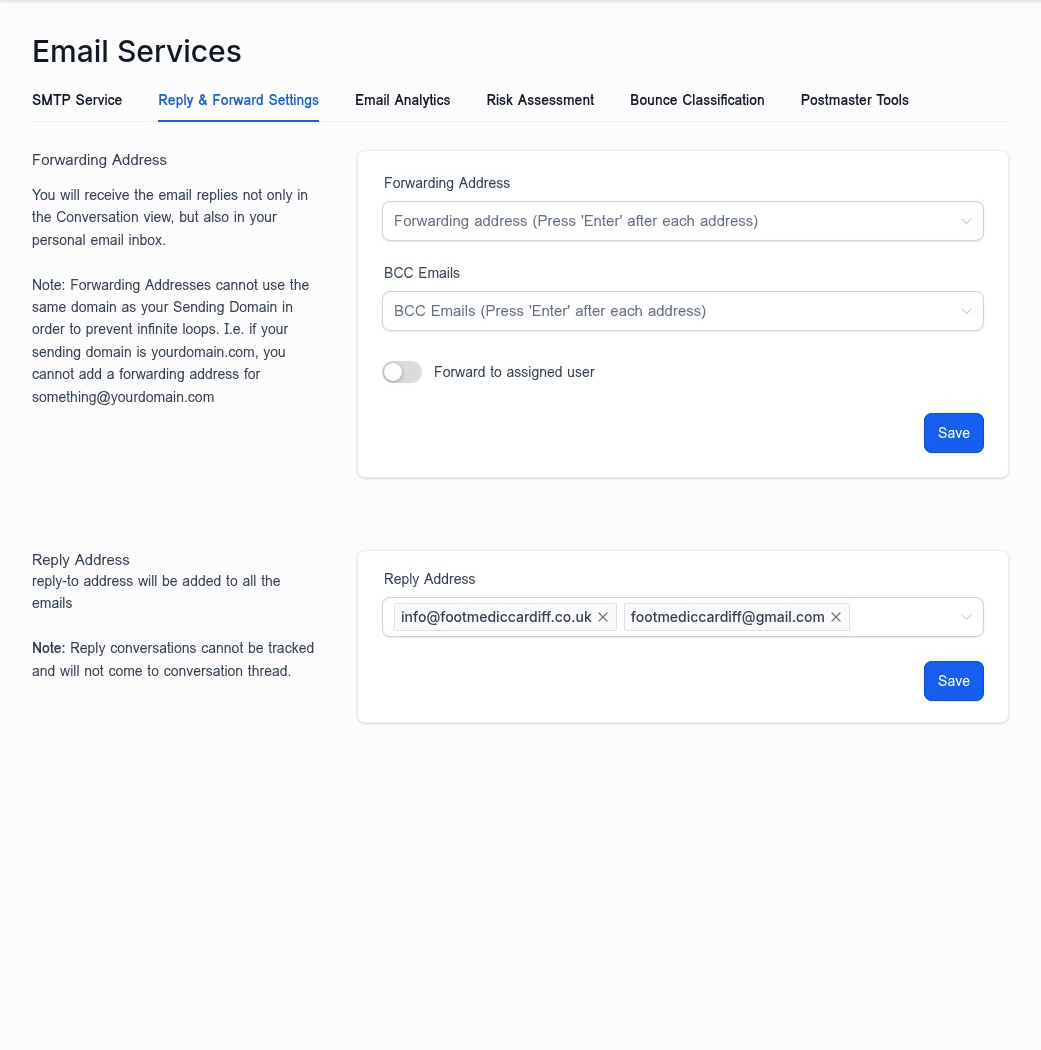
1.Return to the main Email Services dashboard and click on the Reply & Forward Settings tab.
2.In the Forwarding Address section, enter the email address where you wish to receive replies. This ensures that replies are sent to your personal inbox in addition to the Conversation view within Practice Autopilot.
•Note: To prevent infinite email loops, your forwarding address cannot use the same domain as your sending domain.
3.You may also add BCC emails if you need copies of communications sent to additional addresses.
4.In the Reply Address section, specify the address that will be added as the “reply-to” address on all outgoing emails. This directs client responses to the correct inbox.
5.Click the Save button in each section to apply your changes.
Best Practices for Email Deliverability
To maximize your email deliverability, consider the following best practices:
•Implement DMARC: Ensure that your domain has a DMARC (Domain-based Message Authentication, Reporting, and Conformance) policy in place. This protects your domain from unauthorized use and improves your reputation with email receivers.
•Consistent Sending Volume: During the domain warmup phase, send emails consistently to build trust with inbox providers. Avoid sudden spikes in email volume.
•Monitor Analytics: Regularly check the Email Analytics, Risk Assessment, and Bounce Classification tabs within the Email Services dashboard to identify and address any deliverability issues promptly.
By following these steps and best practices, you can configure your Practice Autopilot email settings to achieve optimal delivery results, ensuring your important communications always reach your clients.