This guide provides step-by-step instructions on how to use the Build with AI feature in Practice Autopilot to quickly generate a professional homepage for a physiotherapy clinic.
Step 1: Access the Website Builder
1.Log in to your Practice Autopilot account and navigate to your sub-account (e.g., Cliniko Trial 1).
2.In the left-hand menu, click on Sites.
3.Select the Websites tab at the top of the page.
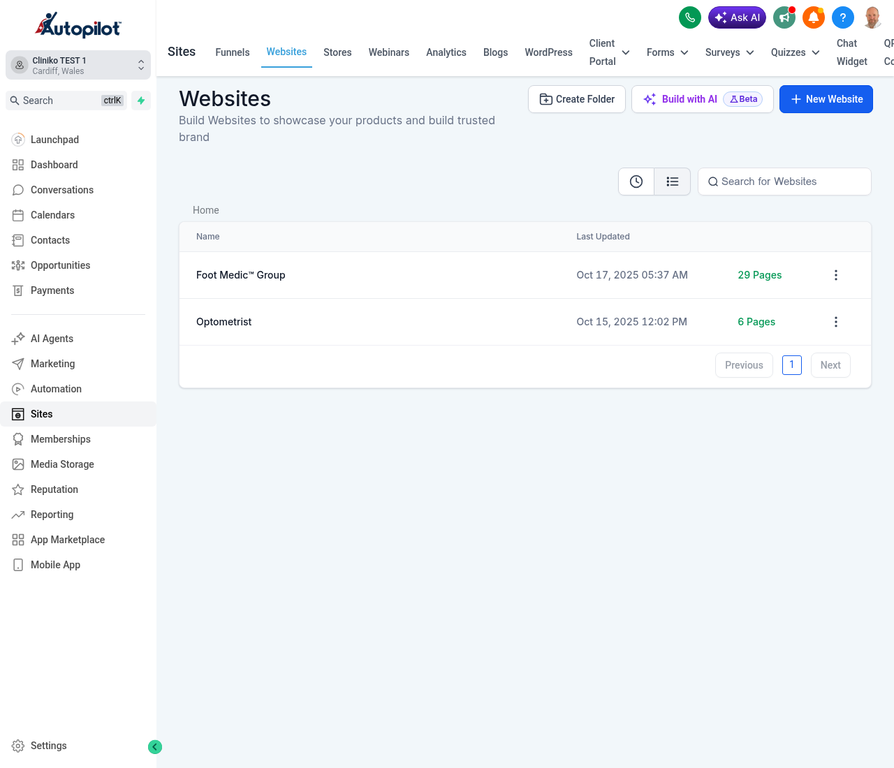
4.Click the Build with AI button located in the top right corner of the screen.
Step 2: Configure the AI Website Builder
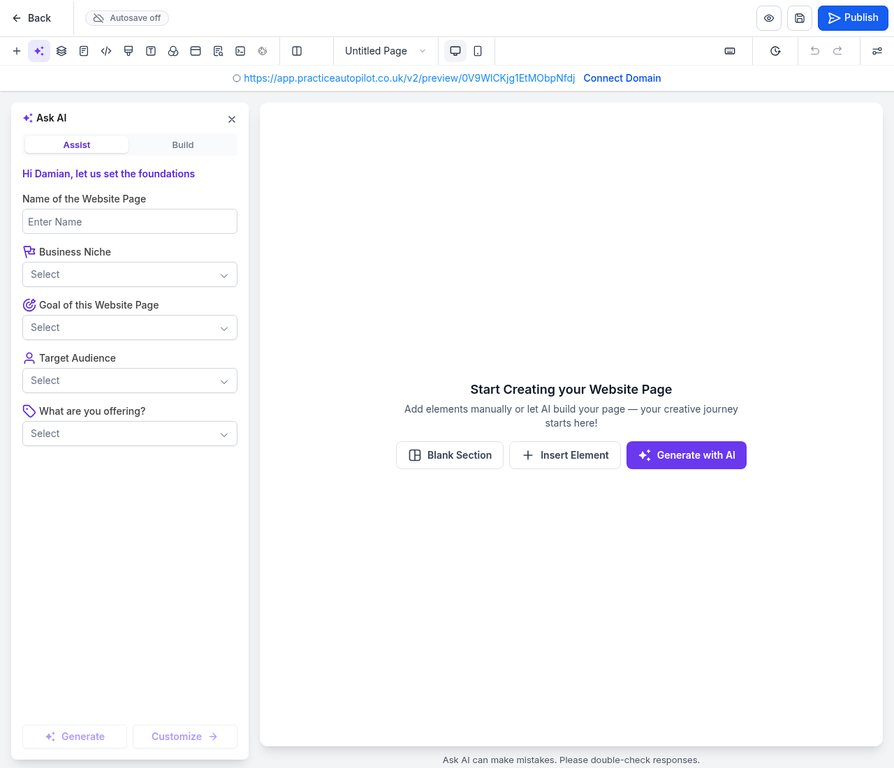
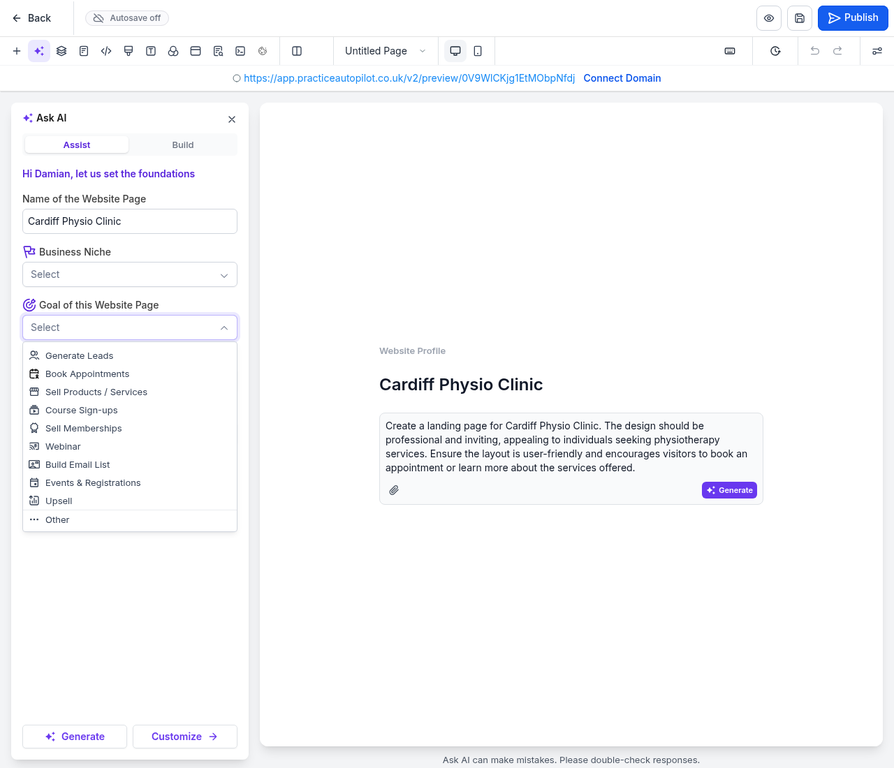
Once the page builder loads, the Ask AI panel will appear on the left side of the screen. This panel allows you to provide details about your clinic so the AI can generate a tailored homepage.
1. Enter the Website Name
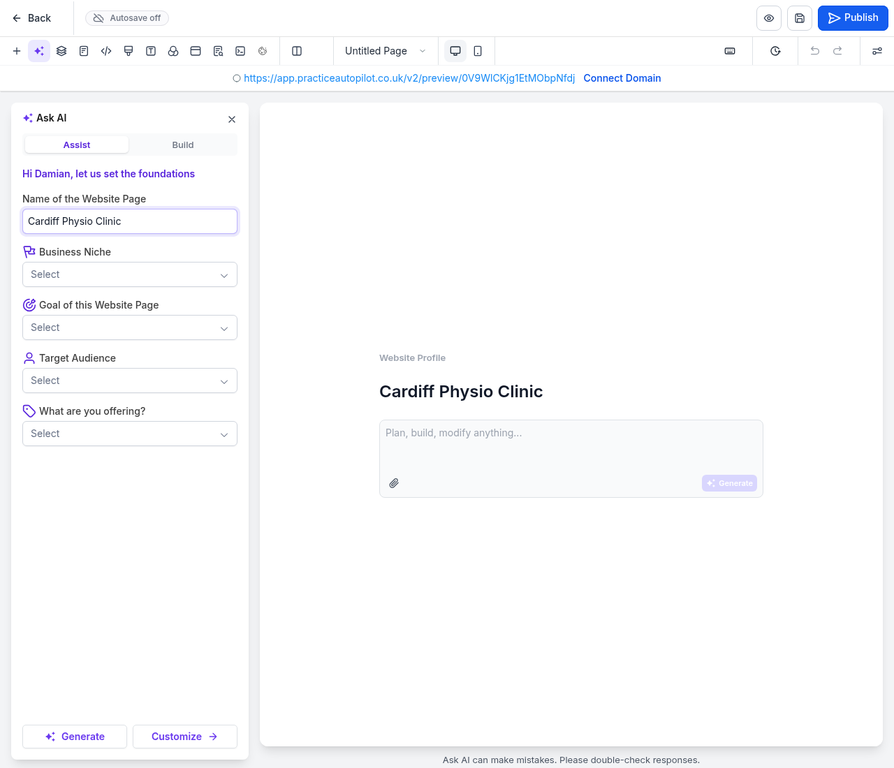
In the Name of the Website field, type the name of your clinic (e.g., “Cardiff Physio Clinic”).
2. Select the Business Niche
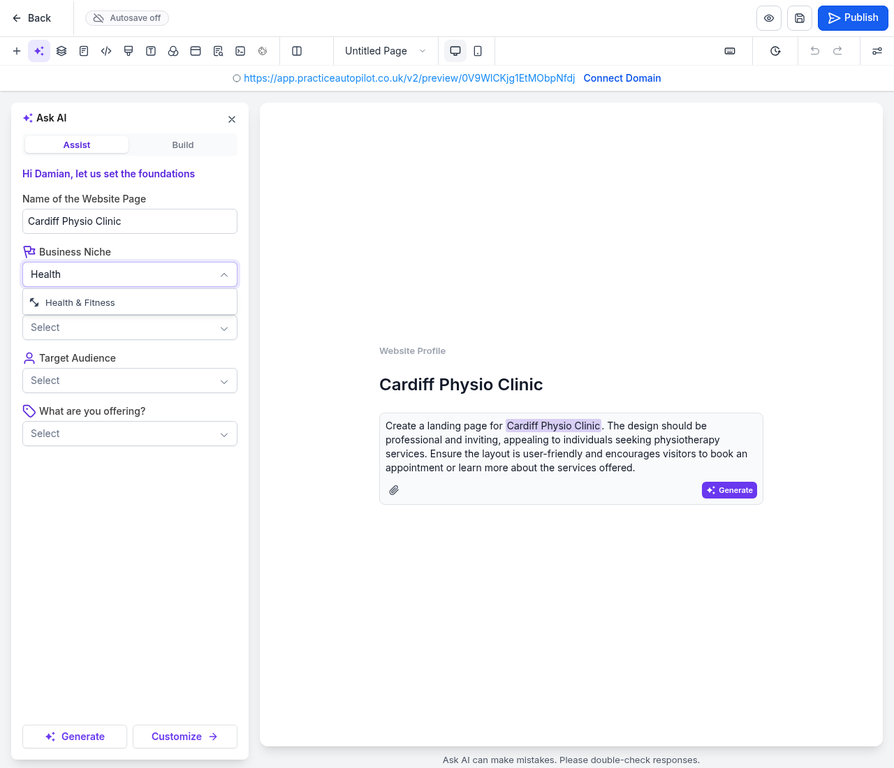
Click the Business Niche dropdown menu. You can type “Health” to filter the options, then select Health & Fitness from the list.
3. Choose the Goal of the Webpage
Click the Goal of this Webpage dropdown menu and select the primary objective for your site. For a physiotherapy clinic, Book Appointments is highly recommended.
Step 3: Generate the Website
After filling in the required fields, the AI will automatically draft a prompt based on your inputs in the text box at the bottom of the panel.
1.Review the generated prompt to ensure it accurately reflects your clinic’s needs.
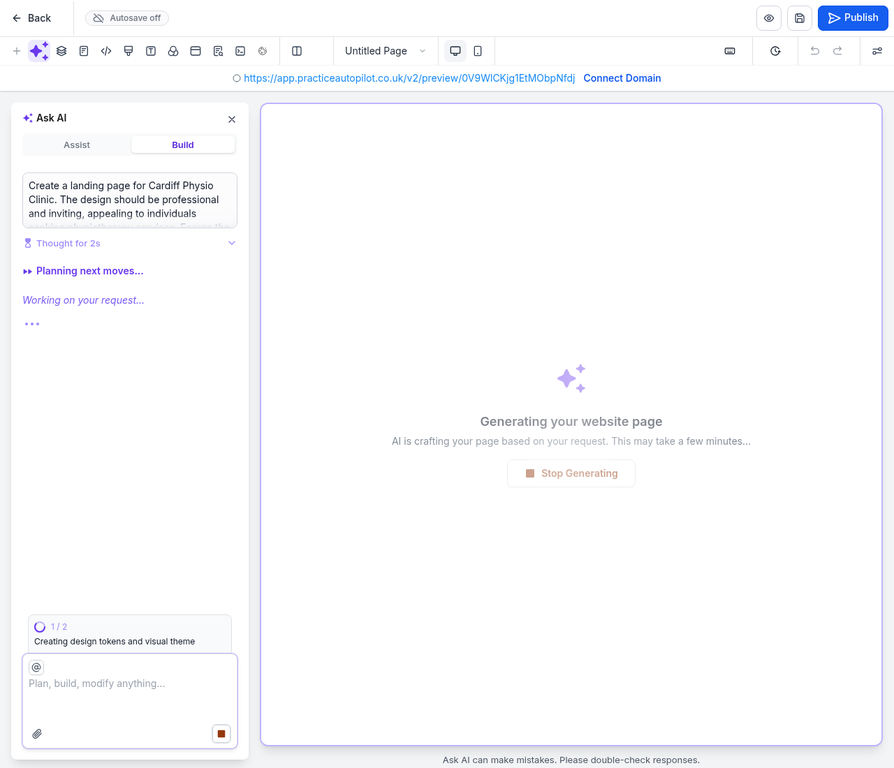
2.Click the Generate button to start the building process.
Step 4: Wait for AI Generation
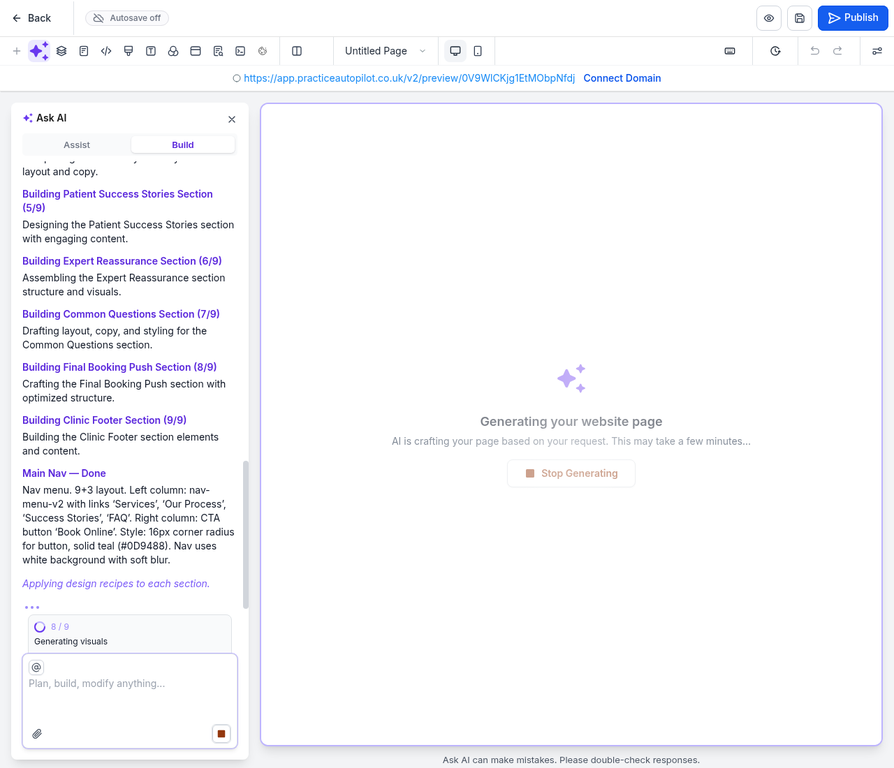
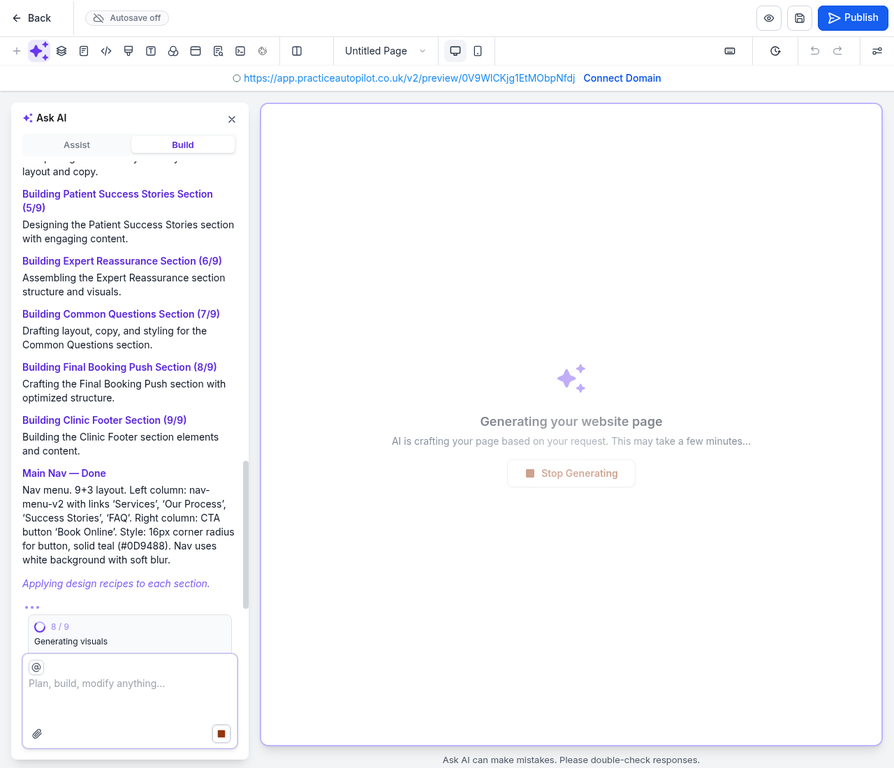
The AI will begin constructing your homepage section by section. You can monitor its progress in the Ask AI panel, which will display the tasks it is currently completing (e.g., “Building Hero Section”, “Adding Services”).
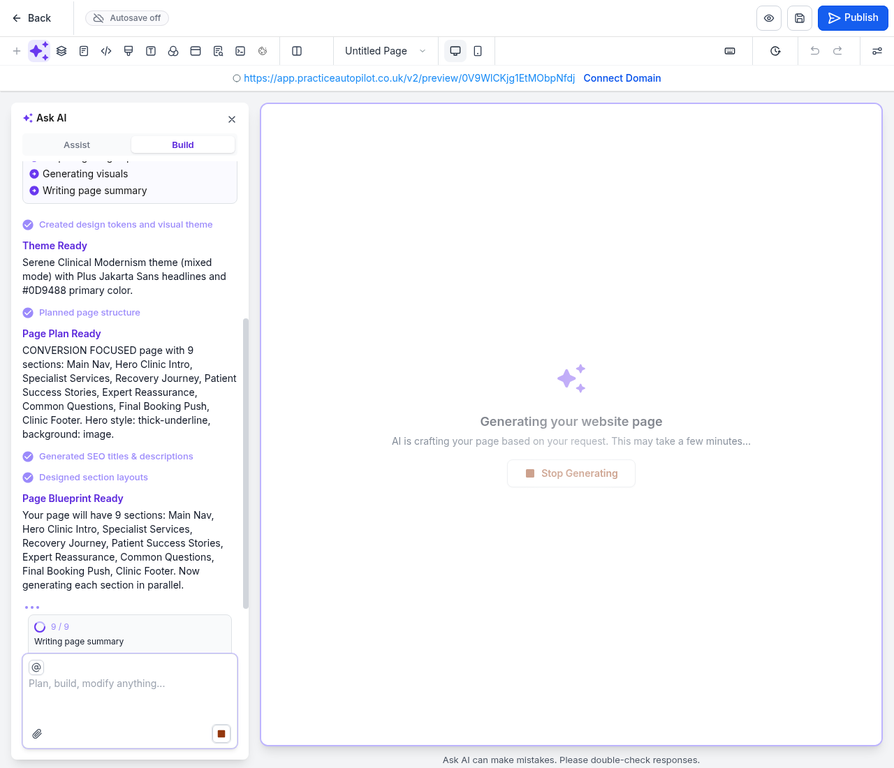
The process may take a few minutes as the AI generates copy, selects images, and formats the layout.
Step 5: Review and Customize the Generated Homepage
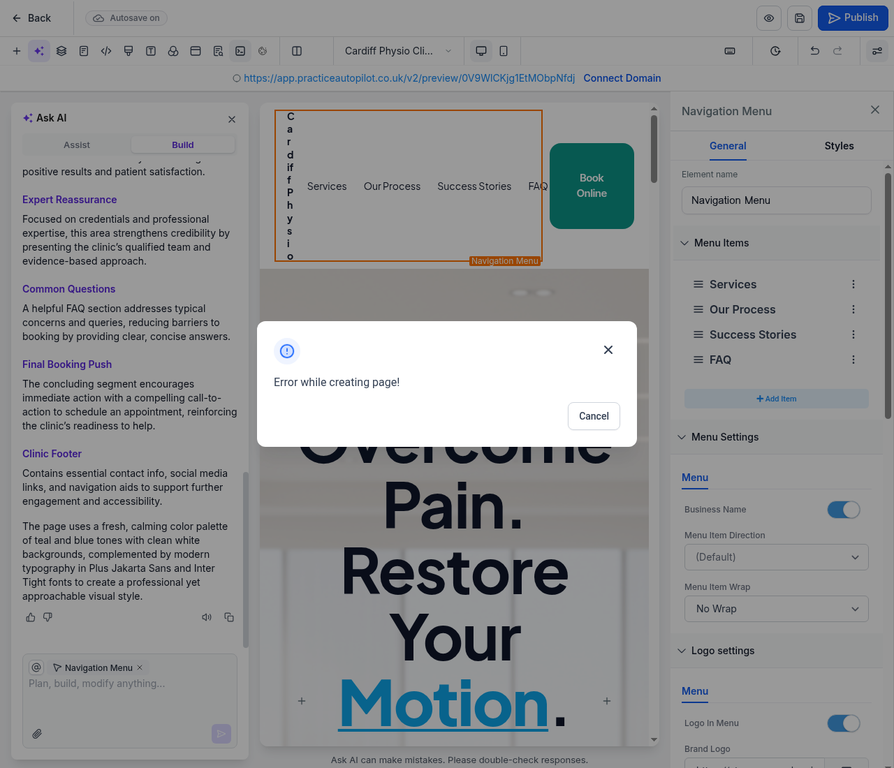
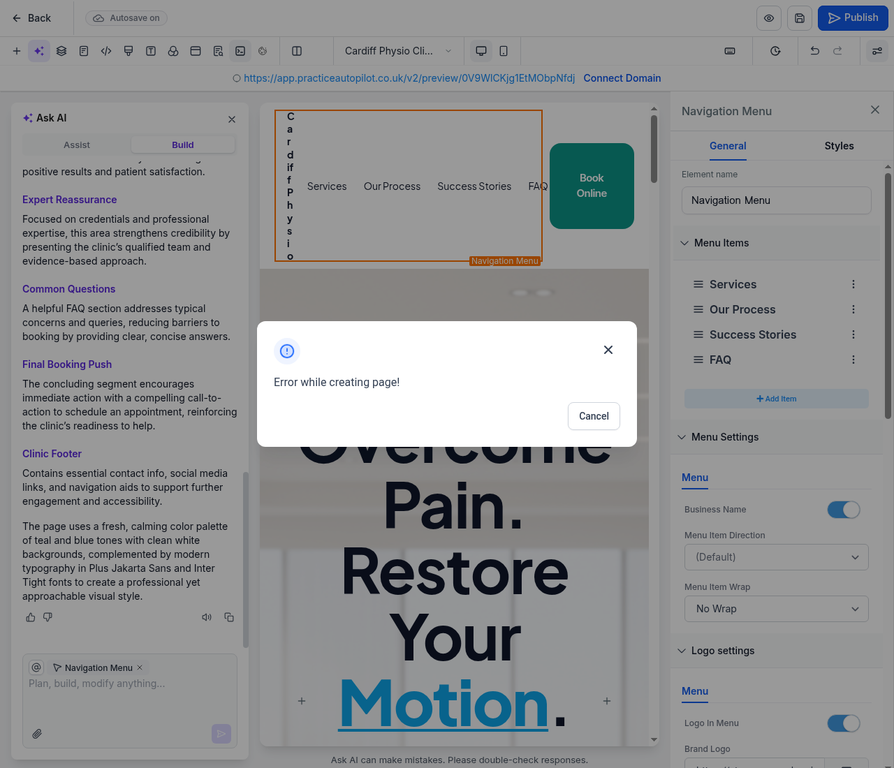
Once the AI has finished, the complete homepage will be rendered in the page builder canvas. If an error modal appears, simply click Cancel to close it.
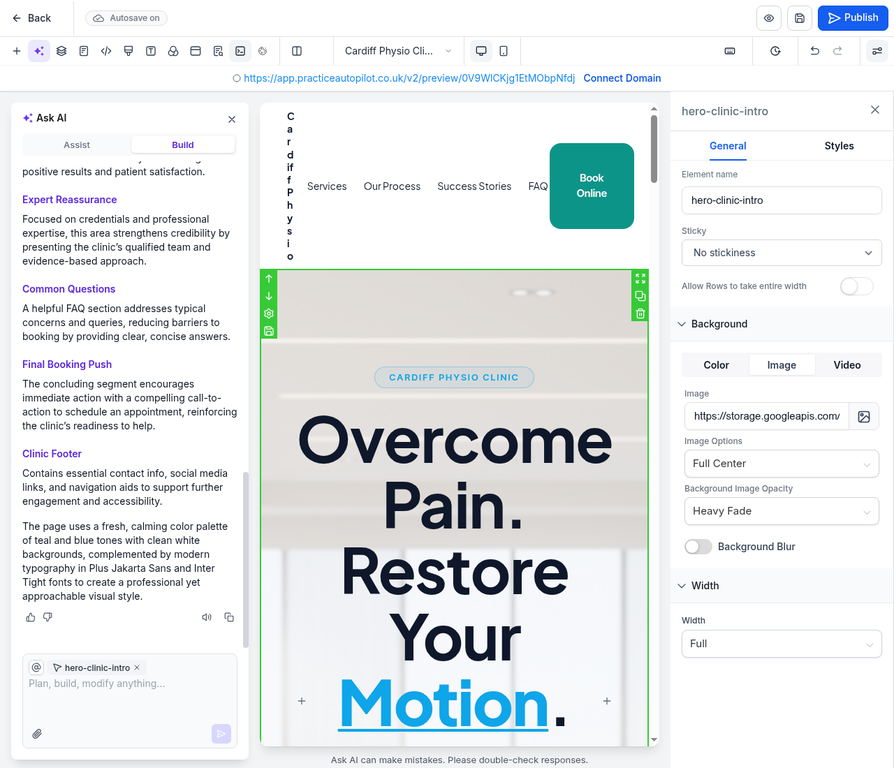
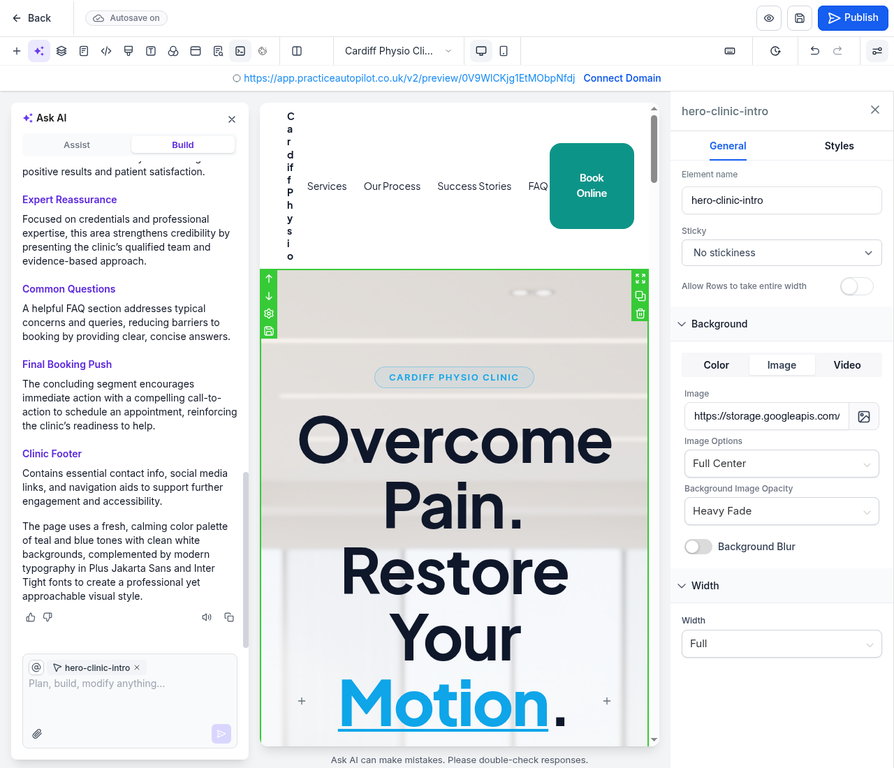
You can now click on any element within the canvas to customize the text, images, or styling using the settings panel on the right.
Step 6: Preview Your New Homepage
To see how your website will look to visitors, click the Preview button (the eye icon) in the top navigation bar.
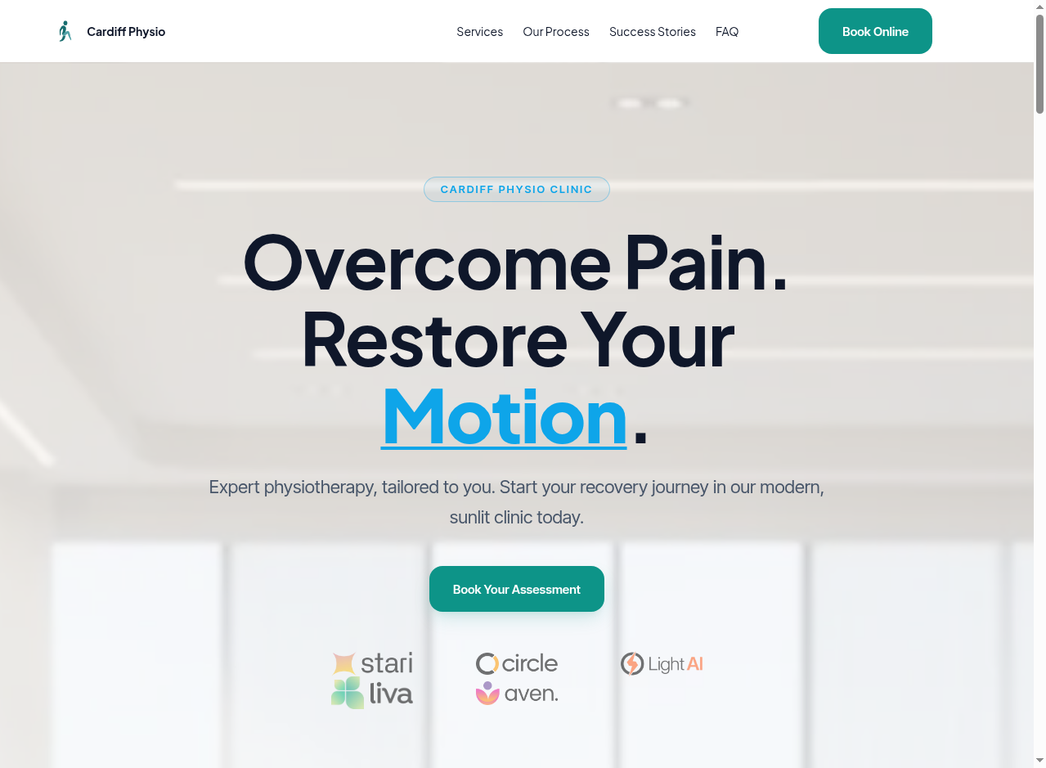
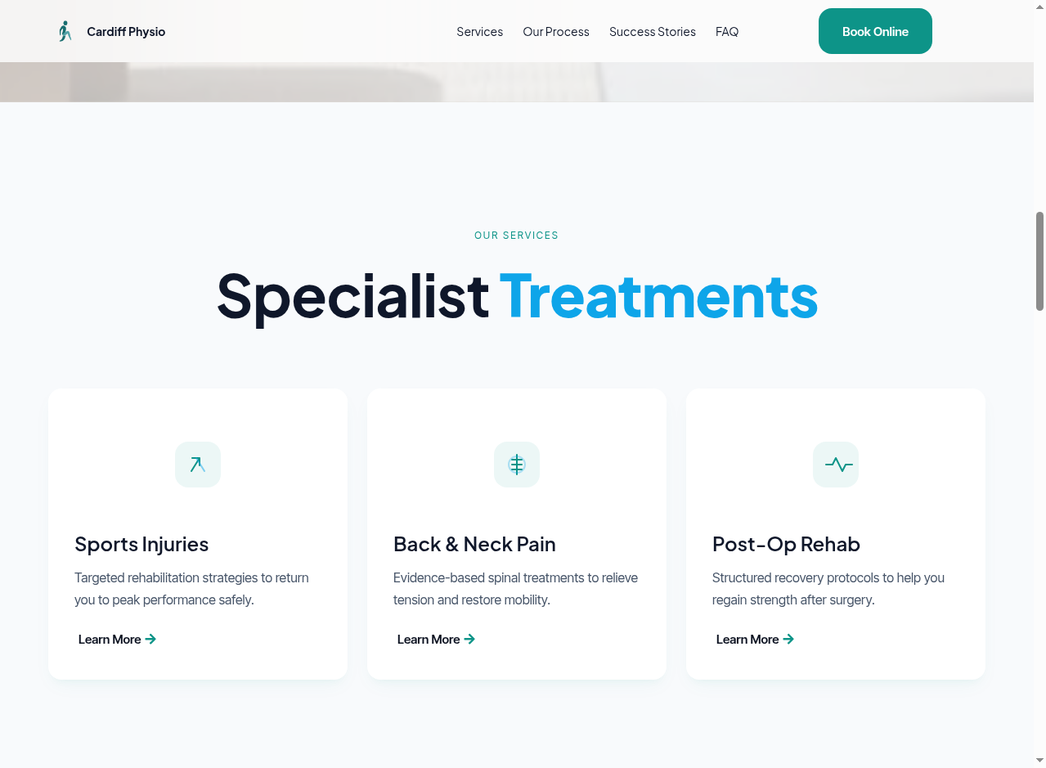
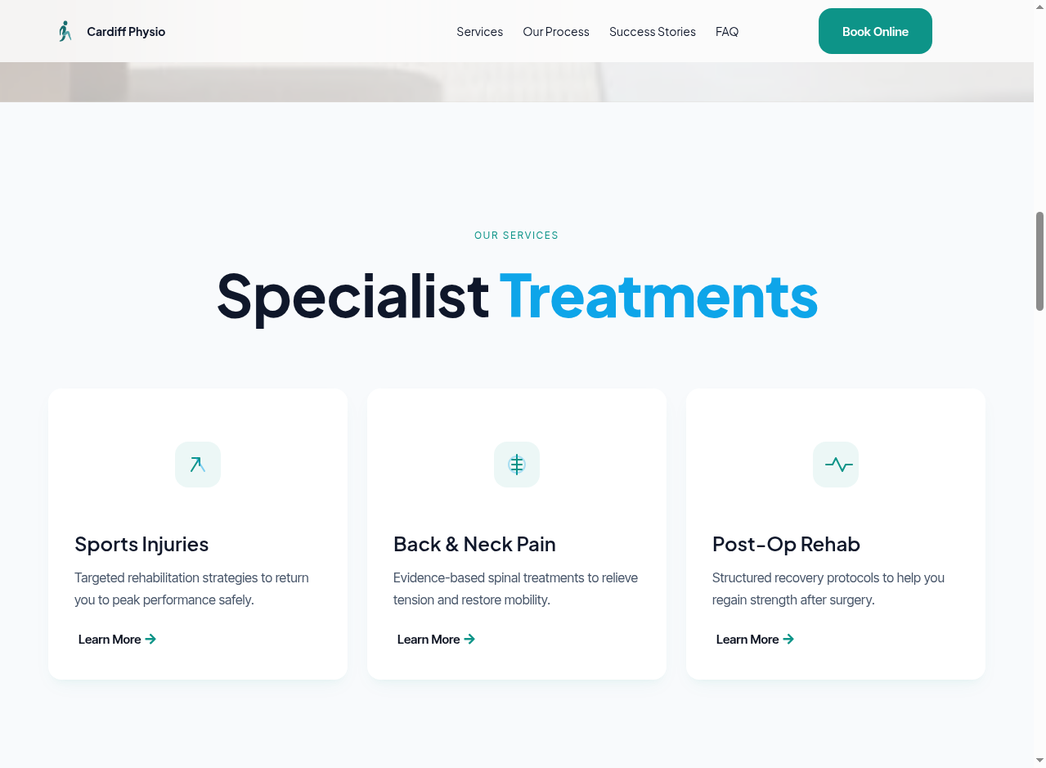
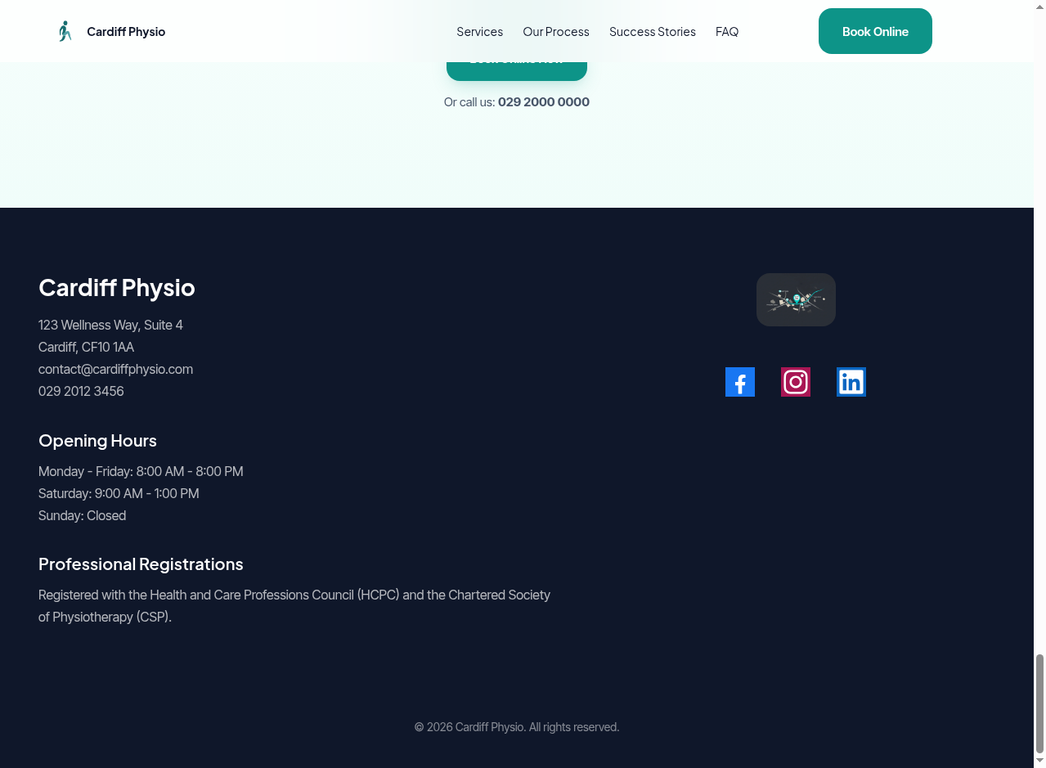
Scroll through the preview to review all the generated sections, such as the Services overview and the Footer.
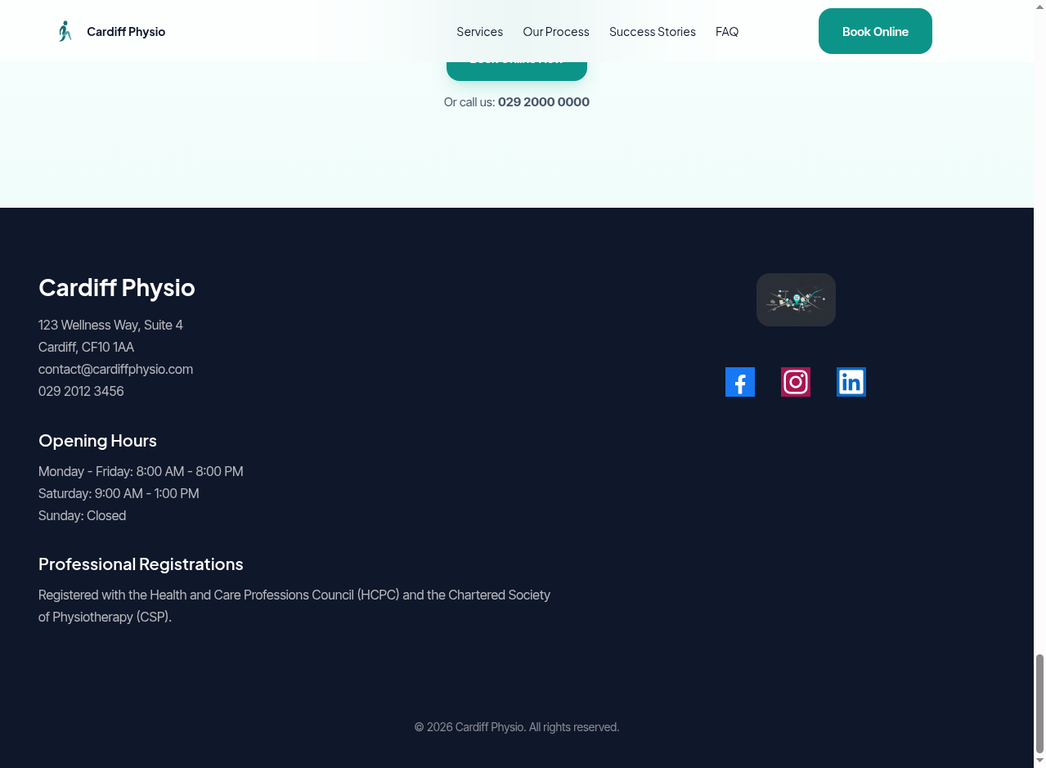
Congratulations! You have successfully created a professional physiotherapy clinic homepage using the Build with AI feature. You can now continue to refine the content and publish your site when ready.
This guide provides step-by-step instructions on how to use the Build with AI feature in Practice Autopilot to quickly generate a professional homepage for a physiotherapy clinic.
Step 1: Access the Website Builder
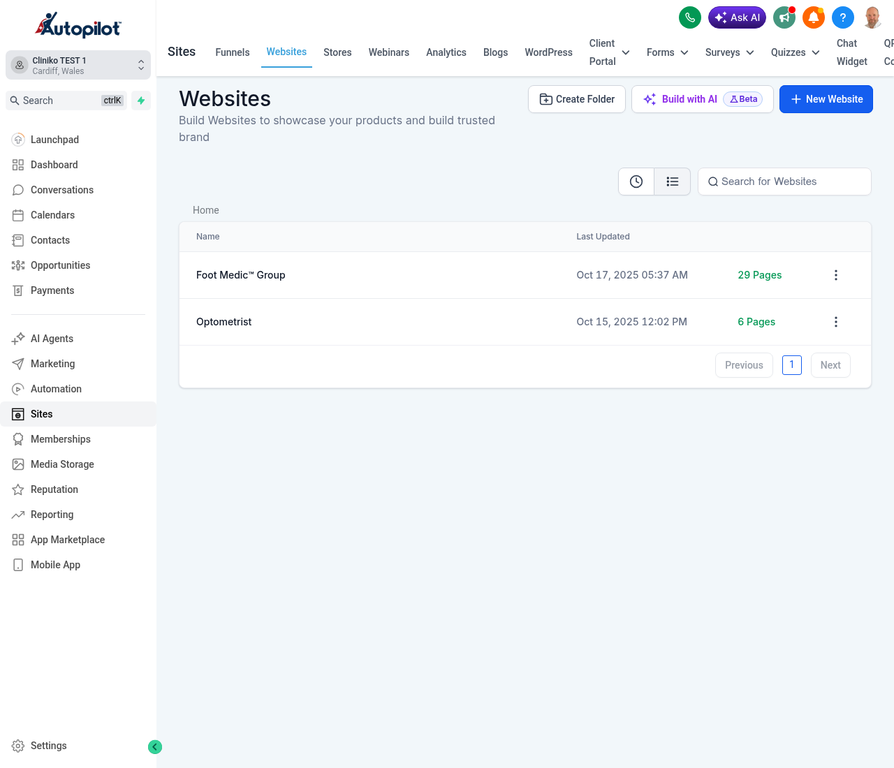
1.Log in to your Practice Autopilot account and navigate to your sub-account (e.g., Cliniko Trial 1).
2.In the left-hand menu, click on Sites.
3.Select the Websites tab at the top of the page.
4.Click the Build with AI button located in the top right corner of the screen.
Step 2: Configure the AI Website Builder
Once the page builder loads, the Ask AI panel will appear on the left side of the screen. This panel allows you to provide details about your clinic so the AI can generate a tailored homepage.
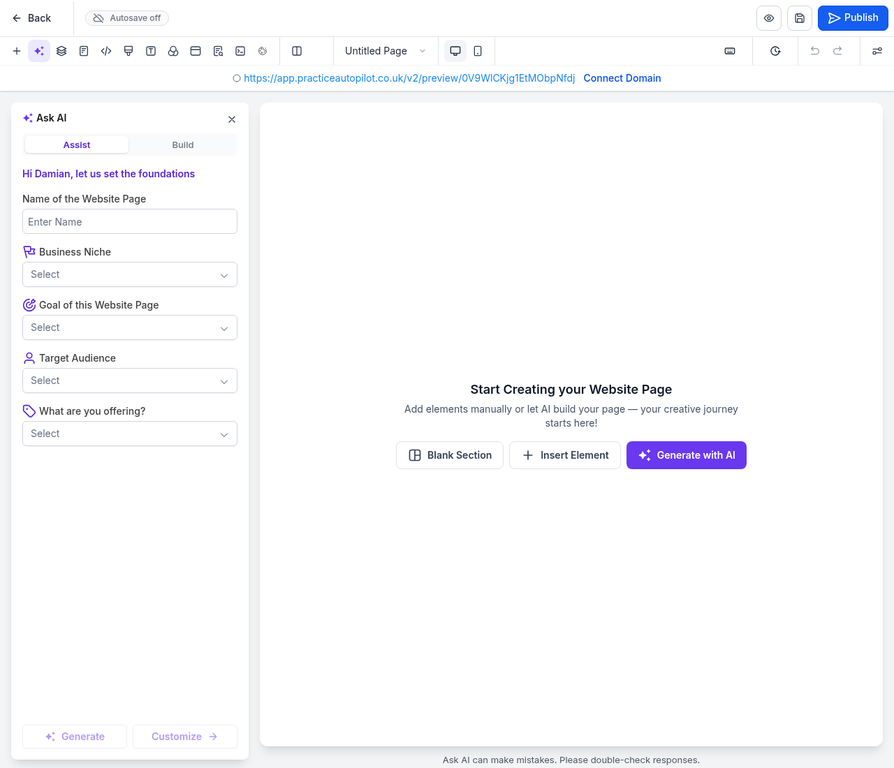
1. Enter the Website Name
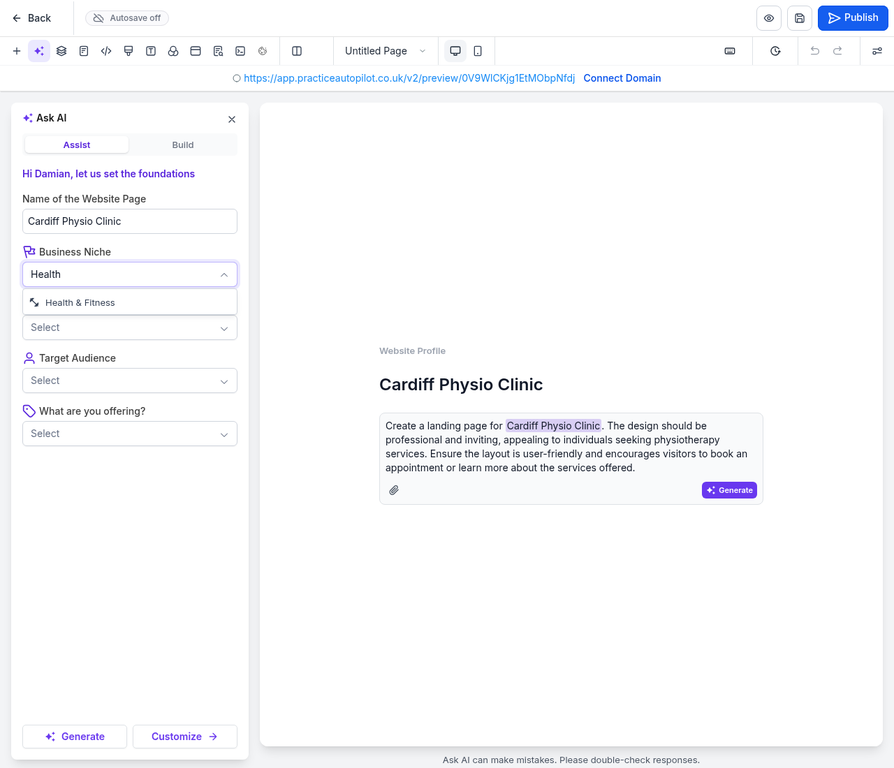
In the Name of the Website field, type the name of your clinic (e.g., “Cardiff Physio Clinic”).
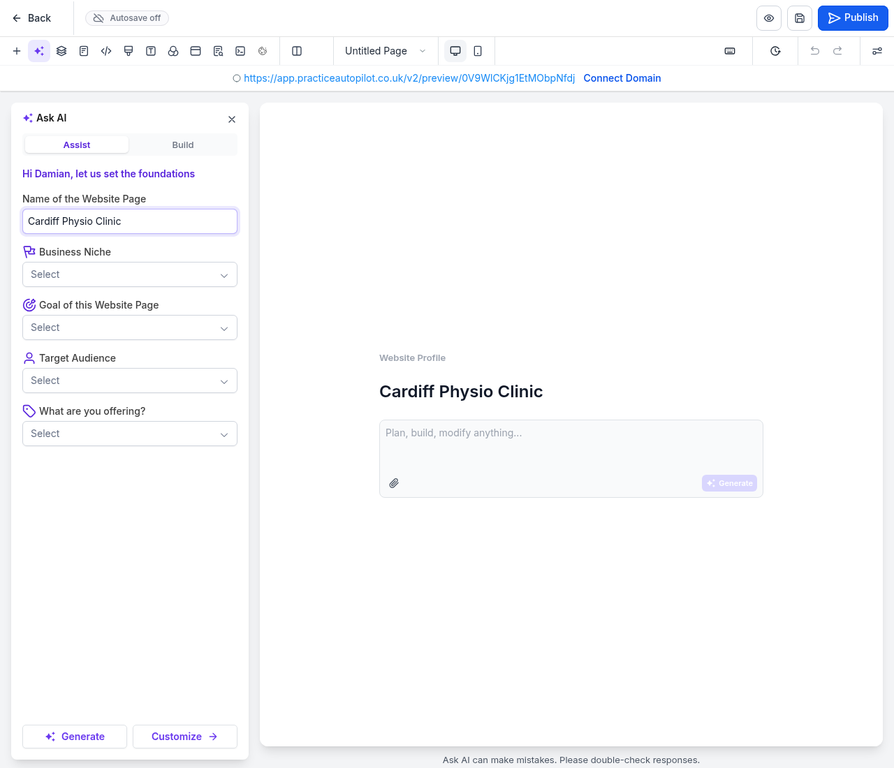
2. Select the Business Niche
Click the Business Niche dropdown menu. You can type “Health” to filter the options, then select Health & Fitness from the list.
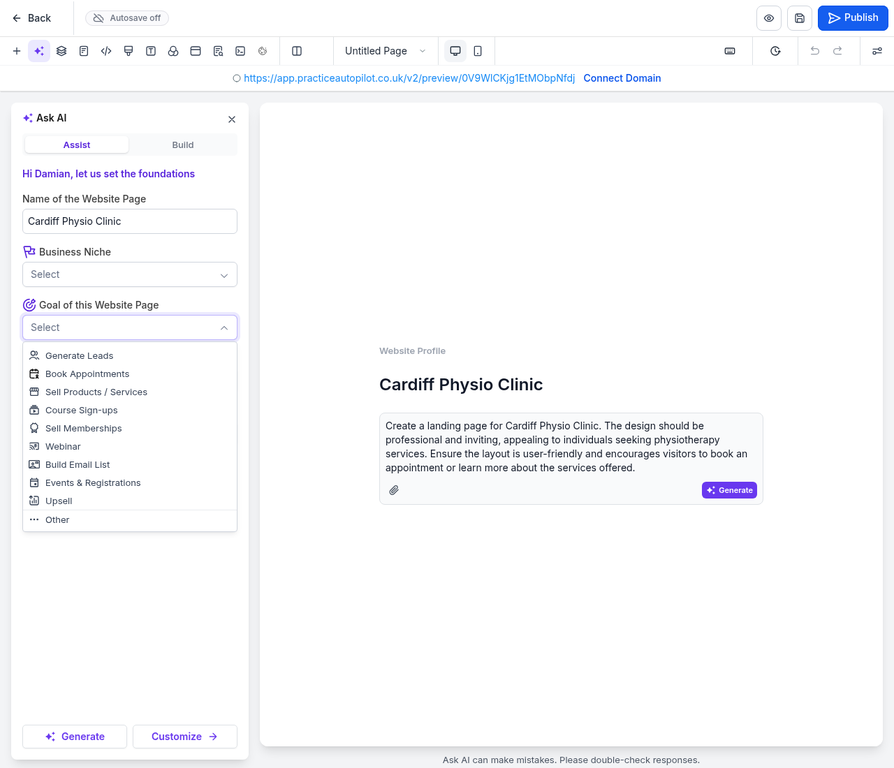
3. Choose the Goal of the Webpage
Click the Goal of this Webpage dropdown menu and select the primary objective for your site. For a physiotherapy clinic, Book Appointments is highly recommended.
Step 3: Generate the Website
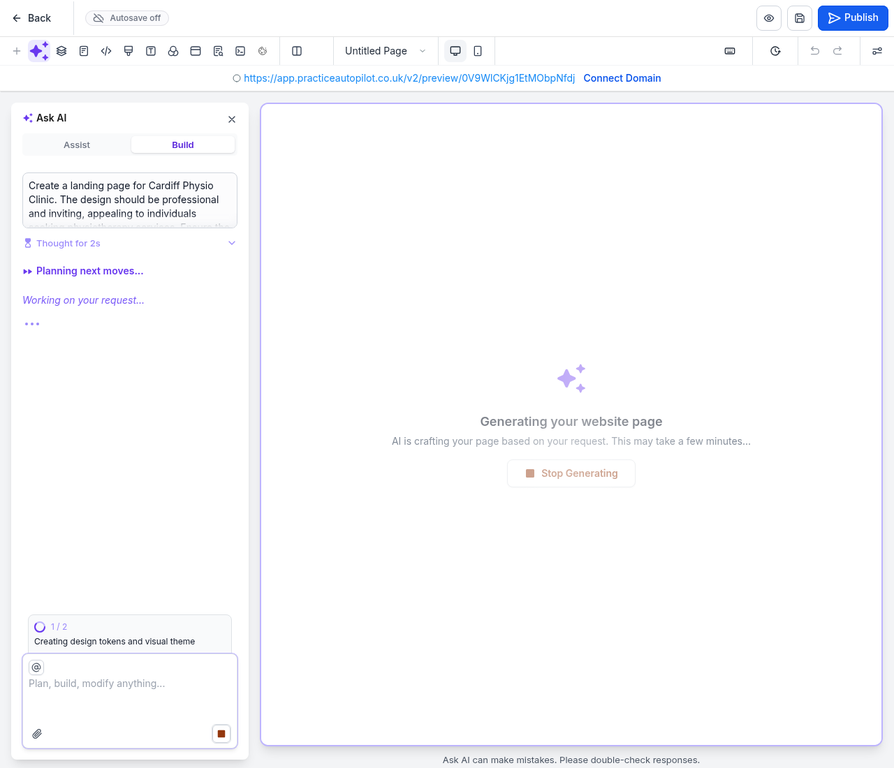
After filling in the required fields, the AI will automatically draft a prompt based on your inputs in the text box at the bottom of the panel.
1.Review the generated prompt to ensure it accurately reflects your clinic’s needs.
2.Click the Generate button to start the building process.
Step 4: Wait for AI Generation
The AI will begin constructing your homepage section by section. You can monitor its progress in the Ask AI panel, which will display the tasks it is currently completing (e.g., “Building Hero Section”, “Adding Services”).
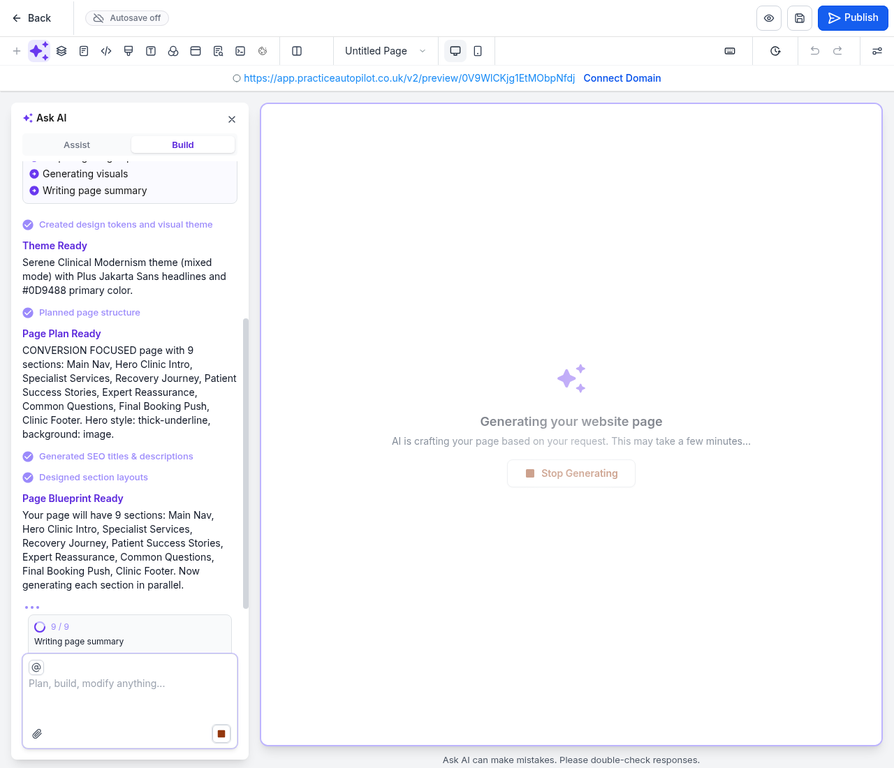
The process may take a few minutes as the AI generates copy, selects images, and formats the layout.
Step 5: Review and Customize the Generated Homepage
Once the AI has finished, the complete homepage will be rendered in the page builder canvas. If an error modal appears, simply click Cancel to close it.
You can now click on any element within the canvas to customize the text, images, or styling using the settings panel on the right.
Step 6: Preview Your New Homepage
To see how your website will look to visitors, click the Preview button (the eye icon) in the top navigation bar.
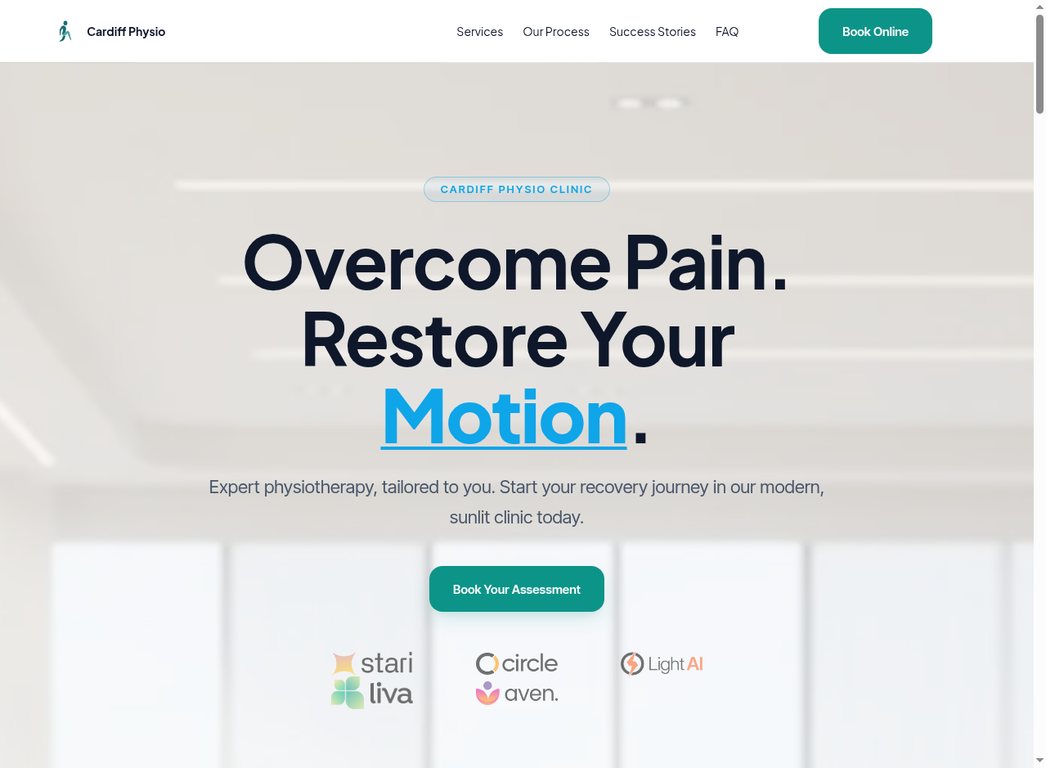
Scroll through the preview to review all the generated sections, such as the Services overview and the Footer.
Congratulations! You have successfully created a professional physiotherapy clinic homepage using the Build with AI feature. You can now continue to refine the content and publish your site when ready.