By following these steps, you can ensure that when your staff make outbound calls from the system, the recipient sees your official business number (Verified Caller ID) rather than the underlying system routing number.
Part 1: Navigating to the Phone System
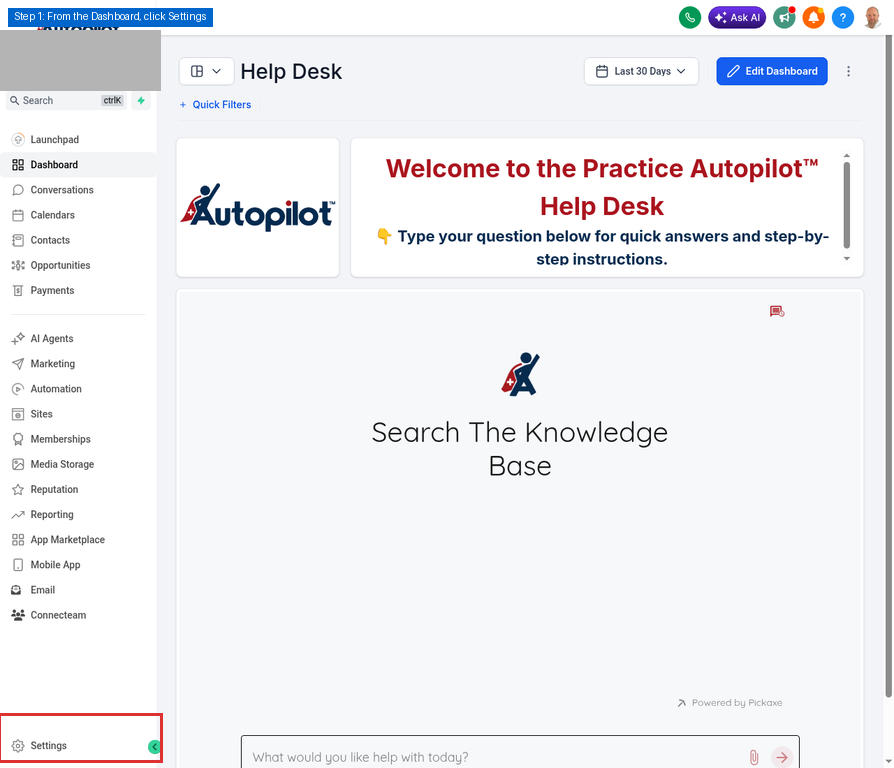
Step 1: Access Settings from the Dashboard
Log into your Practice Autopilot™ account. From the main dashboard, look at the bottom of the left-hand sidebar menu and click on Settings.
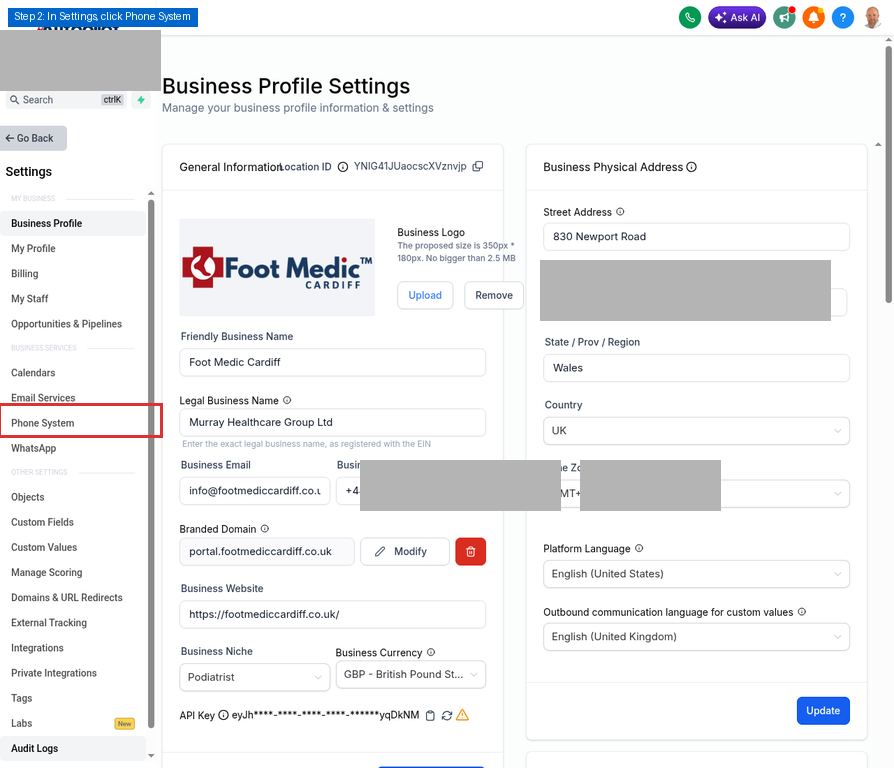
Step 2: Open the Phone System Menu
Once you are in the Settings area, scroll down the left-hand sidebar until you find the Phone System option under the “Business Services” section. Click on it to open your telephony configuration.
Part 2: Verifying Your Caller ID
Before you can mask outbound calls, you must ensure the number you want to display is added as a Verified Caller ID.
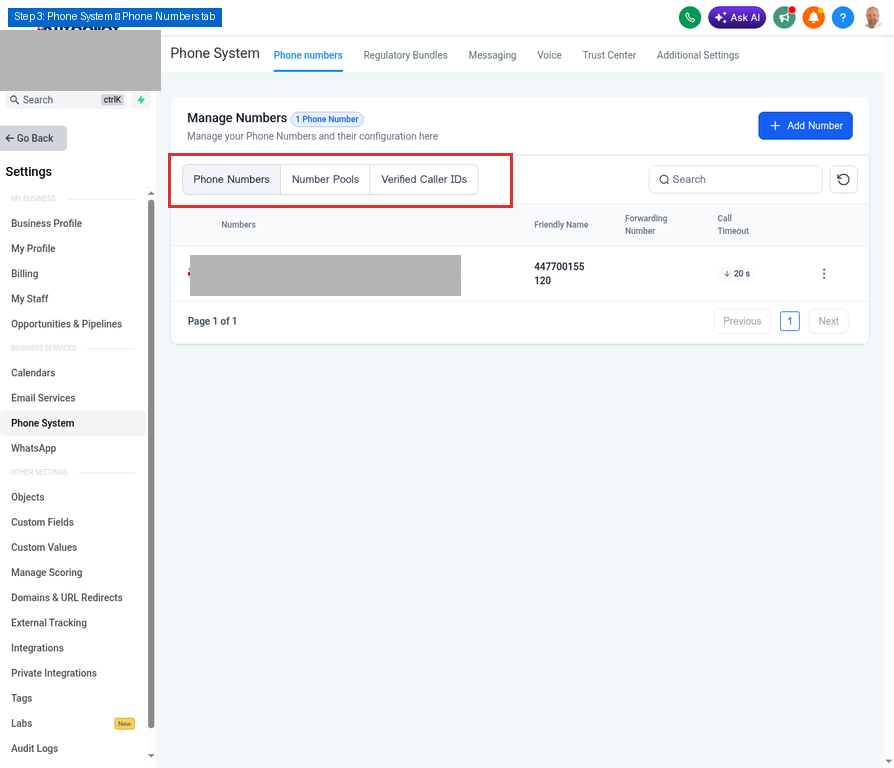
Step 3: View Phone Numbers
In the Phone System area, you will land on the Phone numbers tab by default. This tab shows the numbers currently active in your account.
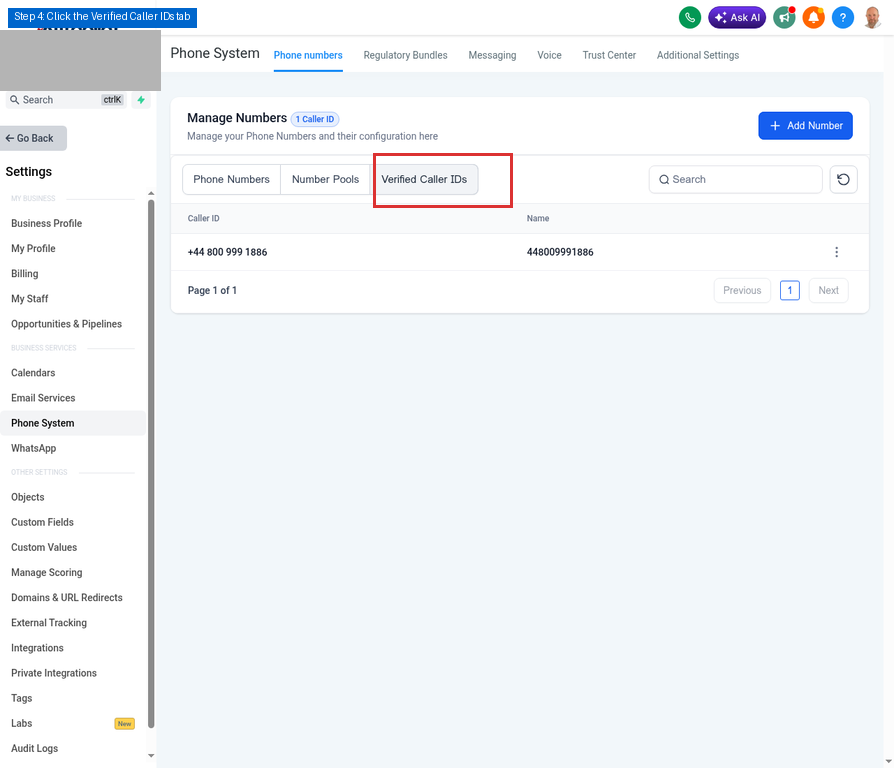
Step 4: Check Verified Caller IDs
Click on the Verified Caller IDs sub-tab. Here you can see the numbers that have been verified and are available to be used as your outbound Caller ID. If your desired number is not listed here, you will need to add and verify it first using the “+ Add Number” button.
Part 3: Configuring Outbound Call Masking
Now that your Caller ID is verified, you need to configure the system to use it for outbound calls.
Step 5: Set Outbound Call Preferences
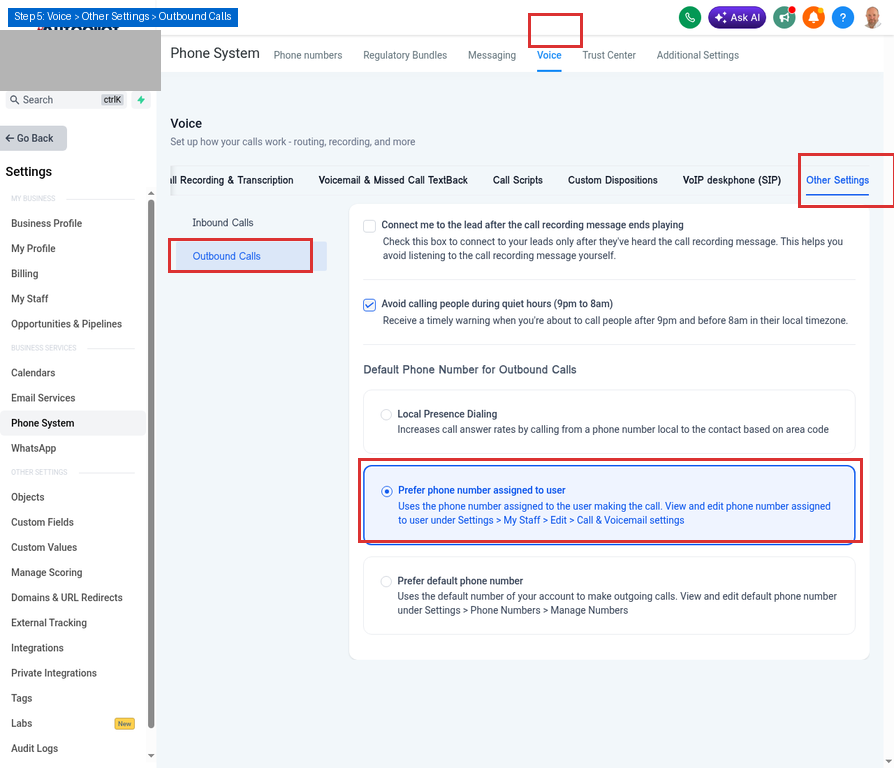
1.Click on the Voice tab in the top navigation menu of the Phone System page.
2.Click on the Other Settings sub-tab.
3.Select Outbound Calls from the left-side menu within this section.
4.Under the “Default Phone Number for Outbound Calls” section, select the option Prefer phone number assigned to user.
This setting tells the system to look at the individual staff member’s profile to determine which number to display when they make a call.
Part 4: Assigning the Caller ID to Staff Members
The final step is to assign the Verified Caller ID to the specific users who will be making calls.
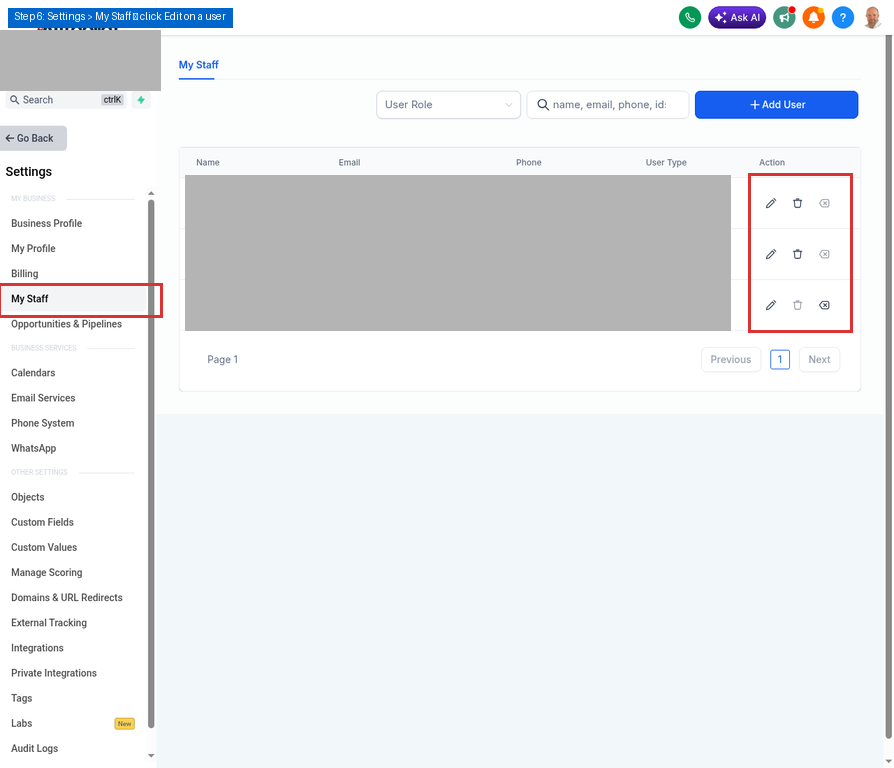
Step 6: Navigate to My Staff
Go back to the main Settings sidebar on the left and click on My Staff. This will display a list of all users in your sub-account. Locate the user you want to configure and click the Edit icon (pencil symbol) next to their name.
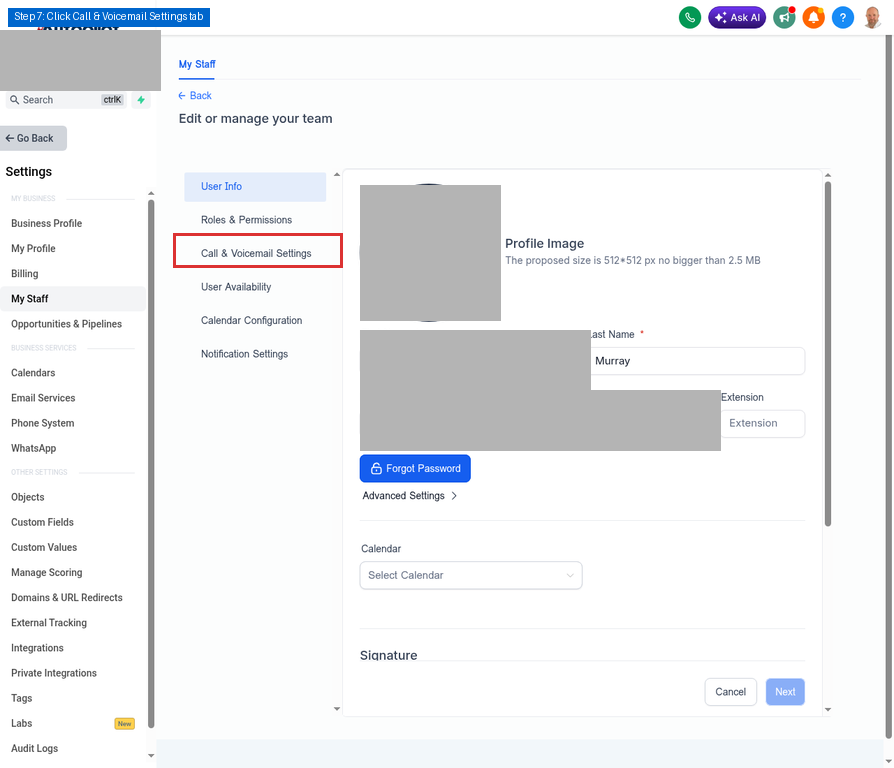
Step 7: Open Call & Voicemail Settings
In the Edit User window, click on the Call & Voicemail Settings tab on the left side of the modal.
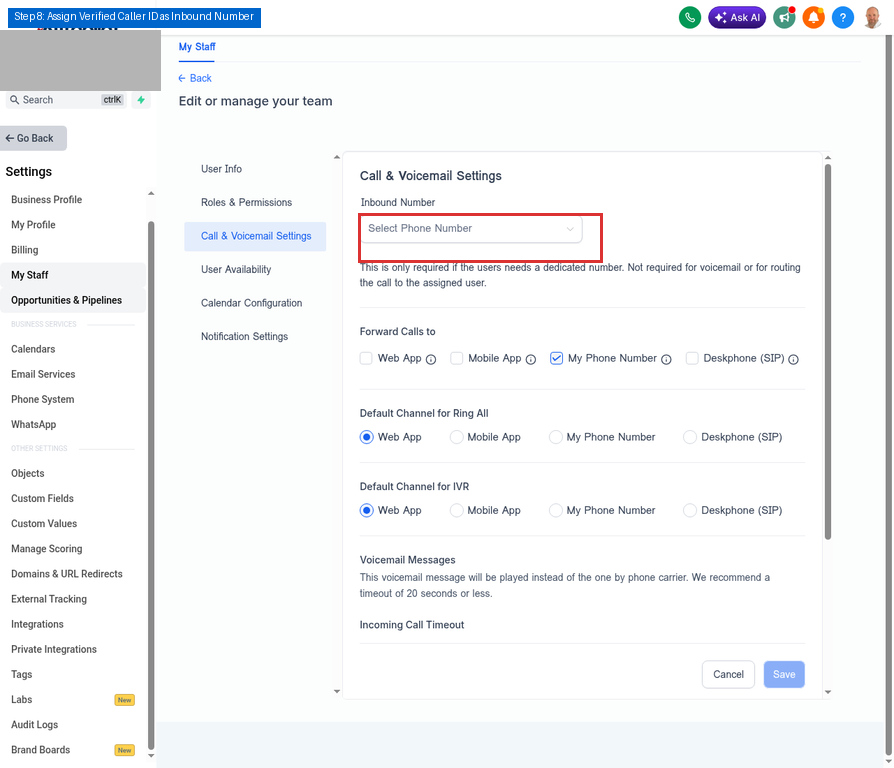
Step 8: Assign the Inbound Number
In the Call & Voicemail Settings panel, locate the Inbound Number dropdown menu. Click this dropdown and select your Verified Caller ID from the list.
Note: Even though this field is labelled “Inbound Number”, because you selected “Prefer phone number assigned to user” in Step 5, this is the number that will now be used to mask their outbound calls.
Finally, click the Save button at the bottom right to apply the changes.
Congratulations! You have successfully configured outbound call masking. When this user makes an outbound call through Practice Autopilot™, the recipient will now see the Verified Caller ID you assigned.